
Stock item list screen
osFinancials5 features a robust inventory system that allows users to store an unlimited number of stock items (inventory items) or products in the stock ledger. Each stock item has specific details associated with it. The inventory system allows for the structuring of stock items into up to two (2) reporting groups, which aids in data organisation and analysis.
|
|
osFinancials also offers eleven (11) different stock item types to choose from, providing flexibility in managing various types of products. When processing documents for debtors or creditors or selecting stock items for reports, the stock item lookup function is utilised to choose the appropriate products. The selected stock item's details are then used to calculate the selling and cost prices based on the specified quantity, and this information is displayed on the respective documents and reports. |

Overall, osFinancials5's inventory system offers a comprehensive solution for managing and tracking stock items (inventory items) or products, allowing for efficient inventory tracking, accurate cost and selling price calculation, and streamlined document and report generation.
The Stock items feature allows you to manage your inventory items or products. You have the ability to create new stock items or products, edit existing ones, delete or disable items as needed. The feature provides filtering and search options to help you locate specific items.
Within each item, you can make changes to the stock code, description, extra description, quantities, reorder levels and more. You can also manage various settings on the Ledger tab and various activities on the Document groups, Transactions, Image, Multi-group, and Backorders tabs.
To access Stock items:
- On the Default ribbon, select Stock items (F12).
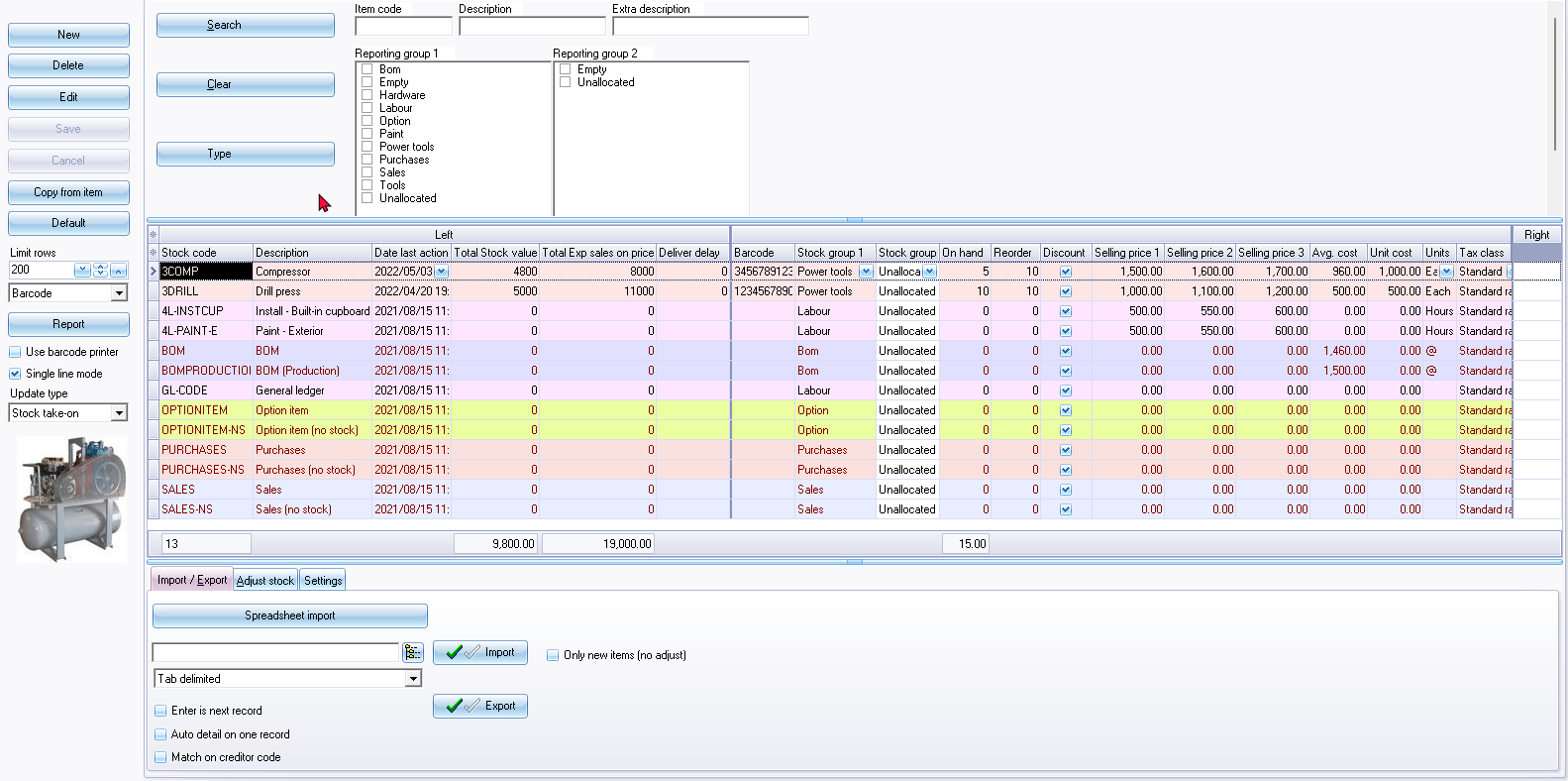
- Buttons – The following buttons are available:
|
|
You may also double click on a selected stock item. |

- Save – Save any changes to a stock item.
- Cancel – Cancel will revert to the previous values. Any changes will not be saved.
- Copy from item – This will create an exact copy of a selected stock item. You only need to enter the Stock code and change / edit the necessary fields.
|
|
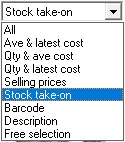
You may also select the stock item type. The fields that are not applicable to a selected stock item type, will be disabled / enabled. |
- Default / Advanced mode – This will display the Export / Import, Adjust stock and Settings tabs. Clicking on the Default button, the button's caption will change to display Advanced mode. This will hide the Export / Import, Adjust stock and Settings tabs. In the Advanced mode, you may enter / edit data (values) of stock items (like you would in a spreadsheet).
- Limit rows - The default is "200" records to be listed displayed on this screen. If necessary, you may change that.
- Reports – Prints the selected report type for the selected stock item(s) only. If you need to include all items, click on the Report button.
|
|
These barcodes or the Yagoda barcodes may also be printed from the Reports → Stock → Print labels (Reports ribbon). |
|
|
These reports are designed using the Reportman. These reports are located in the “...\plug_ins\reports\REPORTS\STOCK” directory. |
|
|
There are two (2) options to print these reports, i.e.:
|
- Use barcode printer – Select this option if you have a barcode printer configured and setup on your system; and you need to print the Barcodes (i.e. Barcode or Yagoda barcode) report type from the list.
- Single line mode - This option has three (3) basic settings:
- If this field is selected (ticked) and the Advanced mode (Export / Import, Adjust stock and Settings tabs displayed), each stock item record will be listed in a single row.
- If this field is not selected (not ticked) and the Advanced mode (Export / Import, Adjust stock and Settings tabs displayed), a fixed right pane column (similar to the left pane on which the stock code and date last action columns are by default displayed) will be added. You may drag any column between the left and right panes to be added.
- If this field is selected (ticked) and the Default mode (Export / Import, Adjust stock and Settings tabs not displayed), each stock item record will be listed in a single row.
- If this field is not selected (not ticked) and the Advanced mode (Export / Import, Adjust stock and Settings tabs displayed), the fields for stock item records will be grouped in some columns (e.g. Units, Stock group1 / 2, Stock item type, Cost centres, etc.).
- Update type - The following options are available to change (group) the columns:
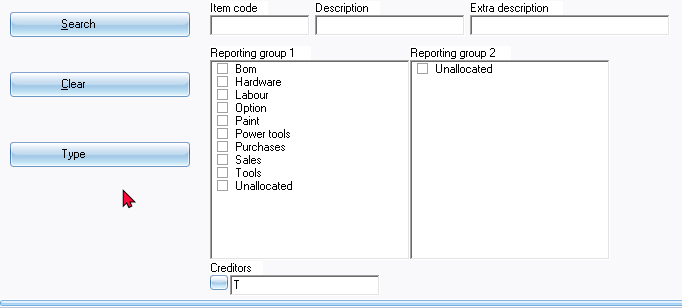
- Search filter / options – Filter by entering the Item Code, Description or Extra description and / or by selecting (ticking) the Reporting group 1 / 2. If you click on the Search button, the only those stock items that matches your search / filter criteria will be listed. If you click on the Type button, you may select Item Code, Description, Extra description, Reporting group 1, Reporting group 2 or Creditor.
|
|
If the "Creditor" option is selected in the "Type" field, you may select the Creditor account on the Lookup. This will list those stock items which are linked to the creditor (supplier / vendor) account in the "Preferred supplier 1" (Default Supplier 1) field of a Stock item. |
- Context menu – The following options are available:
- Print single item – Prints the selected report type for the selected stock item(s) only. If you need to include all items, click on the Report button.
- Copy – The following options to process Supplier 1 and Purchase Sales Stock Tax are available:
- Copy from / init and Paste to / perform on selected rows:
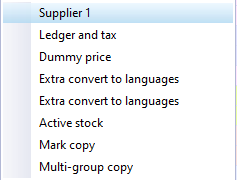
- Stock item - Similar than the Copy from item button. – This will create an exact copy of a selected stock item. You only need to enter the Stock code and change / edit the necessary fields.
- Reporting group 1 - Change the reporting group of a stock item, if Reporting group 1 was set for Stock items (as added in Setup → Groups - Stock group 1 on the Setup ribbon).
|
|
The colours of the rows (list of stock items) will be changed, if set in Reporting group 1. |
- Reporting group 2 – Change the reporting group of a document, if Reporting group 2 was set for Stock items (as added in Setup → Groups - Stock group 2 on the Setup ribbon).
- Mass check - This option will run a check on all stock items. The stock item form will be automatically opened and closed for each stock item.
|
|
If the BOM (Production) stock item type is selected, the following context menu options, is available:
|
- Grid totals - This will display the line count (number of records in rows / stock items) that is available on the list. The number of records will indicate the number of records that matches your filter / search criteria.