
Stock items - Document groups tab
This will list all sales documents (i.e. Invoices, Point-of-Sale Invoices, Credit notes and Quotes) as well as any purchase documents (Purchases, Supplier returns and Orders) on which the stock item was selected.
These will only include documents, which have been updated (posted) to the ledger. Only Quotes which have been converted to Invoices and Orders which have been converted to Purchase documents, will be listed.

|
|
The document numbers for Invoices, Credit notes, Quotes, Purchases, Supplier returns and Orders, as prefixed in the Documents setup (Setup ribbon), makes it easy to identify the document type. In addition to these standard document numbers, the following documents may be included:
|

|
|
You may double-click on a selected document to print the selected document. |

|
|
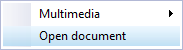
You may use the context menu (right-click) to open selected document(s).
Unposted document = 0. This will open the unposted document form, which may be viewed and may be edited. Posted documents = 1. This will open the posted document form, which may be viewed but cannot be edited. |
|
|
You may click on the column headings to change the sort sequence from the ascending to the descending sequence. You may also click and drag any of the column headings to the left or right to change the sequence in which the columns are to be displayed. |
The columns are as follows:
- Date – The date on which the documents are generated and updated (posted) to the ledger.
- Items – This displays the number of items quantities as specified in the Quantity Ship field of document lines.
- Document no. - The document number as automatically generated.
|
|
If document numbers were not prefixed for each document type, with IN, CR, QU, PU, SR and OR, it would virtually be impossible to identify the correct document type. |
- Description – The description (name) of the Stock item.
- Price – The price is as follows:
- Cost price of each item (Exclusive of Input Tax) for purchase documents (i.e. Purchases, Supplier returns and Orders).
- Selling price of each item (Exclusive of Output Tax) for sales documents (i.e. Invoices, Point-of-Sale Invoices and Credit notes).
- Discount – The discount percentage as entered in the discount column for the stock item.
- Unit Price – The price is as follows:
- Cost price of each item (Exclusive of Input Tax) for purchase documents (i.e. Purchases, Supplier returns and Orders).
- Selling price of each item (Exclusive of Output Tax) for sales documents (i.e. Invoices, Point-of-Sale Invoices and Credit notes).The cost price of each item (Exclusive of Input Tax).
- Exclusive – The selling price (for sales documents) exclusive of Output Tax or the purchase price (for purchase documents) exclusive of Input Tax for the number of items (unit price x quantity) minus the discount amount.
- Inclusive - The selling price (for sales documents) inclusive of Output Tax or the purchase price (for purchase documents) inclusive of Input Tax for the number of items (unit price x quantity) minus the discount amount.
- Posted - 1 = Posted and Unposted = 0.
|
|
You may use the context menu (right-click) to open selected document(s). |
|
|
You may use the context menu (right-click) to open selected document(s).
Unposted document = 0. This will open the unposted document form, which may be viewed and may be edited. Posted documents = 1. This will open the posted document form, which may be viewed but cannot be edited. |
|
|
If document numbers were not prefixed for each document type, with IN, CR, PU and SR it would virtually be impossible to identify the correct document type. |
|
|
Selling prices 1 / 2 / 3 as selected on sales documents. If not selected on sales documents, these will automatically be used from the following settings:
|