
Filter options (Stock)
The osFinancials5 grid has a powerful and user-friendly filtering and sorting system that makes it quicker and easier than other methods. With just a few mouse clicks, you can group, sort, and filter any column(s) of data on most screens in a Set of Books. This feature is very useful and efficient for managing and analysing data.
Type

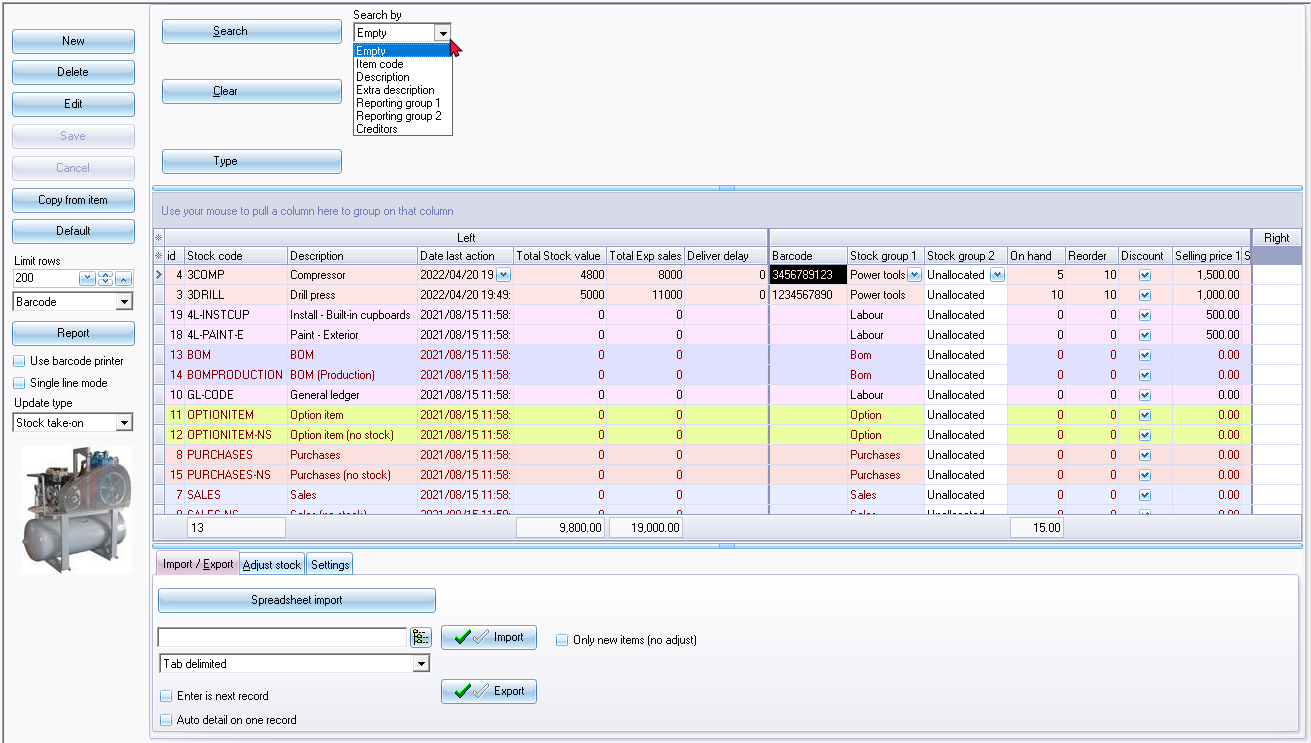
You may enter or search for a stock item using the following options:
- Item code - enter a valid item code.
- Description - Enter a description or part of the description.
- Extra description - Enter a extra description or part of the extra description.
- Reporting group 1 / 2 - All stock item groups as set in Groups (Setup ribbon) will be listed. Select (tick) to list only those stock items linked to a selected stock reporting group.
- Creditor - If preferred suppliers is selected on stock items, you may lookup a creditor to view only those stock items linked to a supplier.
If you click on the Type button, you may select Item code, Descriptions, Extra description, Reporting group 1, Reporting group 2 or Creditors.
Column headings
All the data for each of your stock items are listed in columns. To view change the sequence in which the data is displayed, you may:
- Scroll bars - Scroll to the right or to the left on the horizontal scroll bar to view the information.
- Sequence of rows - Click on any of the column headings to change the sorting sequence of the stock items listed in the descending or ascending sequence.
- Sequence of columns - Click on a column heading and drag it to the right or to the left to change the sequence in which the columns need to be displayed.
|
|
The "Line count" will show the number of records (stock items) that matches your search or filter criteria. |

|
|
You may also search for stock items in the "Investigator" (Search on the Default ribbon). |
|
|
The column headings are grouped into three (3) bands:
|