Stock - Print labels (Barcodes) (Reports menu)
You may print the following two (2) barcodes for stock items.
- Barcode - Displays the stock code and stock description and the barcode.
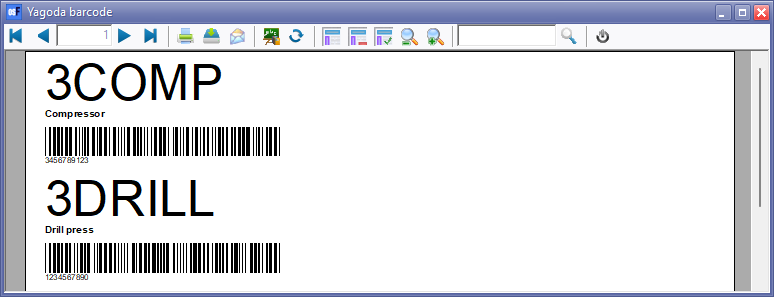
- Yagoda barcode - Displays the stock code, stock description and barcode as well as the selling price (exclusive of Tax (VAT/GST/Sales Tax)).
Print labels options
To print Barcodes for Stock items:
- On the Reports ribbon, select Reports → Stock → Print labels.
- Select the "Barcode" (default) or "Yagoda barcode".

- Select the following:
- From... To... - Select the stock code(s) to print barcodes for.
- Sequence - Select "Stock code or Stock description" to sort the order in which you need to print the labels.
- Reporting group 1 - This is optional and by default not selected (not ticked). You may select (tick) the reporting group(s) to include in the report.
- Click on the OK button.
Printed : Barcode labels
An example of the "Barcode", is as follows:

Printed : Yagoda barcode labels
An example of the "Yagoda barcode", is as follows: