
System settings - Default app for csv file types
Open saved Export.txt files in your system's app (program) associated with the CSV (Comma Separated Values) file type
The Export button on the following features will open the saved "Export.txt" text file in your system's app (program) associated with the CSV (Comma Separated Values) file type:
- Ledger analyser 1 - Trial balance, Income statement, Balance sheet, Standard column balances (column view of the Trial balance, Income statement and Balance sheet in one report), Budget vs actual, This year vs last year as well as six (6) report types for Column balances. which cannot be printed, but exported to a spreadsheet only.
- T-Account viewer - In addition to launching the T-Account viewer from the Ledger analyser 1 / Ledger analyser 2, on the Reports ribbon; the T-Account viewer may also be accessed on the following options on the Default ribbon:
- Search - Investigator - Account or Batch type searched items.
- Debtors - Transactions tab / Creditors - Transactions tab - Click on the Show transactions button.
- Open item link - Totals tab and Transactions tab or a selected open item account.
- Debtors - Export button on the Debtors list screen - You may enter the File name with a *.txt file type extension.
- Creditors - Export button on the Creditors list screen - You may enter the File name with a *.txt file type extension.
- Documents - Export button on the Documents list screen - This will launch the "Save As" screen with the default Export.csv file type.
If you click on Export buttons on various screens, the "Save As" screen will be launched to save a comma separated value text file, with the default "Export.txt" file name.
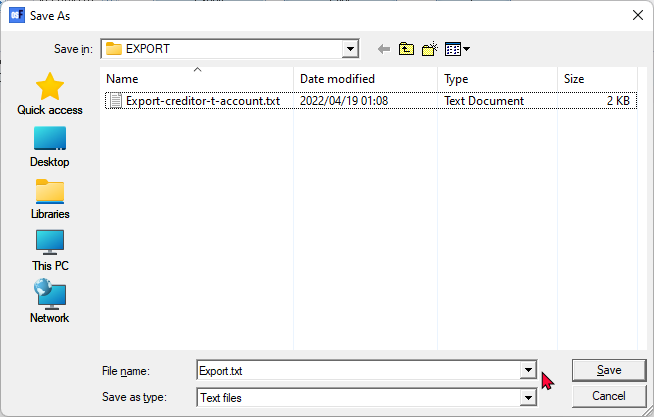
Once you have saved the "Export.txt" file with your own file name, the Exported file will, by default open in your system's default app associated with csv files.
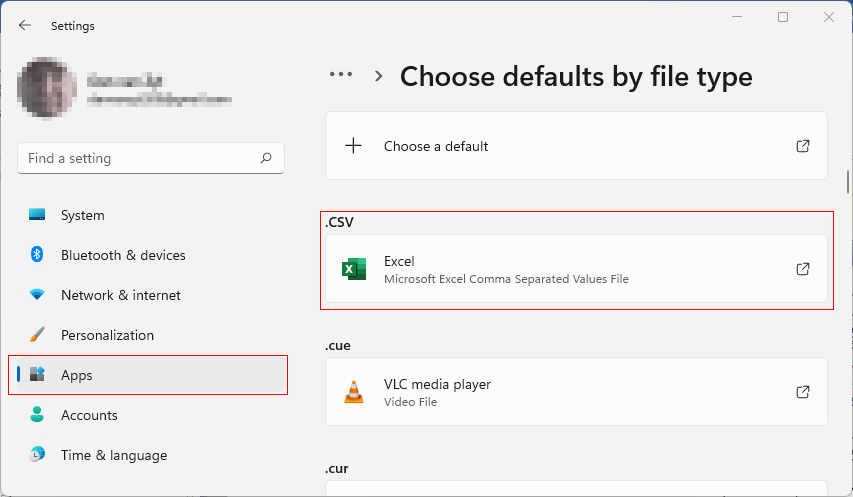
Open saved Export.txt files in another app (program) for CSV (Comma Separated Values) file type
If you wish to open saved Export.txt files in another app (program) for CSV (Comma Separated Values) file type, than Microsoft Excel, you may use the spreadsheet components of other apps (programs) e.g. LibreOffice, OpenOffice or UltraOffice installed on your system.
To do this, select the saved Export.txt file and right click on LibreOffice Calc.
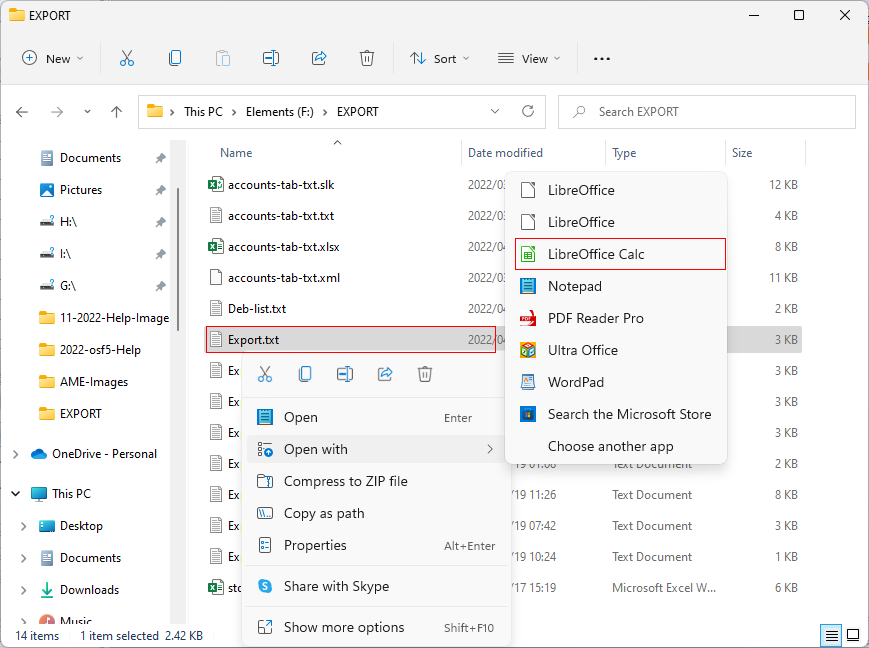
To open a Export.txt file in LibreOffice, it may, by default, open the saved Export.txt file in LibreOffice Writer (Word processing) component instead of the Spreadsheet component LibreOffice Calc.
To add LibreOffice Calc to the Open with > context menu, you need to select Choose another app on the context menu.
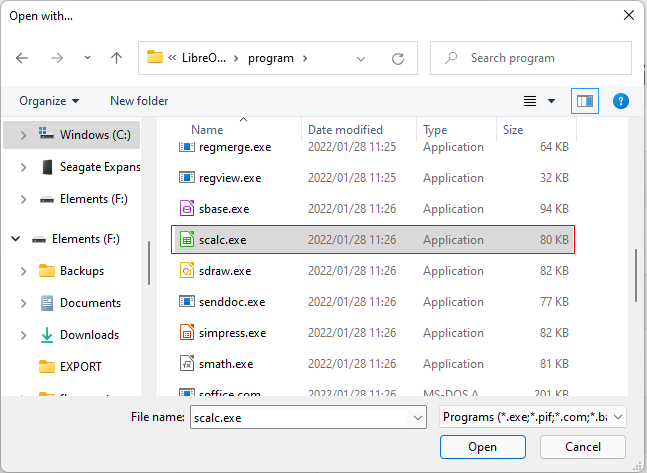
Go to Look for another app on this PC. On the "Open with..." screen, browse to where your preferred app is installed. In this example, LibreOffice install folder is selected.
Go to the program folder and select scalc.exe.
Click Open button and the app will be added to the Open with ... context menu of your system's File Explorer.
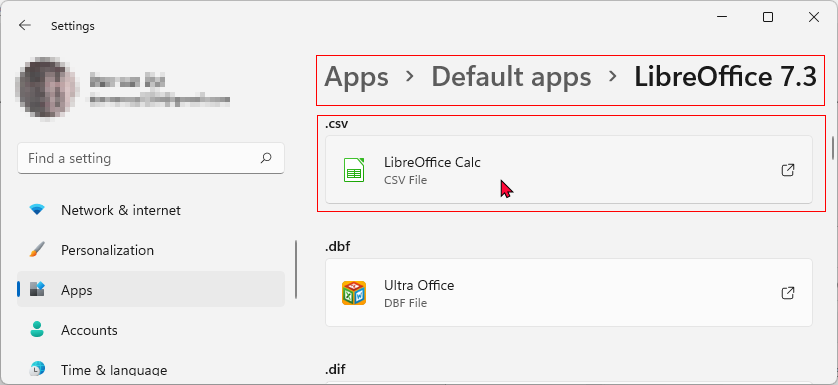
Opening a saved Export.txt file in LibreOffice Calc will display the "Text Import - {Export.txt} or [your file name.txt].
You may need to check and configure the options for the Comma Separated Values file.
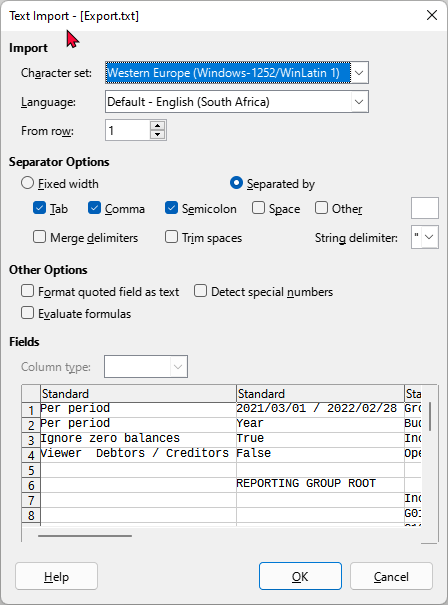
When you click OK, the file will be opened in a spreadsheet.