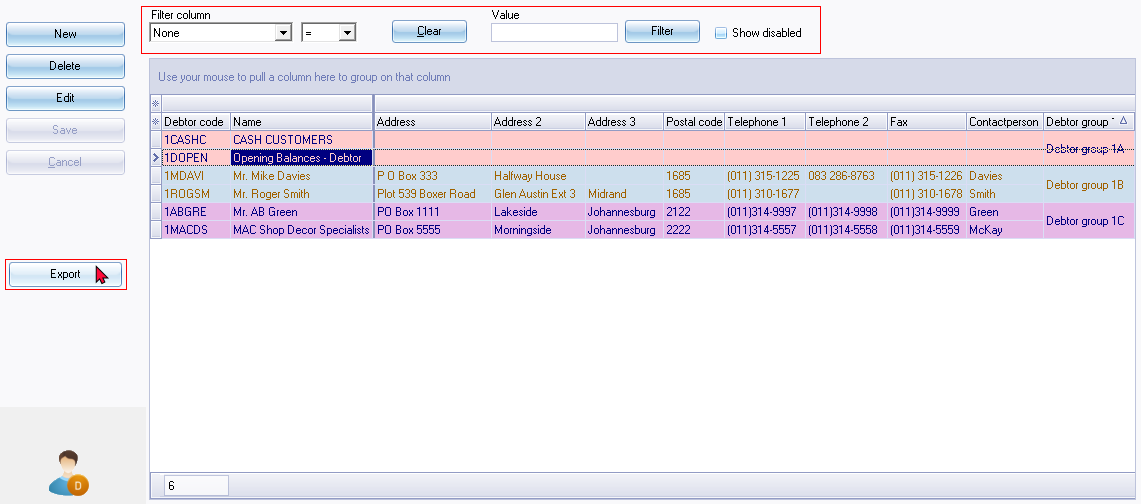
Export Debtor accounts - Export grid
The Export button of the sidebar of the "Debtor accounts" list screen, will create a text file (tab delimited), which will open in your system's default Microsoft Excel (if installed on your system).
Export options
To export debtor (customer / client) accounts:
On Debtors (Default ribbon).
|
|
Select the Filter and search options in the Filter column and click on the Filter button to include only those filter criteria to be included in the Export file. |

|
|
By default, the export file will include all the debtor (customer / client) accounts (excluding disabled accounts). To include disabled debtor (customer / client) accounts in the export file, you need to select the "Show disabled" option, and click on the Filter button. |

Click on the Export button.
The "Save As" screen is displayed:
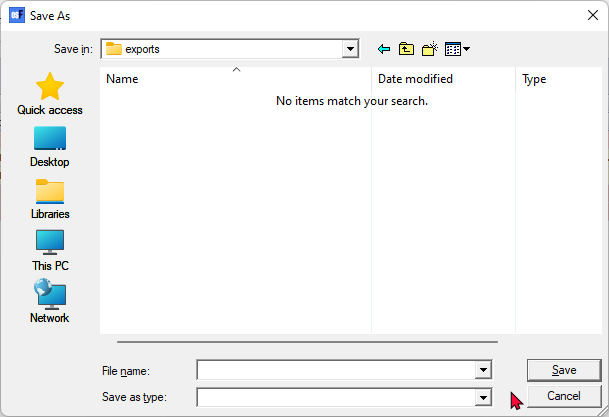
Enter a name to save the file.
|
|
"Save as type :" options will be empty. A text (*.txt) file type will automatically be created with your file name. |
|
|
If you do not enter a unique name in the selected folder, and save the export.txt file name, you may replace existing (previously exported) files. If an existing exported file is opened, and you are trying to save a export file with the same name, a similar error message as the following will be displayed: Cannot create file "F:\exports\your-file-name.txt". The process cannot access the file because it is being used by another process. |

Click on the Save button.
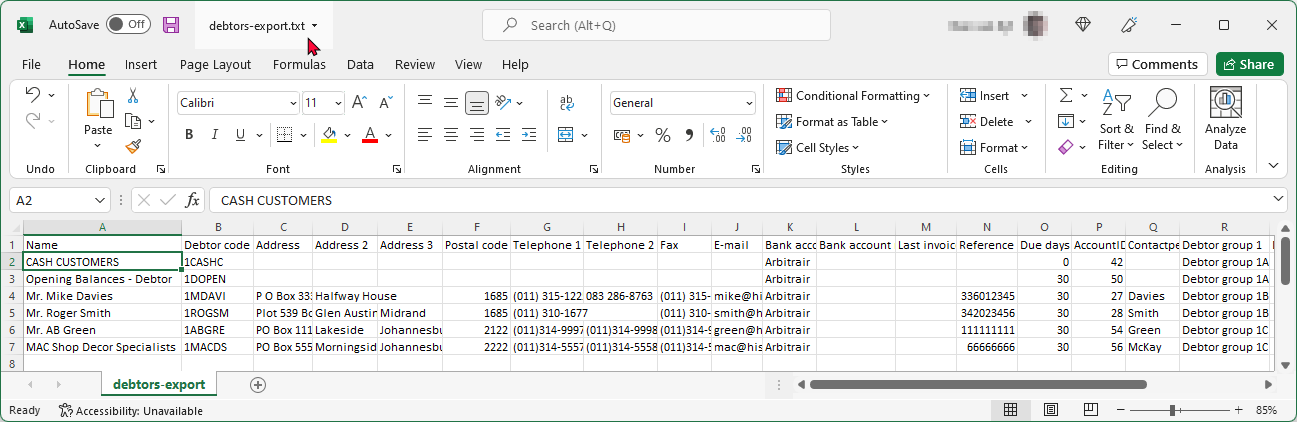
Example : Exported text file - Microsoft Excel
In this example, the exported file is automatically opened in "Microsoft Excel":
|
|
Only those accounts matching your filter and search criteria in the Filter column options, will be included in the export file. For example, if the postal code (zip code), is specified, only those accounts for the specific postal code will be included in the export file. |
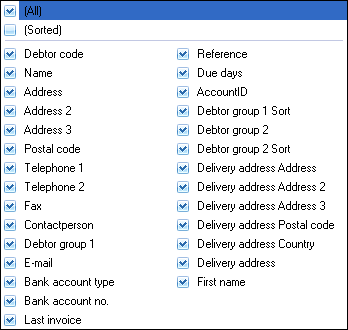
All the columns will be exported in the default sequence.
Example : Exported text file - Notepad
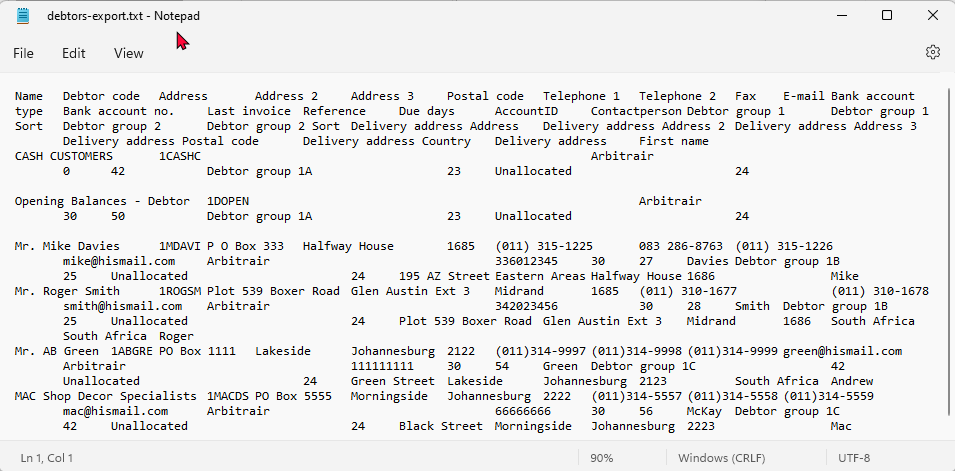
An example, of the exported text file file opened in your systems default program associated with *.txt files (e.g. "Notepad") is as follows:
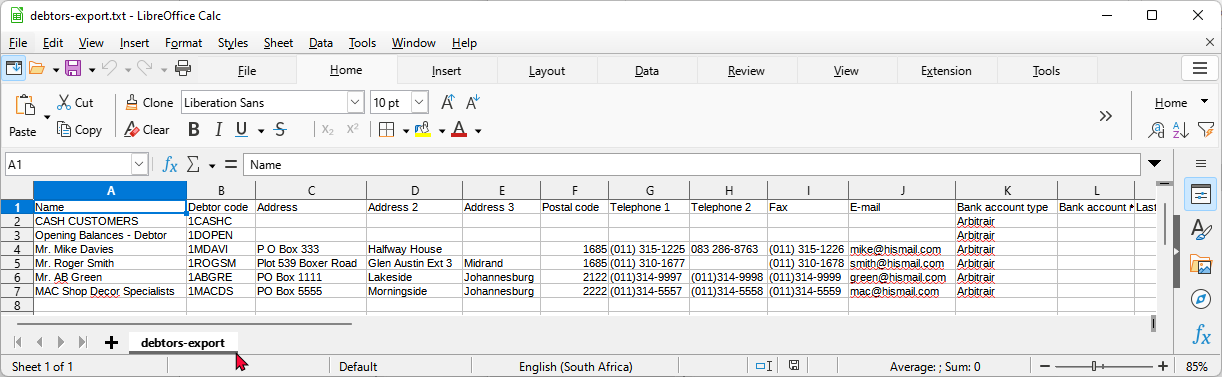
Example : Exported text file - LibreOffice Calc
If the exported text file does not open in Microsoft Excel; or if you do not have Microsoft Excel installed on your system, you may open the file with OpenOffice, LibreOffice, Ultra Office, etc.
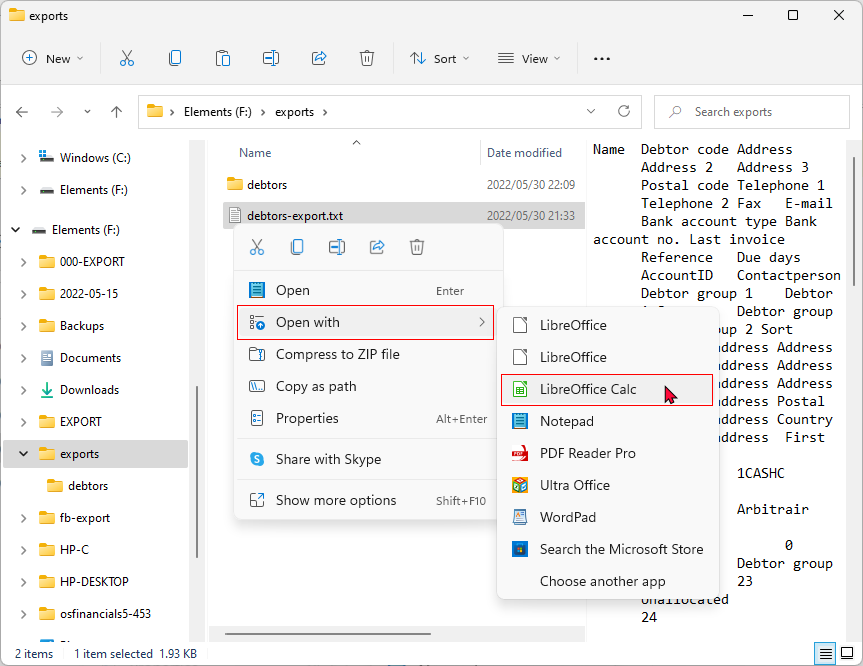
Locate the exported text file in your System's File Explorer.
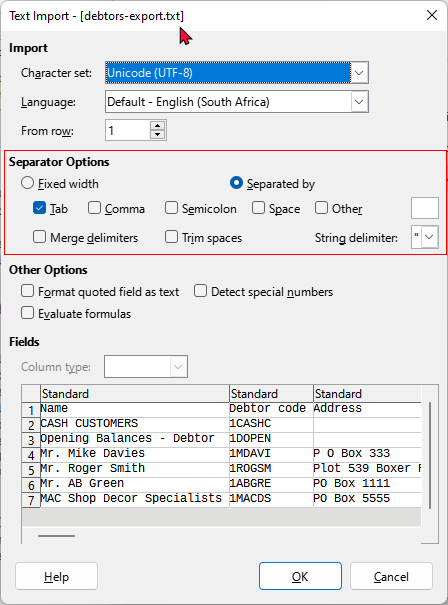
In this example, Open with > LibreOffice Calc is selected. The "Text Import" screen is selected.
|
|
If LibreOffice and not LibreOffice Calc is selected, the exported text file will open in LibreOffice Writer as a text file. |
|
|
Separator options - Separated by Tab is the only option which should be selected for this exported text file. This may differ for some other report types. |