Ledger analyser - Trial balance
A Trial balance is a simple list of the debit and credit account balances in the general ledger. A Trial balance can be generated at any time, once the transactions are posted to the ledger accounts. It checks the arithmetic accuracy of the double entry accounting system as at a specific date. The total of all the debit balances must be equal to the total of credit balances.
The Trial balance will list all the debit and credit balances of all the Accounts (Income, Expenses, Assets, Capital and Liabilities) contained in osFinancials5 for a selected period, or as at a specified period. osFinancials5 stores all your account balances for up to two financial years. You may at any time generate a Trial balance for any accounting period for the current (This Year) and the previous financial year (Last Year), provided that you have posted (updated) transactions to the ledger accounts.
Types of Trial balances
The following Trial balances may be generated at different stages in the accounting process:
- Pre-adjustment Trial balance - The debit and credit balances are listed, before any adjustments are made in the accounts, and it normally includes all balances of capital, assets, liabilities, income and expense accounts for any selected accounting period. For example, you may generate this Trial balance, after all your normal transactions in batches and documents have been updated and posted to the ledger. This may include any correction of errors on a general journal to correct any incorrect posted transactions.
- Post-adjustment Trial balance - The debit and credit balances are listed, after the final adjustments are made in the accounts, and it normally includes all balances of capital, assets, liabilities, income and expense accounts.
- Final Trial balance - The debit and credit balances are listed, after the final closing entries are done, when you have completed the Year-end process on the Do year end option (Setup ribbon). This Trial balance will not include income and expense accounts, but only the calculated net profit or loss in the Retained earnings ledger account. All nominal accounts (income and expense accounts) are closed off at the end of a financial year, and no balances are brought down to the new financial year.
|
|
This will list all accounts in the chart of accounts reported both in the Income statement ( |

This will list the following account types:
- Income statement -
 Income /
  Expense accounts.
  Balance sheet - Assets, Liabilities and Capital. It includes the following account types, i.e.:
  Bank accounts.
  Tax accounts.
  Retained income / earnings.
  Creditor's control account.
  Debtor's control account.
|
|
This report only includes batch and document transactions which are posted. Unposted batches and documents will be NOT be included in this report. To view a list of unposted batches and documents, which is not updated to the ledger, go to Input → Checking unposted items (Default ribbon). |

Trial balance options
To print a Trial balance:
- On the Reports ribbon, select Ledger analyser 1 or Ledger analyser 2.
- Select the “Trial balance” report type.
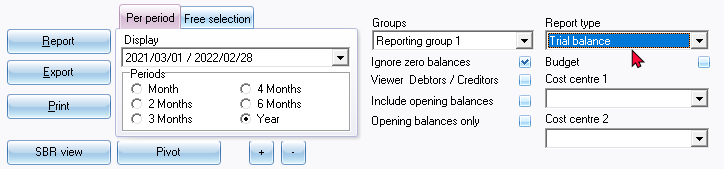
- Per period - Select a period (Month, 2 Months, 3 Months, 4 Months, 6 Months or Year).
|
|
You may click on the “Free selection” tab. You may select or enter any date or dates, which you need to include in the "Trial balance". |
- Groups - "None" is the default option. You may select "Reporting group 1" or "Reporting group 2".
|
|
If you have created two (2) Reporting groups (Setup → Groups), you may have different views of your data. For example the Group options:
|

|
|
To change your view of the Accounting groups , select the groups and use the Move up and Move down buttons to change the sequence. This will determine the sequence in which your Groups are listed on the Setup → Accounts option on the Setup ribbon and on the Ledger analyser is displayed, when Reporting group 1 or Reporting group 2 is selected. |
- Ignore zero balances - If this field is not selected, all accounts will be listed for the Trial balance. If you select (tick) this field; only those accounts with balances will be included in the "Trial balance".
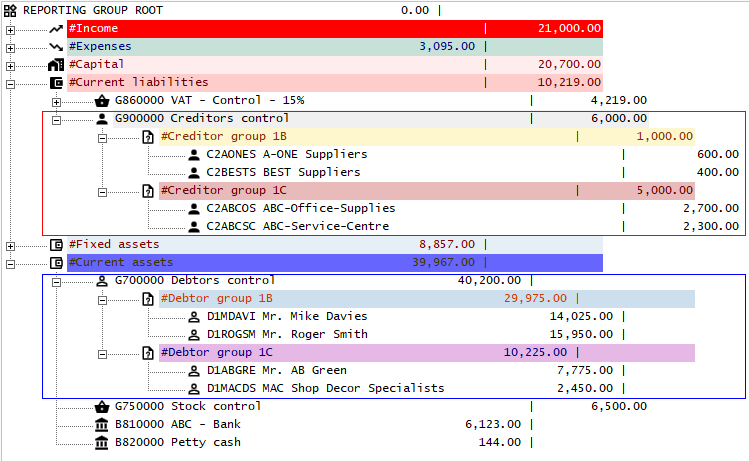
- Viewer Debtors / Creditors - Do not select (tick) if you only need to list only the control accounts of the Debtor (customer / client) and Creditor (supplier / vendor) accounts. If this field is selected (ticked), it will list the individual debtor (customer / client) and creditor (supplier / vendor) accounts.
|
|
The Trial balance and the Balance sheet report types allows you to select the Viewer Debtors / Creditors option. Tick this option to show the break down of the Debtor (customer / client) accounts in the Debtor's control account and the break down of the Creditor (supplier / vendor) accounts in the Creditor's control account. This will list all individual debtor (customer / client) for the debtor's control account and creditor (supplier / vendor) account balances for the creditor's control account. |
- Include opening balances - If this option is selected (ticked), it will include the opening balances of those accounts which have opening balances. If this option is not selected; the opening balances will not be included in the "Trial balance".
- Opening balances only - This option will only be available if the "Include opening balances" option is selected. You can select (check) this option to include only the opening balances. All other balances will then be ignored.
- Budget - Leave this option blank to include the actual posted (updated) transactions in the "Trial balance".
|
|
The "Budget" option, if selected, will list only the budget figures (Budget listing) in the Trial balance, Income statement, Balance sheet and Standard column balances report types (if budget figures were entered in the Budgets option (Reports ribbon) or Setup → Accounts option on the Setup ribbon). |
- Cost centre 1 and Cost centre 2 - The Cost centres (2 Groups) will only be available, if Cost centres are added in Setup → Groups on the Setup ribbon; and if activated.
- Click on the Report button. This will build or refresh the "Trial balance" with the selected options.
Example : Trial balance
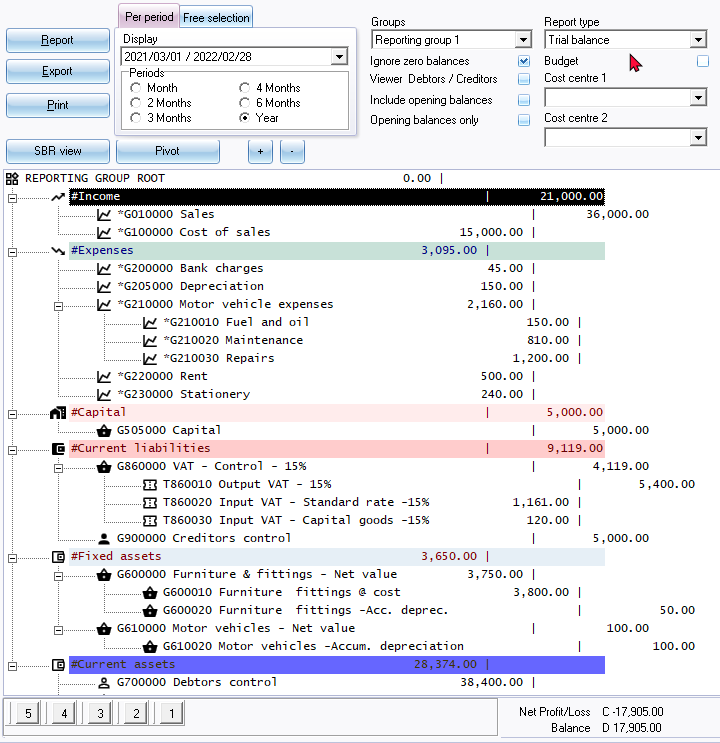
An example of the "Trial balance - Reporting group 1" report type, is displayed as follows:
|
|
Buttons 5, 4, 3, 2 and 1 at the bottom of the report - is shortcut keys to the last accessed T-Account viewer options or Pivot options. These shortcuts will be cleared when you close active forms, or when you open the Set of Books. |
|
|
If you have created two (2) Reporting groups (Setup → Groups), you may have different views of your data. For example the Group options:
|
|
|
To change your view of the Accounting groups , select the groups and use the Move up and Move down buttons to change the sequence. This will determine the sequence in which your Groups are listed on the Setup → Accounts option on the Setup ribbon and on the Ledger analyser is displayed, when Reporting group 1 or Reporting group 2 is selected. |
Click on the Print button.
Printed example : Trial balance
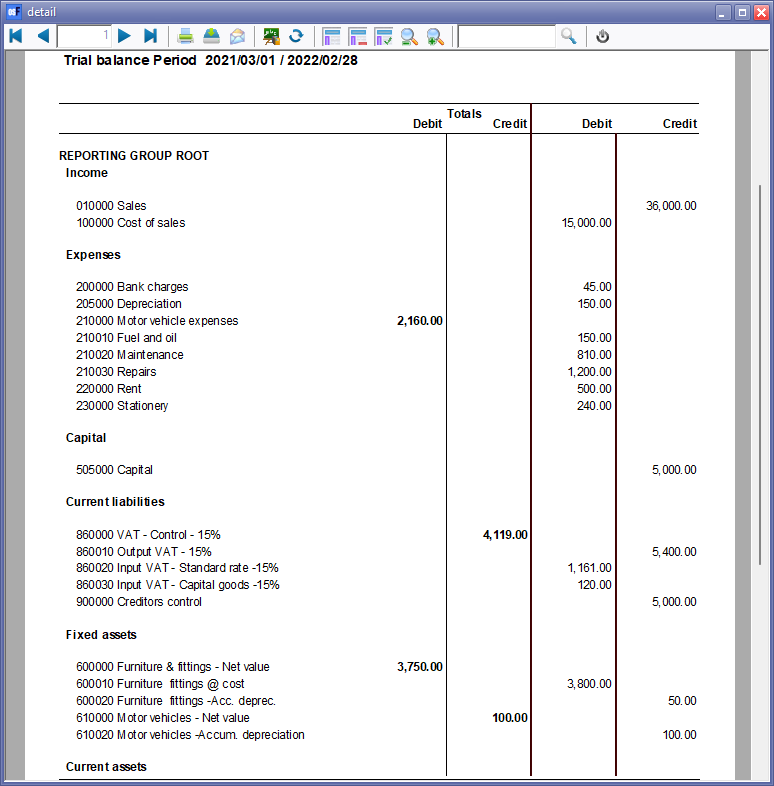
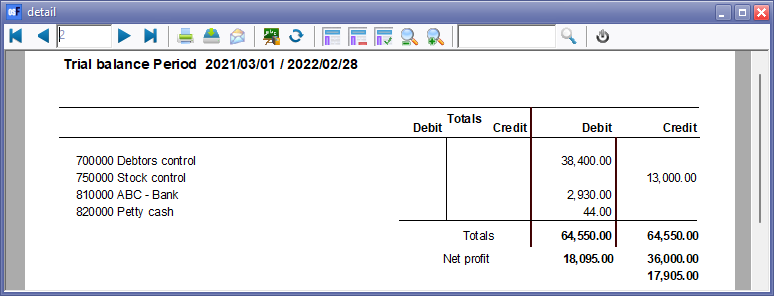
An example of the printed "Trial balance - Reporting group 1", is displayed as follows:
Page 1 -
Page 2 -
|
|
To save the Trial balance as a PDF file:
|

|
|
To change your view of the Accounting groups, select the groups and use the Move up and Move down buttons to change the sequence. This will determine the sequence in which your Groups are listed on the Setup → Accounts and on the Reports → Ledger analyser 1 is displayed, when Reporting group 1 or Reporting group 2 is selected. |
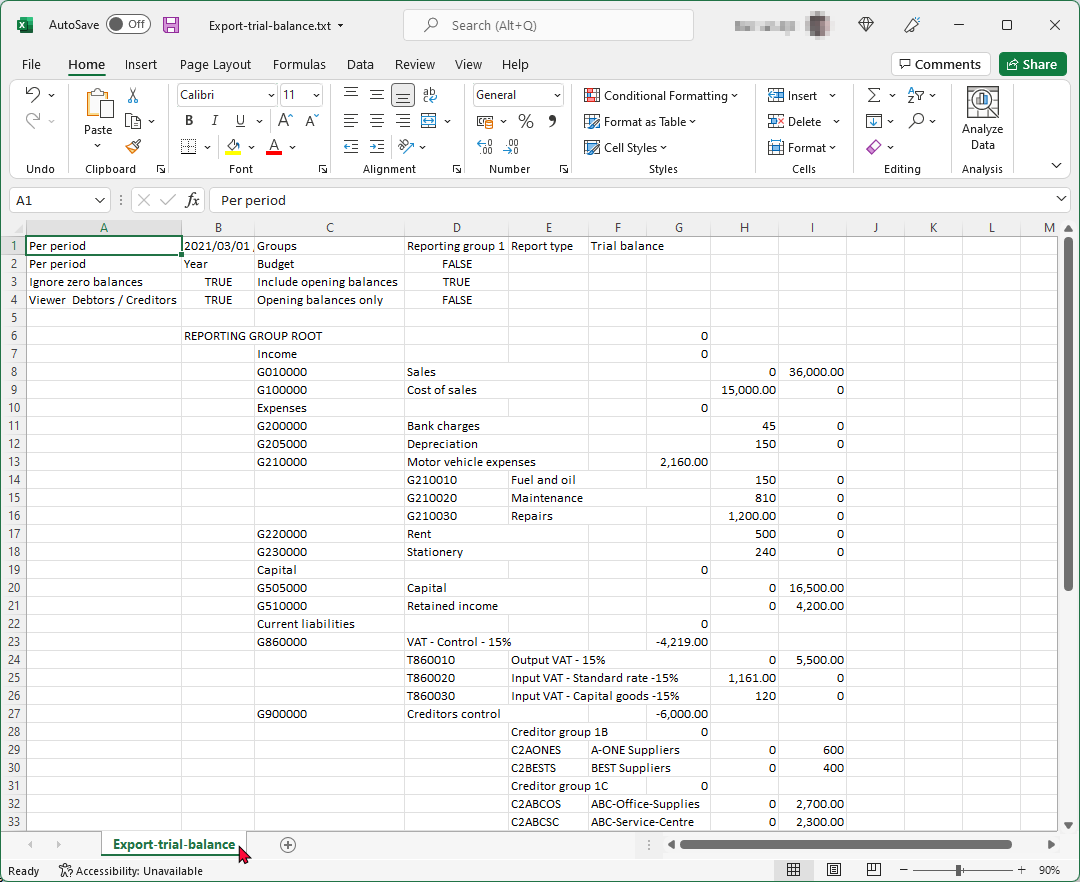
Spreadsheet example : Trial balance
To create a Trial balance - Export file:
- Click on the Export button. This will launch the "Save as" screen.

- Select the folder in which you wish to save the file.
- The default file name will be "Export.txt". Overtype this with your own name.
|
|
If you do not enter and save the Export.txt file name, you may replace existing (previously exported) files. Of an existing exported file is opened, and you are trying to save a export file with the same name, a similar error message as the following will be displayed: Cannot create file "D:\exports\Export.txt". The process cannot access the file because it is being used by another process. |

- Click on the Save button.
- This will automatically open (launch) the file in your system's default text editor program associated with value text file type.