
Export - Documents grid
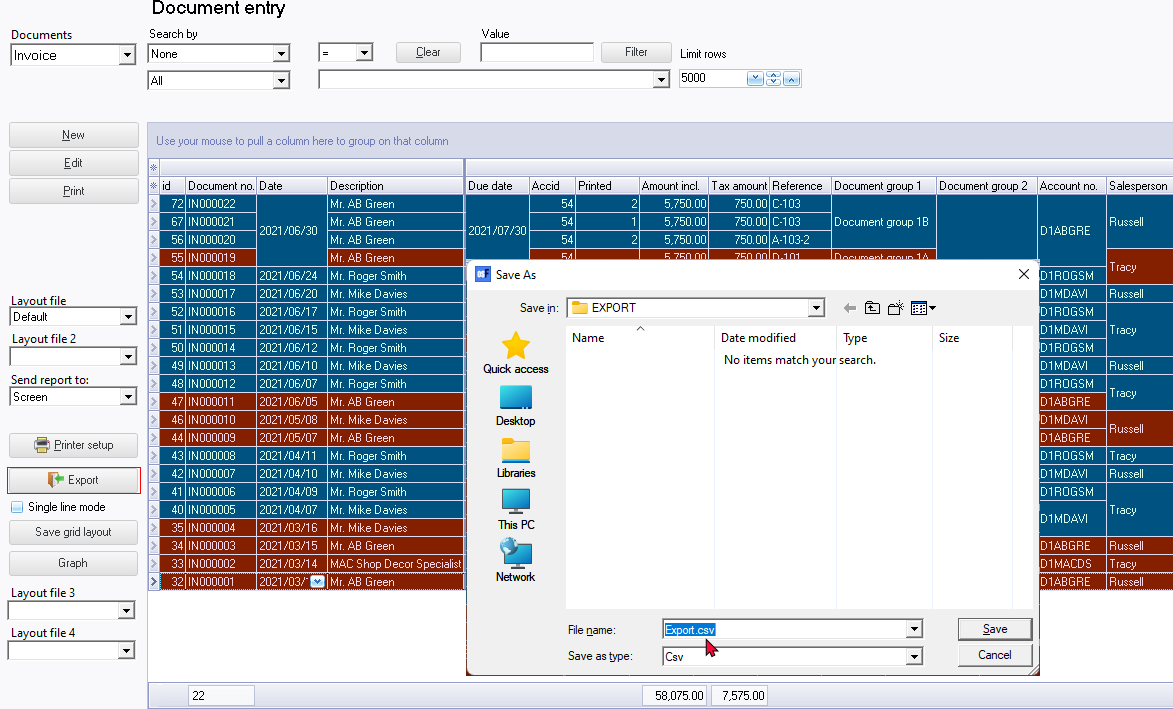
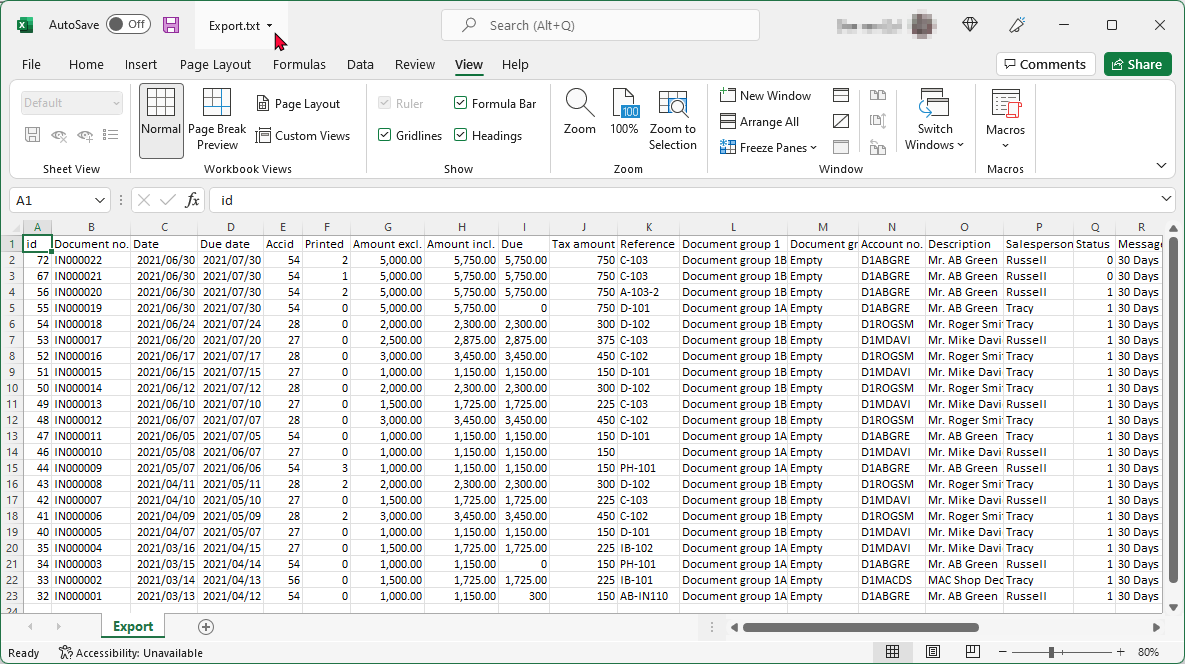
The Export button on the Document entry list screen allows you to export the detail of a selected document type to a CSV (Comma Separated Value) file type. The saved exported file will automatically open the "Export.txt" file in a default spreadsheet app (program) (associated with the CSV (Comma Separated Values) file type.
You may use the following options to filter the data which you need to include in the spreadsheet:
- Document type - Select one of the six (6) document types (i.e. Invoices (default), Credit notes, Quotes, Purchases, Supplier returns or Orders) you need to export.
- Document status - Select "All, Posted, Unposted" or "Confirmed" for selected document types (i.e. Invoices (default), Credit notes, Quotes, Purchases, Supplier returns or Orders) you need to export.
- Search and filter options - Search by – Once you have selected a document type, you may filter and search by columns. For example, if you wish to export documents for a specific Salesperson, you may filter for that Salesperson.
- Document groups - You may select any specific document groups for Document group 1 you need to export.
Once you have made your choices, click on the Export button.
On the "Save As" screen, select the folder to store the file and enter name.
Click on the Save button.
Once the file is saved, it will automatically be opened in your system's default spreadsheet program, e.g. Microsoft Excel.
|
|
Open saved Export.txt files in another app (program) for CSV (Comma Separated Values) file type If you wish to open saved Export.txt files in another app (program) for CSV (Comma Separated Values) file type, than Microsoft Excel, you may use the spreadsheet components of other apps (programs) e.g. LibreOffice, OpenOffice or UltraOffice installed on your system. To do this, select the saved Export.txt file and right click on LibreOffice Calc. |
