
Open item link - Totals tab - Spreadsheet
The Totals tab will list the transaction total and total outstanding total for each open item account.
Export options
To export Open item - Totals to a spreadsheet:
- Op die Default ribbon, select Open item link. The Totals tab (default) is displayed.
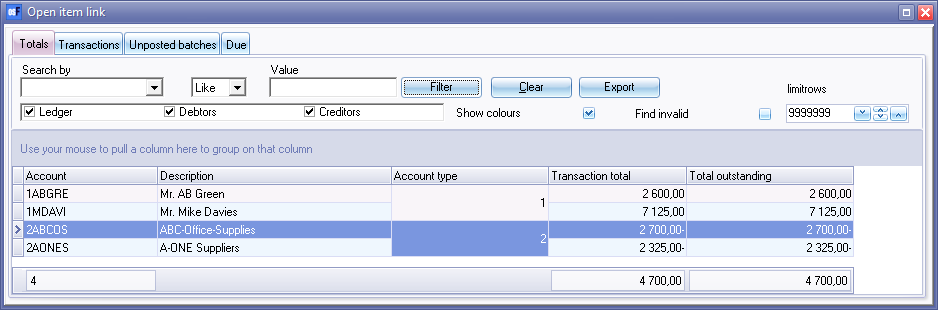
- Select the account type ledger account, debtor (customer / client) account or a creditor (supplier / vendor) account, which you need to include in the export file.
|
|
You may:
|

- Click on the Filter button to list all accounts that have been set as open item accounts, and against which transactions have been posted in journals and/or documents for the selected account type(s).
- Click the Export button. This will launch the "Save As" screen:
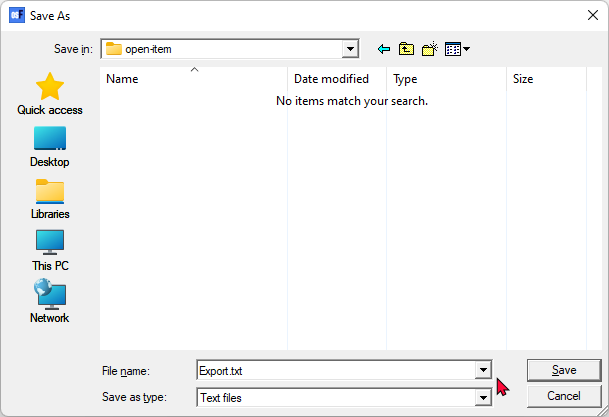
- Select the folder in which you wish to save the file and enter a file name.
|
|
If you do not enter and save the Export.txt file name, you may replace existing (previously exported) files. If an existing exported file is opened, and you are trying to open a export file with the same name, a similar error message as the following will be displayed: Cannot create file "D:\Export\Export.txt". The process cannot access the file because it is being used by another process. |

- Select the file type. Text files (*.txt) is the default; or select CSV files (*.csv) (Comma Separated Values).
|
|
|

- Click on the Save button. This will automatically open (launch) the exported file in the program associated with the selected file type.
Export file opened in Microsoft Excel
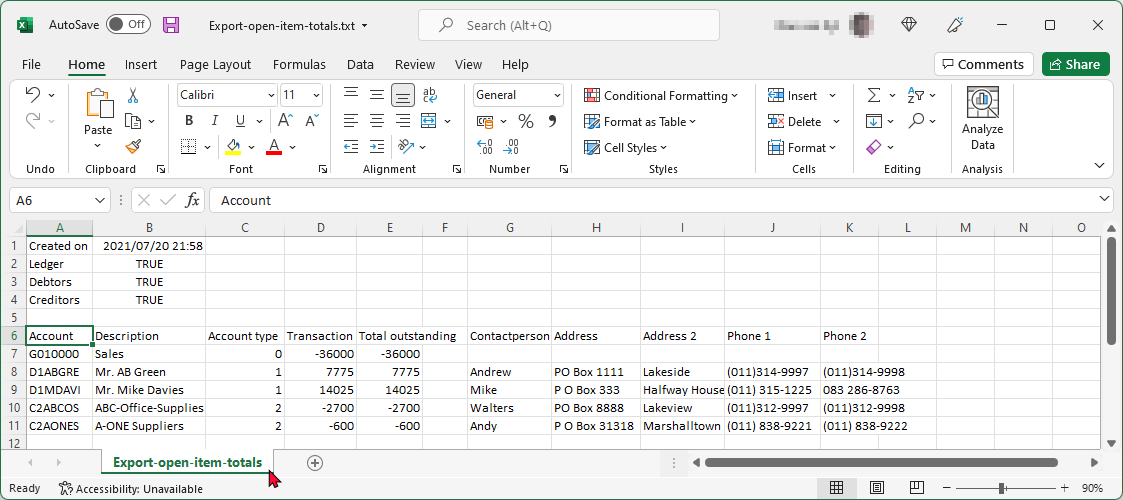
In this example, the exported "Export.txt" file is automatically opened in "Microsoft Excel":
Open item link - Totals tab - Spreadsheet columns
This will open your exported text file of the accounts in a spreadsheet. An example of the exported file opened in "Microsoft Excel" spreadsheet, is as follows:
The first 6 rows will display the following:
- Row 1 - Date and timestamp on which the export file is created.
- Row 2 - Ledger - TRUE - Included in the Export file, if account is set as "Open item account". If FALSE - Ledger accounts was not selected in the Filter options.
- Row 3 - Debtors - TRUE - Included in the Export file, if account is set as "Open item account" If FALSE - Debtors accounts was not selected in the Filter options.
- Row 4 - Creditors - TRUE - Included in the Export file, if account is set as "Open item account" If FALSE - Creditors accounts was not selected in the Filter options.
- Row 5 - Blank.
- Row 6 - Column headings
The exported data will be exported in 11 columns:
|
Column |
Column heading |
Source / fields |
Remarks |
|
A |
Account |
Account code / Account no. |
Ledger is prefixed by account type G = Ledger B = Bank T = Tax |
|
B |
Description |
|
Name (Account description) |
|
C |
Account type |
|
1 = Debtors 2 = Creditors 0 = Ledger 3 = Bank 4 = Tax |
|
D |
Transaction total |
|
|
|
E |
Total outstanding |
|
|
|
F |
|
|
Not used |
|
G |
Contactperson |
|
Only the first name of the contactperson. |
|
H |
Address |
|
Postal address 1 |
|
I |
Address 2 |
|
Postal address 2 |
|
J |
Phone 1 |
|
Telephone 1 |
|
K |
Phone 2 |
|
Telephone 2 |
Columns G to K - The contact details (Contact person, Address, Address2, Phone1 and Phone2) is only applicable to debtor (customer / supplier) accounts (Account type 1) and creditor (supplier / vendor) accounts (Account type 2)
Columns G to K - will be blank for the following account types:
|
G |
General ledger (Account type 0) |
|
|
B |
Bank (Account type 3) |
|
|
T |
Tax (Account type 4) |
|