
Batch entry screen - Context menu
In addition to the standard account lookup in the "Account" column, you may use the right-click context menu and select options to select accounts in batches, to edit an account, etc.
You may also copy and paste the "Contra account, Date, Reference" and "Description" from one line to another.
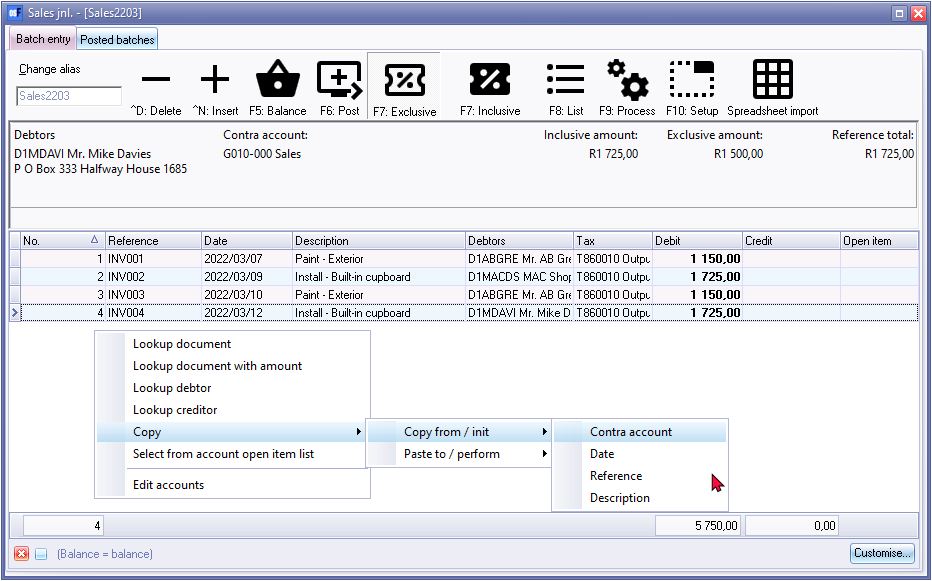
The options are as follows:
- Lookup document - In addition to the lookup function in the "Accounts / Debtors / Creditors" column in the ""Batch entry" screen you can choose to search for a specific document. You can use the advanced search and filter options in the "Document entry" screen to select a specific document.
- Once you have selected a document (invoice or credit note), the debtor's (customer/ client) account associated with the document (invoice or credit note) will appear in the "Accounts / Debtors / Creditors" column of the "Batch entry" screen, be selected.
- Once you have selected a document (purchase or supplier return), the creditor (supplier / vendor) account associated with the document (purchase or supplier return) will be selected in the "Accounts / Debtors / Creditors" column of the "Batch entry" screen .
- Lookup document with amount - The option is similar to the Lookup document context menu option.
- Lookup debtor - In addition to the lookup function in the "Account" column in the "Batch entry" screen, you can choose to lookup a debtor (customer / client) account from the "Debtor accounts" screen. On the "Debtor accounts" screen, you can use the filter and search options to select a specific debtor (customer / client) account.
- Lookup creditor - In addition to the lookup function in the "Account" column in the "Batch entry" screen you may choose to lookup a creditor (supplier / vendor) account from the "Creditor accounts" screen. On the "Creditor accounts" screen, you can use the filter and search options to select a specific creditor (supplier / vendor) account.
- Copy - Copy the "Contra account, Date, Reference" or "Description" from one transaction in a batch to another transaction.
- Select from account open item list - You may select a debtor (customer / client) or creditor (supplier / vendor) account on the "Batch entry" screen (right-click on selected transaction) and select the "Select from account open item list" option. The "Open item selection" screen will list the unlinked transactions as well as transactions with outstanding amounts for the relevant debtor (customer / client) or creditor (supplier / vendor) account. You then choose to link this transaction to a specific outstanding transaction on this open item list.
- Edit accounts - If you have selected a debtor (customer / client) or a creditor (supplier / vendor) account, the details (ie Account Code, Name and Address) will be displayed on the top left of the "Batch entry" screen. If it does not match the source document, or something has changed, you can choose to edit the account.