
Batch entry - Context menu - Lookup document
In addition to the lookup function in the "Accounts / Debtors / Creditors" column in the ""Batch entry" screen you can choose to search for a specific document. You can use the advanced search and filter options in the "Document entry" screen to select a specific document.
- Once you have selected a document (invoice or credit note), the debtor's (customer/ client) account associated with the document (invoice or credit note) will appear in the "Accounts / Debtors / Creditors" column of the "Batch entry" screen, be selected.
- Once you have selected a document (purchase or supplier return), the creditor (supplier / vendor) account associated with the document (purchase or supplier return) will be selected in the "Accounts / Debtors / Creditors" column of the "Batch entry" screen.
To select an account from documents in a batch:
- Select a transaction in the batch.
- Right-click and select the Lookup document option on the context menu. The Document entry list screen for Invoices will by default be displayed. You may select any other document type (i.e. credit notes, quotes, purchases, supplier returns or orders).
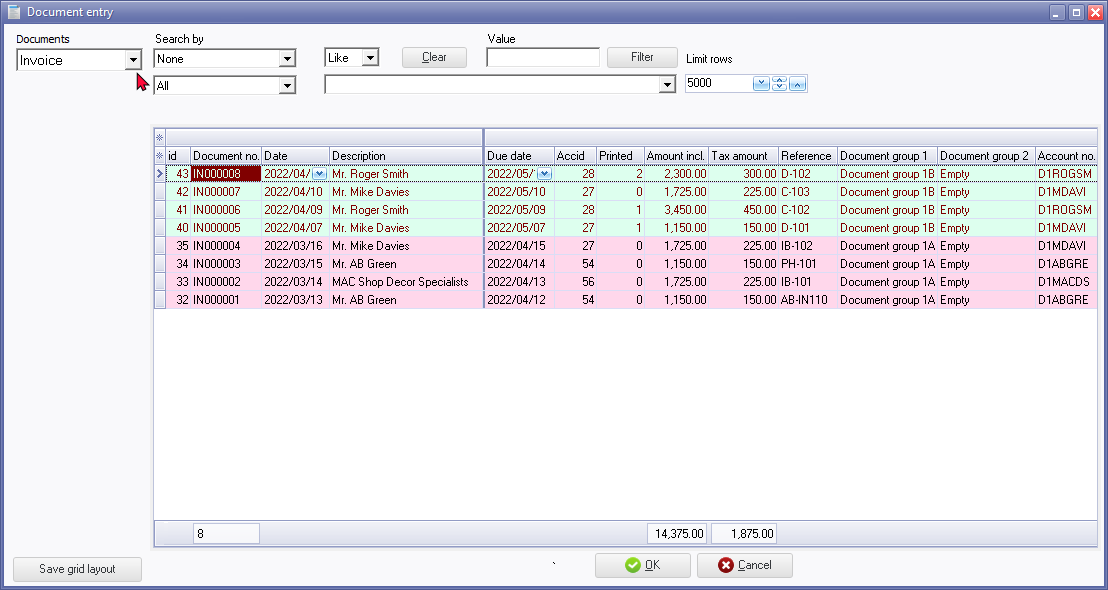
- Select the document from the list. (You may use the sort and filter options to locate a specific document).
- Click on the OK button. The transaction with the system date will automatically be inserted in the batch. The document number as well as the Your reference (if entered in documents) will be displayed in the Description column of the Batch entry screen.