
Batch entry selection screen - Context menu
Right-click on the "Batch type" selection screen for easy access on the context menu to initiate or perform the following batch processing options: 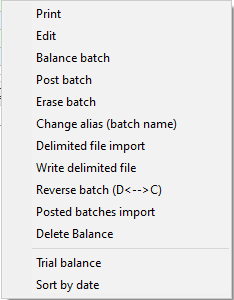
- Print - Print a list of the transactions in any selected batch (journal) which is not already posted (updated) to the ledger.
- Edit - Open any selected Batch entry screen on which you may enter or add transactions, edit transactions which have already been entered, (delete, insert, reverse transactions, etc.), change the alias, write the transactions to a delimited file, import transactions from a delimited file, etc.
- Balance batch - Balance the transactions entered into a selected batch, or to generate balancing entries (transactions).
- Post batch - Post (update) the transactions entered into a selected batch to the ledger.
- Erase batch - Delete the selected batch (journal), including all the transactions in the selected batch (journal).
- Change alias - The alias provides the opportunity for you to add an unique name for the batch type. For example, you may use a specific batch type (e.g. general journal) for many different transactions and may post many general journal transactions in a month or even in a year. You need to enter these in the Batch header.

|
|
Auto-alias - Setting may also be activated on the F10:Setup - Advanced tab - "Options for this batch". This will automatically generate the system date as the alias (batch name) (e.g., “20210331”) for the batch. |

|
|
Auto generated - Alias in Receipts batches - TR00001, TR00002,etc. These aliases prefixed with "TR" (consisting of seven (7) digits) will automatically be generated in receipt batches when the "Receive payment" option is used in Open item link context menu. See - |
- Delimited file import - Import the transactions from a valid delimited file into the selected batch (journal).
- Write delimited file - Write or export the transactions entered or imported in a batch to a delimited file. The transactions may be imported into a selected batch from a valid delimited file.
- Reverse batch (D<-->C) - The amounts of the transactions already entered or imported in the debit columns or credit columns of a selected batch (journal) may be reversed or transferred from the debit column to the credit column and vice versa.
- Posted batches import - Import the transactions from a valid file format, if the transactions of a batch (journal) which have already been posted (updated) to the ledger, was exported in the Export - Posted Batches option.
- Delete balance - Delete the balancing entries (transactions), if the selected batch (journal) is already balanced.
- Trial balance - Generate a trial balance for only the unposted transactions (entered or imported into batches, which have not already been posted (updated) to the ledger). You may also select to include the unposted transactions, as well as the posted transactions, or to include only the posted transactions in the trial balance.
- Sort by date - If the transactions have not been entered or imported in the ascending date sequence, you may select this option to sort the transactions in the date sequence (from the oldest date to the latest date) in the selected batch (journal).
|
|
If any invoices and credit notes have been updated to the ledger, these transactions will be included in the batch type report for the sales journal (or other batch (journal)) selected in Setup → Documents setup. |

|
|
If any Purchase documents and Supplier return documents have been updated to the ledger, these transactions will be included in the batch type report for the Purchase journal (or other batch (journal)) selected in Setup → Documents setup. |