
Write delimited file
The Write delimited file batch processing option allows you to export transactions in an unposted batch to a valid Comma Separated Batch (*.csv) file format.
To import delimited files in a batch, you need to select a valid file format using the Delimited file import batch processing option.
To write a delimited file:
- On On the Default ribbon, select Batch entry (F2).
- Select a Batch type and click on the Open button.
|
|
You may right-click on the selected batch (journal) on the Batch type selection screen, and select the Write delimited file option on the context menu. |

- Click on the F9:Process icon. The "Process the batch options" screen will be displayed.
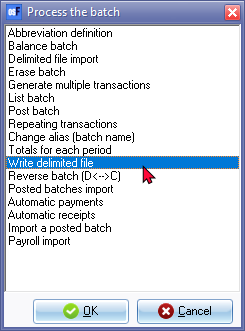
- Select the Write delimited file option, and click on the OK button. The "Save as" screen will be displayed.
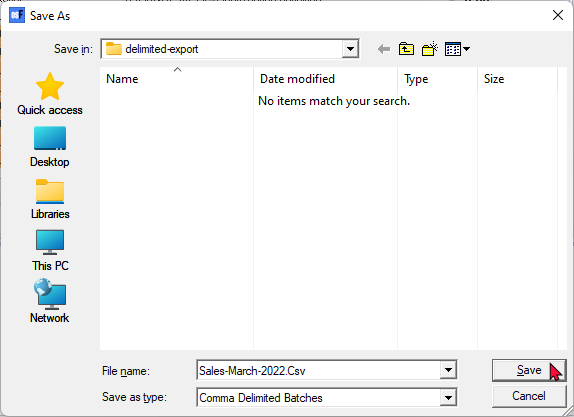
- Enter a File name for the "Comma Delimited Batches" file. You may select any valid folder on your system, in which you wish to save the file. You may create a new folder, if you click on the New folder icon on the "Save as" screen.
- Click on the Save button. All the transactions in the selected batch will be saved (exported) into the selected folder.