Ledger analyser - Unposted reports
You may view, print and export a Trial balance, Income statement and Balance sheet for unposted as well as posted batches from the Batch entry (F2) context menu.
|
|
Unposted Invoices, Credit notes, Purchases and Supplier returns is not included in this report. |

|
|
The "Unposted batches" screen may disappear behind other programs or applications. If this happens, click on the osFinancials5 icon on the Windows task bar. |

|
|
You may go to the Input → Checking unposted items (Default ribbon) to view a list of unposted transactions in batches and documents. |

To print a Trial balance, Income statement or Balance sheet for unposted batches:
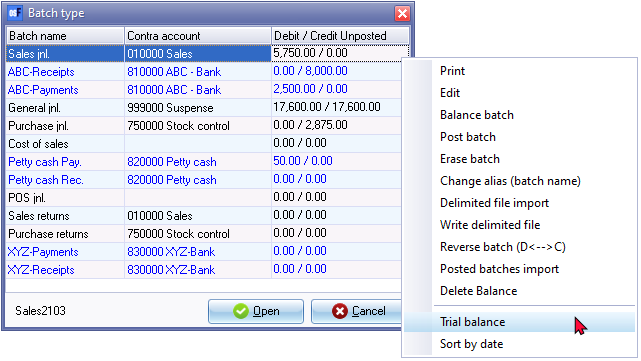
- On the Default ribbon, select Batch entry (F2).
- Right-click and select "Trial balance" from the context menu.
- A confirmation message is displayed:
Unposted only?
- Click on the Yes button.
|
|
If you click on the No button, the Trial balance, Income statement and Balance sheet for posted batches (excluding unposted documents) will be printed. These reports, as well as others, may be printed in the Ledger analyser 1 or Ledger analyser 2 on the Reports ribbon. |

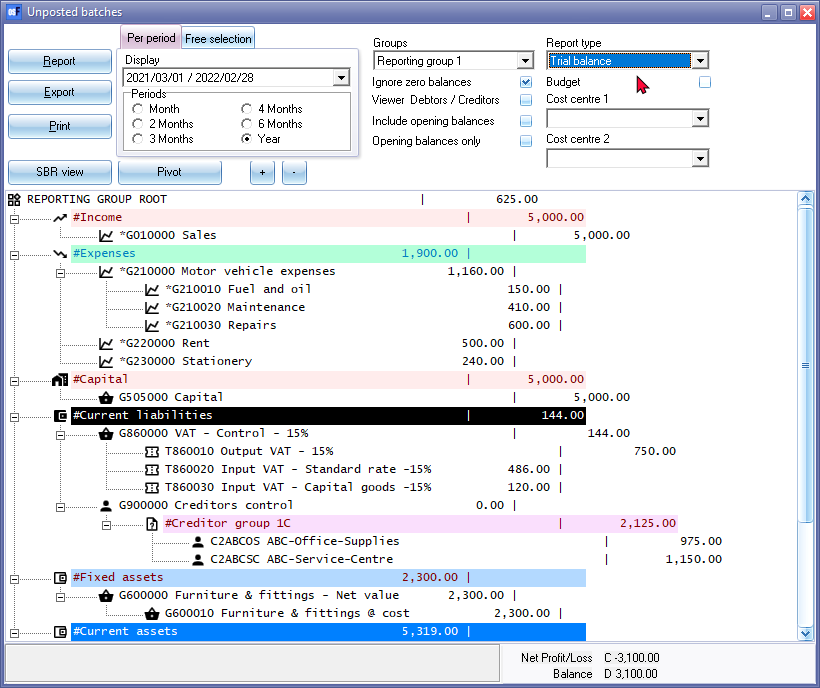
|
|
When this Trial balance is launched, the Print button will not be displayed. To initialise the Print button, select Income statement or Balance sheet and then Trial balance. |
|
|
If "Unposted only?" is selected, the T-Account viewer and the Pivot options will not have any data to display. |
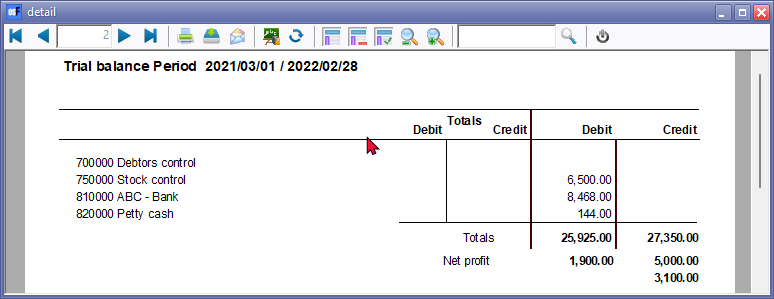
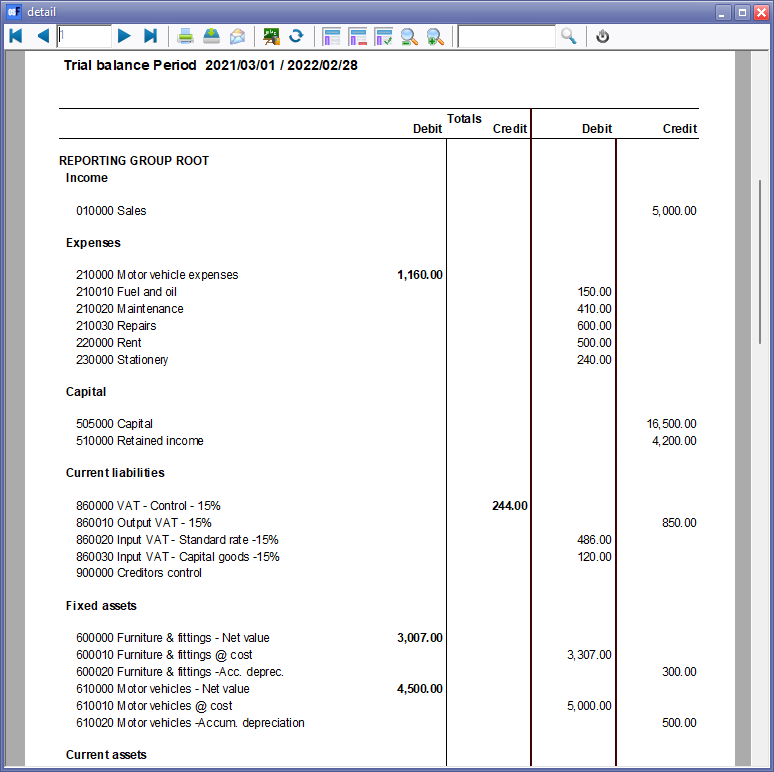
- Click on the Print button. Only those unposted transactions (excluding unposted documents) will be printed.
Page 1 -
Page 2 -