Serials-Batches-Location plugin
|
|
Licence :- Manual - Shop - Once-off license - Added the Serials and Batches to document layout files and 2 reports (i.e. On hand and Stock movement report). |

Introduction
The "Serials-Batches-Location" plugin allows you to purchase and sell products (stock items) and keep track of serial numbers, batches and locations.
In addition to serials, batches and locations, you may keep track of a manufacturing and sell by date.
You can select 3 different types of tracking.
- Serial : Always 1 serial per item ideal for phones, computers, etc.
- Batch / location : Enter batch numbers and quantities and have the possibility to move between locations.
- Location : Just location management.
Activation
In osFinancials / TurboCASH:
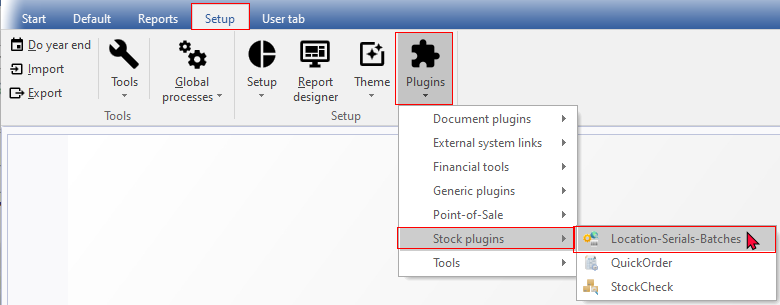
Go to the Setup ribbon tab, select Plugins → Stock plugins → Location-Serials-Batches.
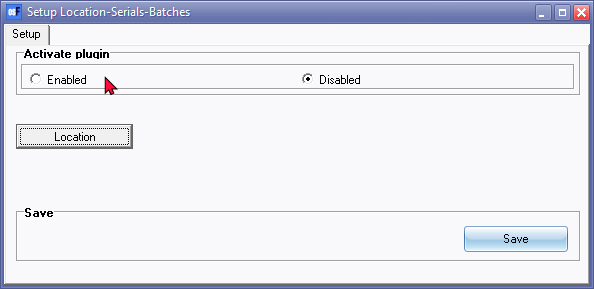
You will see the setup screen for the plugin : Set Activate to on and press Save.
You may add Locations (Bin, Isle number row) as the place where you keep the stock items in your shop, store, warehouse, if necessary.
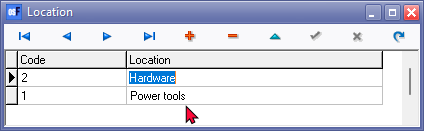
If locations were added, remember to click on the Save button.
Close the Set of Books or restart osFinancials or TurboCASH!
Activate in Stock items - Location-Batches-Serial tab
Go to Stock items (on the Default ribbon tab). If you select any stock item, a new tab "Location-Serials-Batches" is added.

By default, the "Location-Serials-Batches" is set to Off (not activated) for all stock items.
You can select 3 different types of tracking.
- Serial : Always 1 serial per item ideal for phones, computers, etc.
- Batch / location : Enter batch numbers and quantities and have the possibility to move between locations.
- Location : Just location management.
Press Add to add a new record to enter products you already have like a start position. Do not enter products you still are going to purchase and enter in documents.
Serial
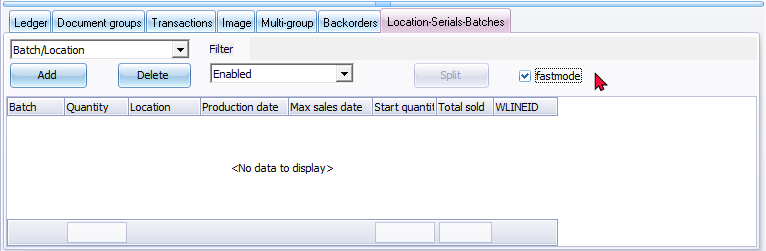
Serial option - Fast mode on (default view)
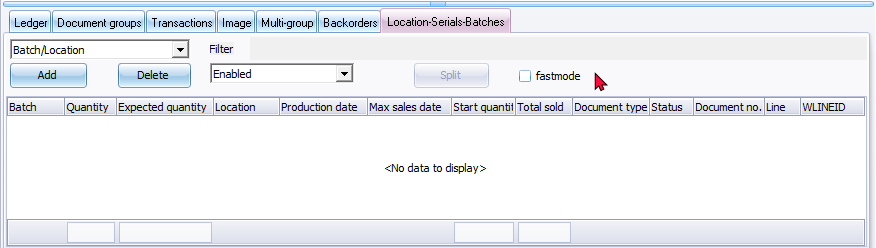
Serial option - Fast mode off
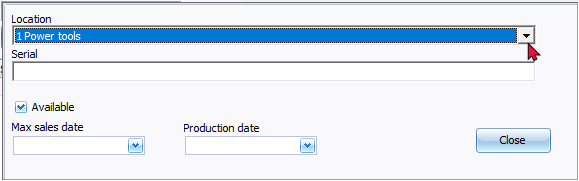
Serial option - Add
Batch / location
Also you can move and correct quantities here, if the need arises.
Batch / location option - Fast mode on (default view)
Batch / location - Fast mode off
Batch / location - Add
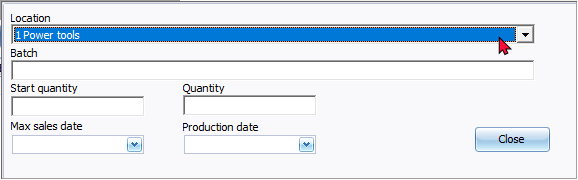
The quantities adjusted will reflect on then quantity on hand for the stock item after saving the stock item.
Location
Location option - Fast mode on (default view)
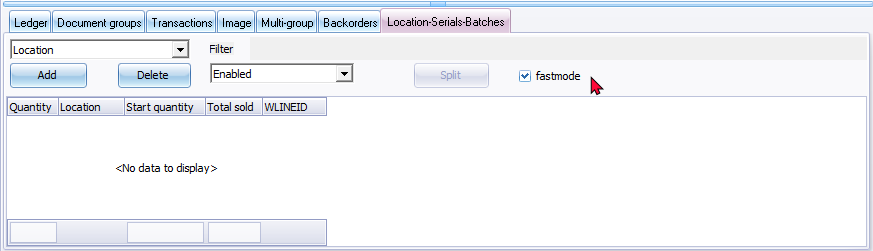
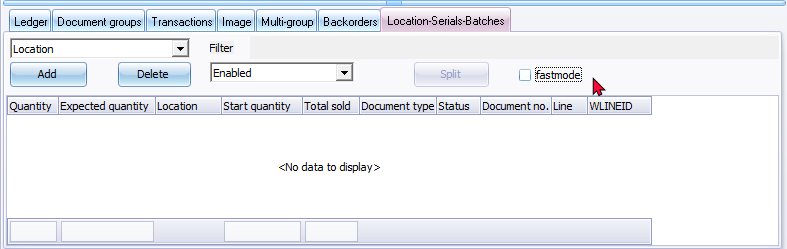
Location - Fast mode off
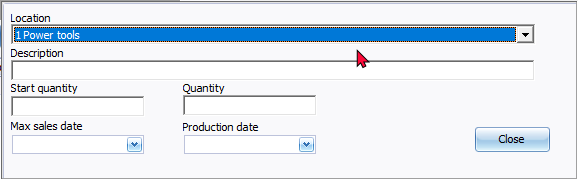
Location - Add
Processing documents
Purchases
If you do a purchase you can enter new batches or serials after selecting the product.
The number of items (products) with serial numbers will automatically update the quantities in the document lines field.
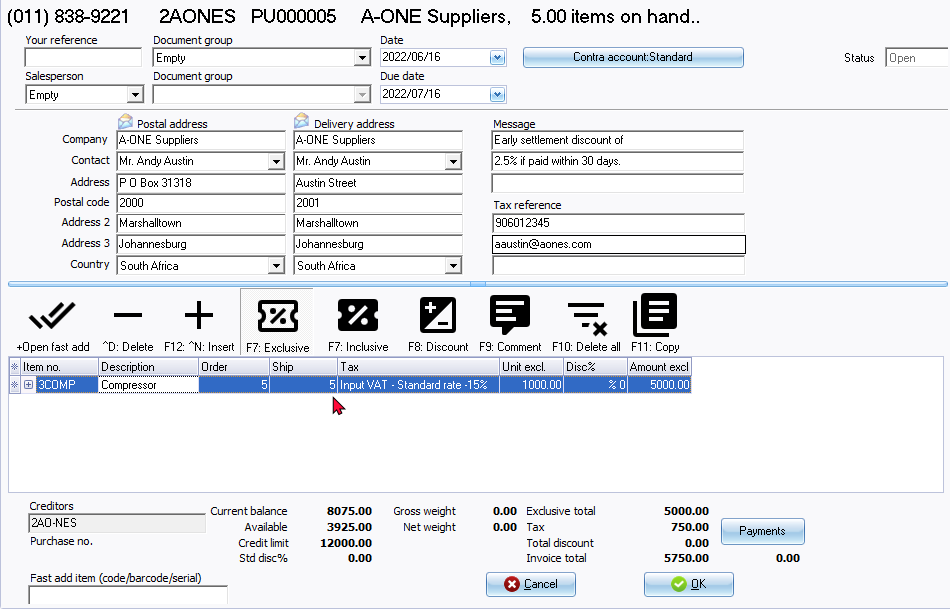
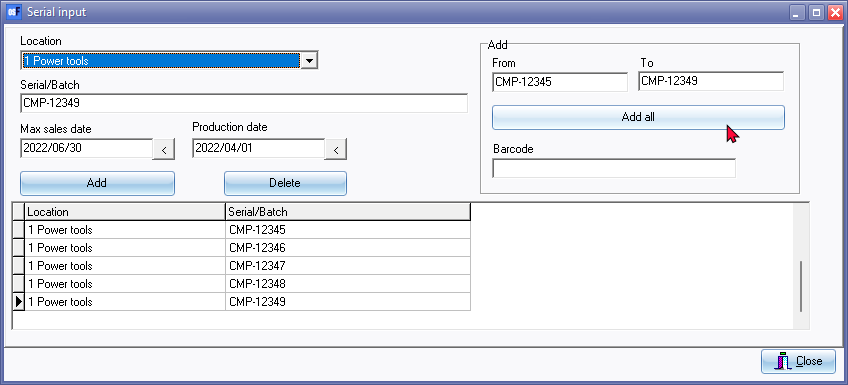
If you enter serial numbers in the From and To fields, and you click on the Add all button, a similar confirmation message will be displayed.
"Continue action Add 5 Serial ?"
A similar lookup screen will be displayed for serial input when processing supplier returns.
Sales
At sales you can select from the list of locations serials and batches of the product selected.
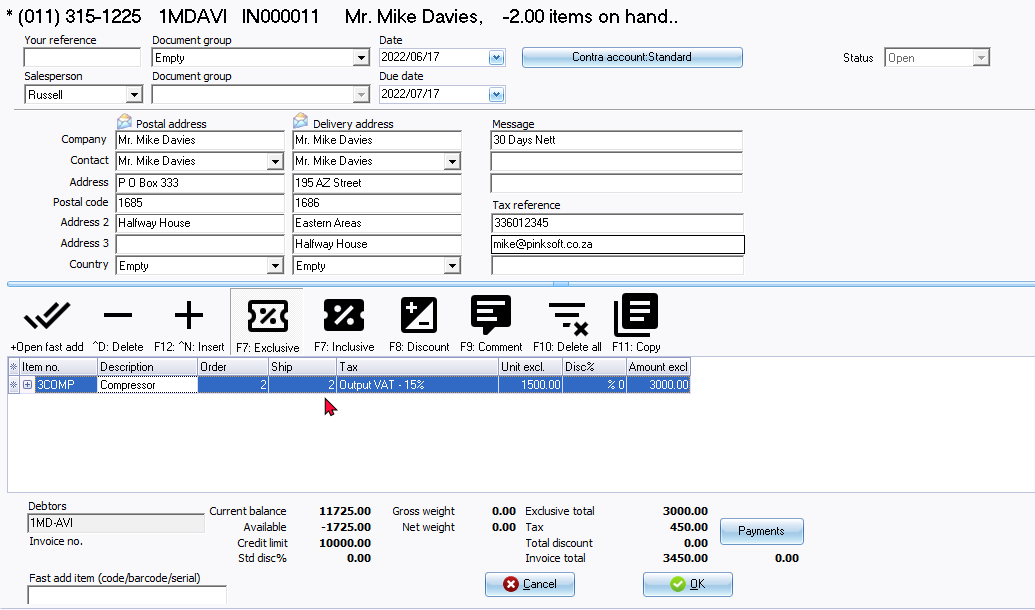
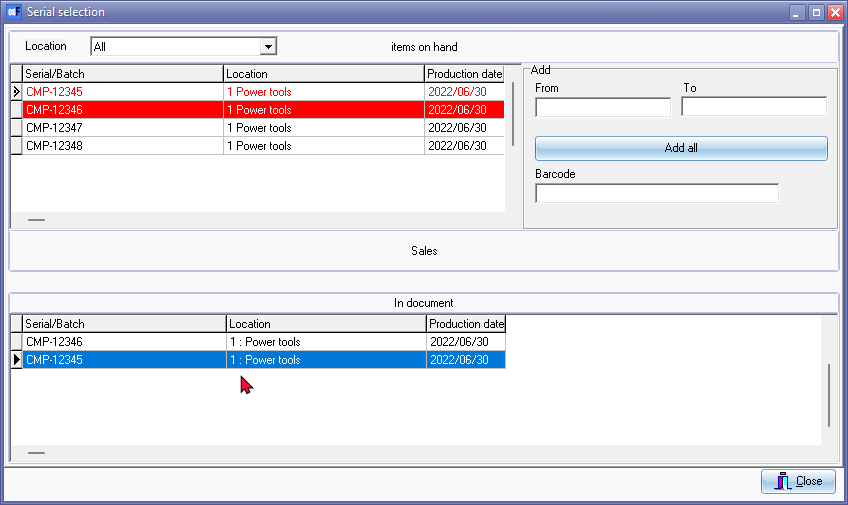
A similar lookup screen will be displayed for serial input when processing credit notes.
Printing documents
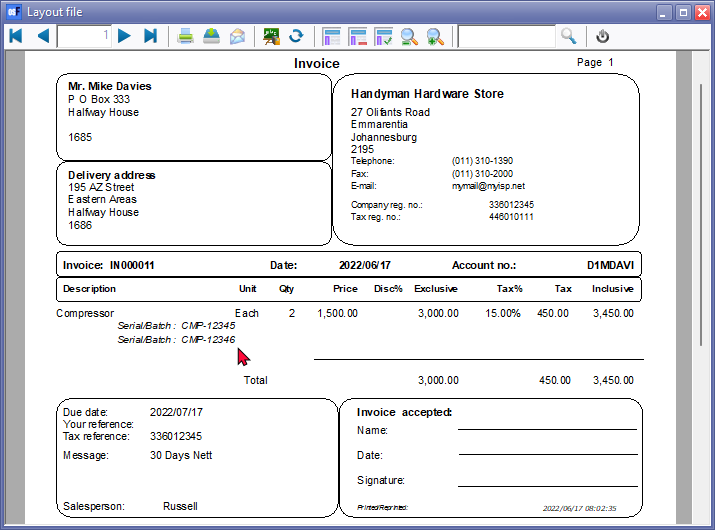
The serial numbers will print on Invoices, Credit notes, Delivery notes, Purchases and Supplier returns.
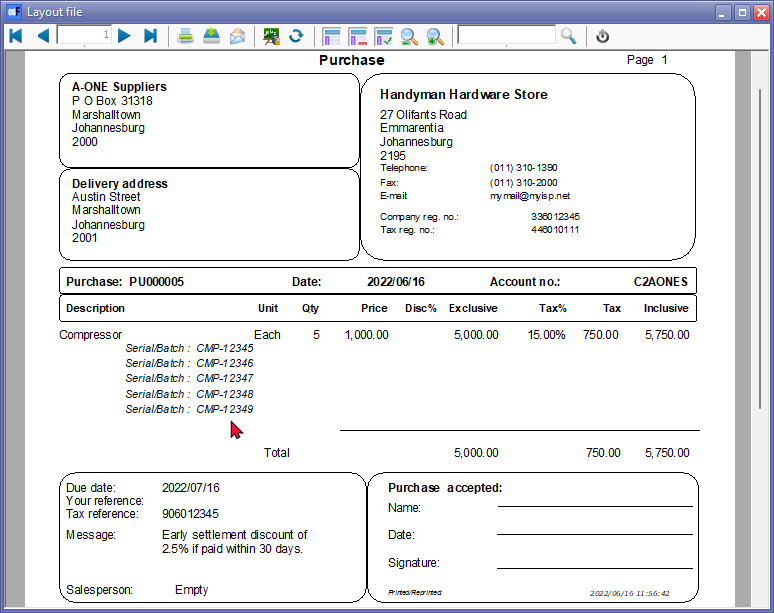
Search for Serial numbers
On the Default ribbon, select Search.
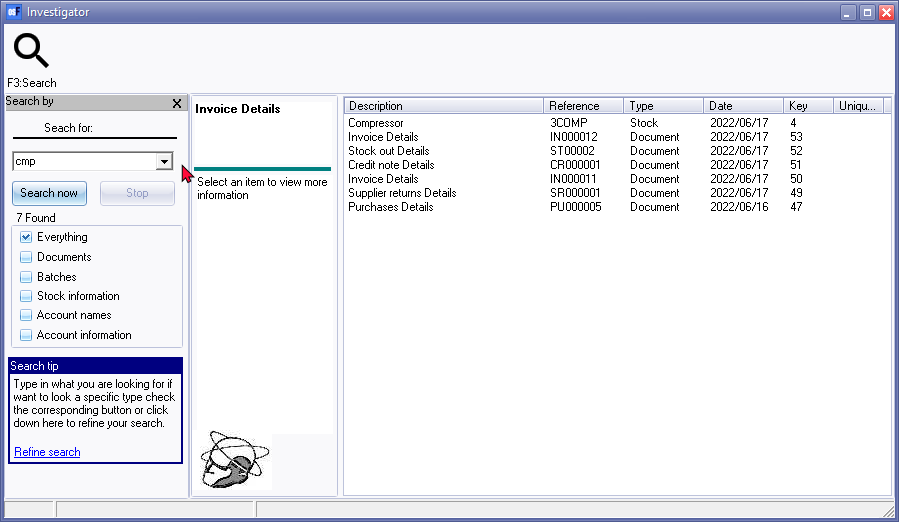
Enter the serial number, etc. in the Search for field. In this example, only the first (prefix) of the serial numbers, is entered in the "Search for:" field.
If a document number is prefixed with "ST" followed by 5 numeric digits, as in this example, "ST00002", it is a posted document ("Stock" document type) generated when you save a stock item as an "Adjustment" after a serial, batch or location quantities is changed.
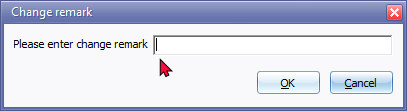
The description you have entered in the "Change remark" screen will be displayed in the "Description" column of the Document groups tab and in the "Reference" column of the Transactions tab.
Type
- Document - The document details will list all documents matching your search criteria. If you double-click on it (or right-click and select Show details option on the context menu), you may print the selected document.
- Stock - The Stock items matching your search criteria will be listed. If you double-click on it (or right-click and select Show details option on the context menu), the selected Stock item form will be opened.
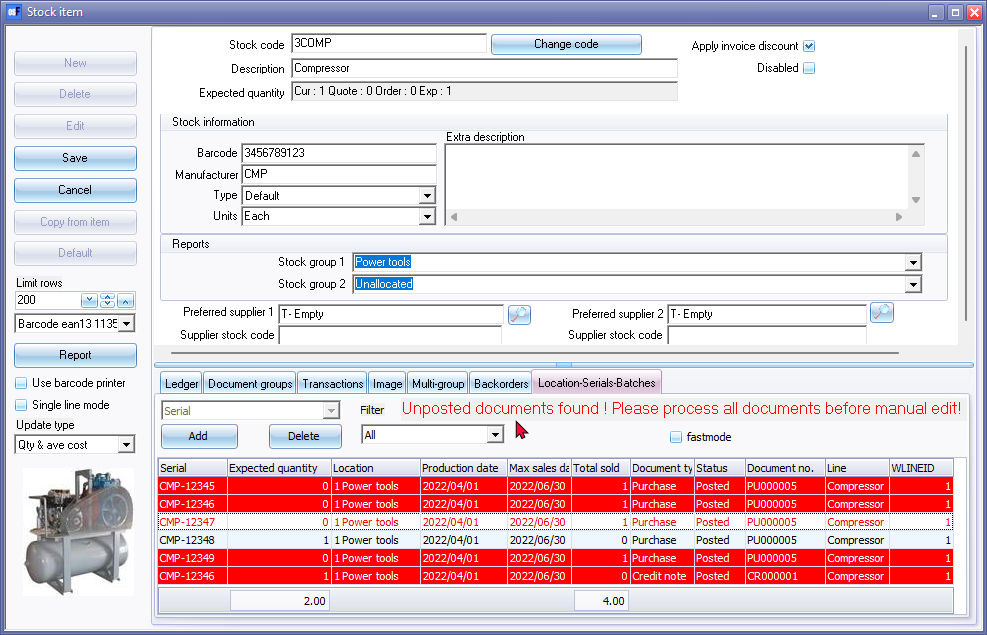
By default, only the "Enabled" items will be listed on the "Location-Serials-Batches" tab. You may click on the "All" filter option to view all items.
By default, only the "fastmode" is selected. To view more details, remove the tick in the "fastmode" tick box.
If any documents is not posted, these will be listed in the "Search - Investigator" search results.
Reports
On the Reports ribbon, select Reports → Plugins → Locations-Batches-Serials.
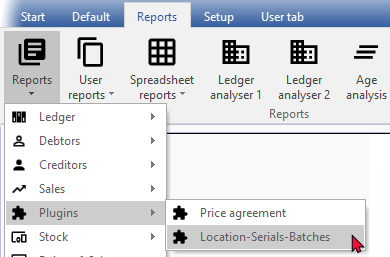
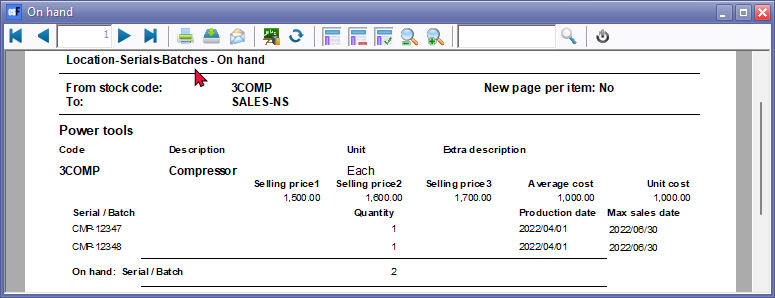
On hand report
The "Location-Serials-Batches - On hand" report lists those serials or batches which is still available to sell to debtors (customers / clients)..
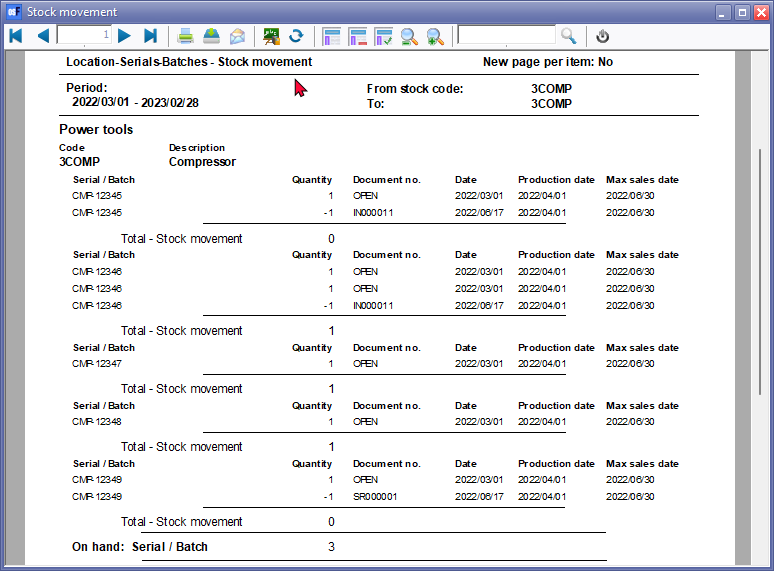
Stock movement report
The "Location-Serials-Batches - Stock movement" report lists those serials or batches which is purchased from creditors (suppliers / vendors) and sold to debtors (customers / clients)..
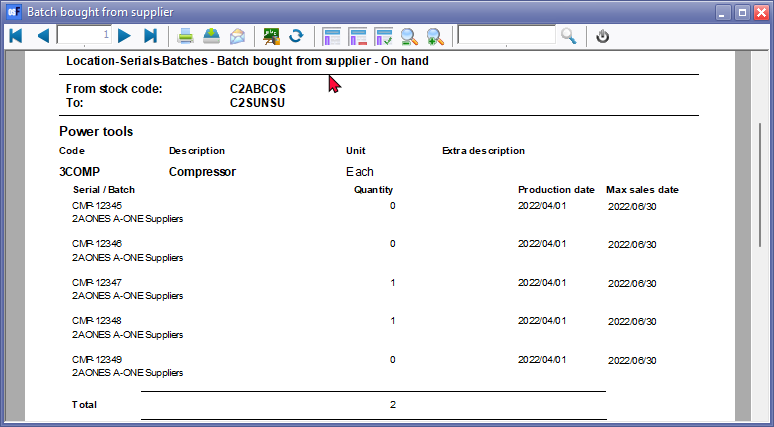
Bought from supplier
The "Location-Serials-Batches - Batch bought from supplier" report lists those serials or batches which is purchased from creditors (suppliers / vendors).
Sold to customer
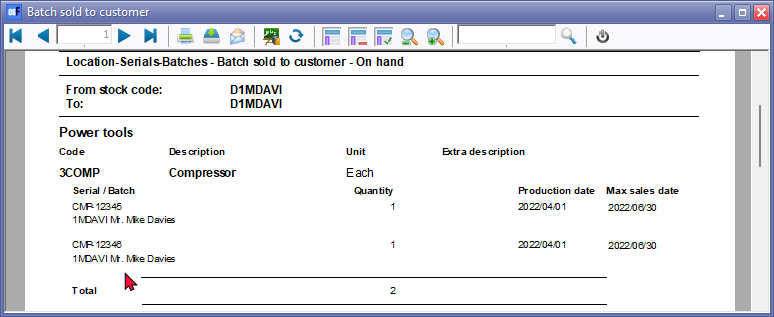
The "Location-Serials-Batches - Batch sold to customer" report lists those serials or batches which is sold to debtors (customers / clients).
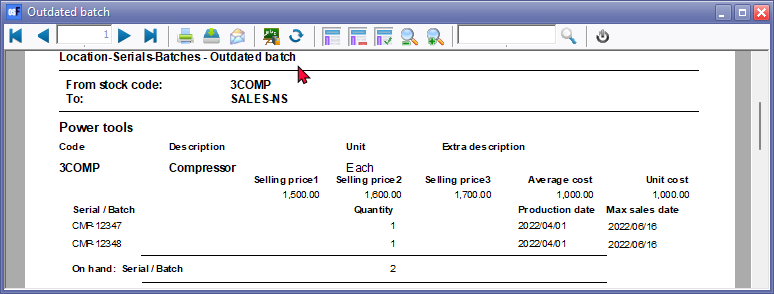
Outdated batch
The "Location-Serials-Batches - Outdated batch" report lists only those serials or batches which is still on hand, but which is past the maximum sales date.