
Start ribbon
The Start is used to manage your sets of books, backups, registration and language.
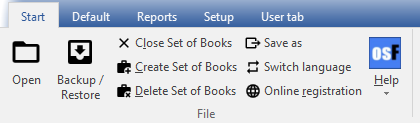
The following nine (9) options are available:
- Open - This option allows you to open an existing Set of Books, which is essentially a collection of financial data and records that you have previously created / saved.
- Backup / Restore - With this option, you can create a backup file of your current Set of Books, which is useful for data recovery in case of loss or corruption. You can also restore a Set of Books from a valid backup file.
- Close Set of Books - This option allows you to close the currently opened Set of Books. Once the Set of Books is closed, you will not be able to access any of its data or records until you reopen it.
- Create Set of Books - You may use the different options available when creating a new Set of Books in osFinancials:
- Copy an existing Set of Books - With this option, you can create a new Set of Books by making an exact copy of an existing one. This includes all of the data contained within the Set of Books. You simply select the Set of Books you want to copy and the system will create a new one in a directory of your choosing.
- Let osFinancials help you to create a Set of Books - This option allows you to create a new Set of Books by selecting a selected Set of Books as a template. The program will then guide you through the process of setting up your new Set of Books. You can also download pre-existing Sets of Books for your specific country or industry as templates to use as a starting point. See a list of the Sets of Books available for a download.
- Create a Set of Books (Advanced) - This option is intended for more advanced users who want to create a new Set of Books from scratch. In addition to the Firebird database type, you can also select to create a Set of Books using the MSSQL database type. This option provides more flexibility and control over the structure and content of your new Set of Books.
- Delete Set of Books - If you no longer need a particular Set of Books, you can use this option to permanently delete it.
- Save as - This option is used to save a copy of the currently opened Set of Books with a different name.
- Switch language - With this option, you can change the language used in the osFinancials program.
- Online registration - This option will take you to the "Register your osFinancials" screen where you can register your copy of osFinancials online.
- Help -
- Help - This option will launch the context-sensitive Help file and display support information respectively. You can use the Help file to get more information on any particular feature or option in osFinancials. You may press F1 to launch the help file from most screens and fields to launch the topic relating to that screen or field.
- Support - This option will provide you with contact information for technical assistance.
- Show welcome - This option will display the latest news and updates related to osFinancials.
- Updates - Once you install osFinancials 5 on your system, updates will be released from time to time, containing bug fixes, new features, and other improvements. You may use the "Updates" option to install an updated version of osFinancials5.
- Forum - With this option, you can access the osFinancials forum where you can ask questions or search for solutions to issues that other users have faced.
- Webshop - This option will take you to the osFinancials webshop where you can purchase additional features or support services.
- Bug report - This will land on the osFinancials Forum page where you can report any bugs or issues you encounter while using the program.