
Install osFinancials 5 - Updates (Help menu)
osFinancials 5 Business Class
Installation files / changelog link : osFinancials-Turbocash-Business-version
After years of developing and supporting osFinancials and TurboCASH, we have realized that the current model is not sustainable. Therefore, we are introducing a new version called "osFinancials 5 Business" to break through this glass ceiling.
osFinancials 4 will continue to be available for free use. However, if you want to access additional features and functionalities, we recommend upgrading to "osFinancials 5 Business". If your business has fewer than 500 transactions/documents, you can use this version free of charge. For businesses with more than 500 transactions/documents, we ask for a contribution of 50 euros (excluding taxes) or 60 US dollars per year.
If you already have a subscription for a multi-user or retail POS, the osFinancials 5 Business license will be included.
Once you install osFinancials 5 on your system, updates will be released from time to time, containing bug fixes, new features, and other improvements.
To Install osFinancials 5 Updates
The Update option will list all the installation files available for download. By default, the Update will be launched when starting osFinancials 5. To disable the check for update at start, select this field and remove the tick.
|
|
It is important to make a backups of your Set of Books. It is strongly recommended that you make a backup copy of the entire installation folder of your existing installation osFinancials 5 before proceeding with the update. |

|
|
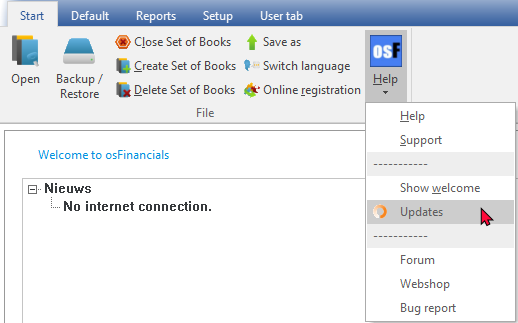
The Updates option may manually be launched from Help → Updates (Start ribbon).
|

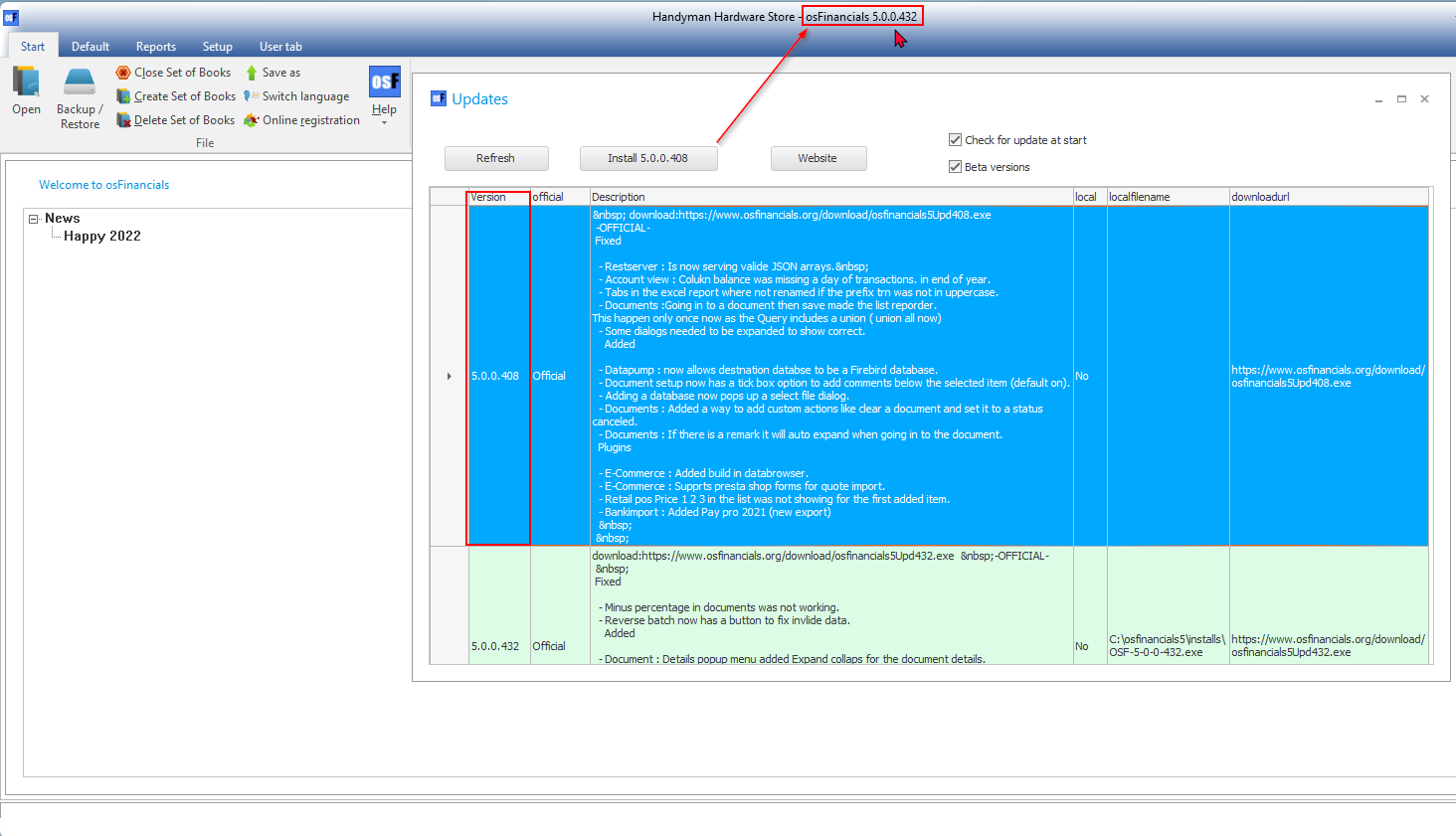
You may select to install the Official versions or Beta versions.
Once you have selected your version, click on the Install (selected version) button. The following confirmation message is displayed:
This action will close osFinancials5 and install the selected version (e.g. 5.0.0.408 we recommend you make a backup of the whole folder of osFinancials5.
Do you wish to continue?
If you wish to proceed, tick the option "I have read this instruction and understand the action!". The Yes and No buttons will be activated.
If you click on the Yes button (of the confirmation screen), the following process will start:
- Download the install file for the selected version and text file with the change log and store it in the ".../installs", e.g. "D:\osfinancials5\installs folder of your current osFinancials5 installation.
- Automatically install the selected version and close the current osFinancials5 session.
|
|
If there are any other osFinancials5 installation files in the ".../installs" folder of your current osFinancials5 installation, the installation process will not start. The following error message will be displayed: The setup files are corrupted. Please obtain a new copy of the program. Click OK and delete the install files from the installs folder. Restart osFinancials5 and select the file from the Updates screen and click on the Install (version) button. |

Once the installation is finished, you may launch  from your system.
|
|
The selected version of osFinancials5 will be displayed in the title-bar of the selected version of the installed update. |

