




PAY ATTENTION!
Your purchased plug-in (s) or trial versions can only be activated in version 4.0.0.q build ( 735 ) or higher. If you have an older version , you first have to update to version 4.0.0.q . ( Coming from version 3, look here for instructions) . If you have previously registered with a version lower than 4.0.0.q , you must re-register on this site.
For TurboCASH this is version 5.0.0.735 +
To use a plug-in should be taken two steps. STEP 1: The retrieval of license keys and STEP 2 : Turning on the relevant plug-in. Both steps are below show.
Retrieving of the plugin licences
Go to the "Start" tab. Then click on "Online Registration". 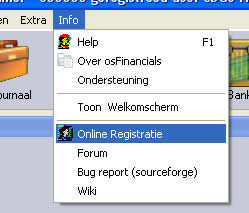
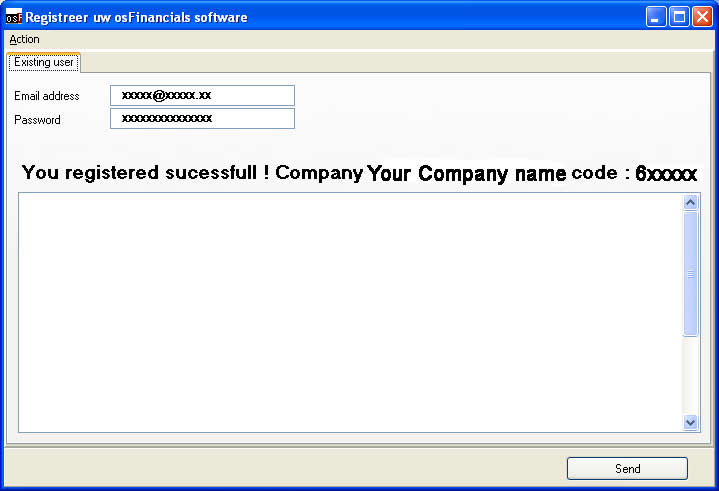 |
You then enter the next screen. Enter your username and password for this website.
|
 |
You will see all the plugins you purchased or plugins you have asked for a trial. Behind the purchased plugin (s) you will see the number of collection opportunities and possibly the end date of the plug-in specified
|
Turning on the relevant plug-in.
After you have retrieved the plugin code(s), you must turn on your plug-in (by administration or user). Turning on your plug-in is done through tab: Settings -> Extra -> Plugins . By using the plug-in menu structure are the plug- ins distributed over different categories. Search between the plug-in that you want to encourage . Start osF again to fully activate the plugins.
(The bank import plugin is an exception, it is always active and does not need to be turned on separately)

For example: The activation of the plugin "Voorraadcontrole". The plugin is located in: Artikel plug-ins -> Voorraadcontrole.

Click the plug-in that you want to turn . This takes you to the screen to be able to put your plug-in 'on or off ' . Put the plug-in "ON" . Then click "SAVE" After turning the plug- ins is wise to start osFinancials again so that the change is fully implemented by the program. After that you can work with the plug-in . For further explanation on how to use the plug-in or set this up , we refer to the various manuals

Plug-in activatielijst
LET OP: Indien u deze handling uitvoert, zult u bij elke nieuw aangeschafte plug-in deze handeling moeten herhalen!
Als osFinancials wordt geïnstalleerd, worden ook alle plug-ins mee geïnstalleerd. Het kan daardoor verstandig zijn, om te controleren of er geen plug-ins aanstaan welke niet gebruikt worden. Dit maakt het starten van en het werken met osFinancials een stuk sneller.
Klik hiervoor op de knop "Activate plug-ins" in het tabblad Instellingen -> Extra.
Het volgende scherm wordt geopend. 
Klik nu eerst op de regel "Root" en vervolgens op de knop "Registered only" om alle niet gekochte plug-ins uit te sluiten van het laden.
Afhankelijk van de door u gekochte plug-ins, zult u de gekochte plug-ins nu zien met een grijs icoon en de overige met een rood icoon.
