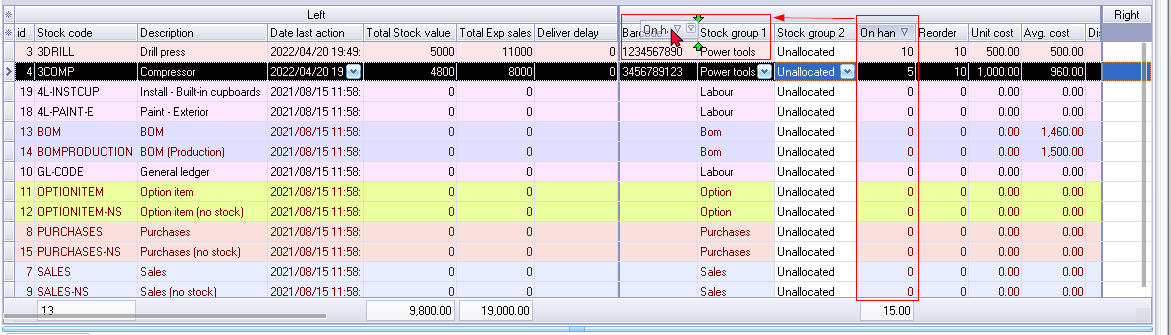
Show / Hide columns
|
|
To save your column preferences, you may click on the Save layout on the Settings tab in the Advanced mode. Your view and grid layout preferences will be available when you Close active forms or close and reopen the Set of Books and access Stock items again. |

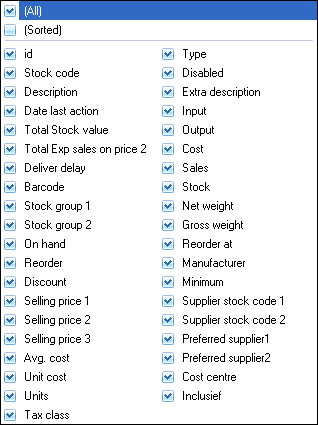
By default, all thirty-nine (39) columns will be displayed and listed in the Stock item list screen for each stock item type.
The data in columns is grouped in to three (3) bands:
- Left - Lists the id (stock record id), Stock code, Description, Date last action, Total stock value, Total Expected sales on price 2, and delivery delay.
- Data - Barcode, Stock group 1, Stock group 2, On hand, Reorder, Avg. cost, Unit cost, Discount, Selling price 1, Selling price 2, Selling price 3, Units, Tax class, Type, Disabled, Extra description, Input (tax account code), Output (tax account code), Cost (Cost of sales account code), Sales (account code), Stock (account code), Net weight, Gross weight, Reorder at, Manufacturer, Minimum Salesperson, Supplier stock code 1, Supplier stock code 2, Preferred supplier 1, Preferred supplier 2 and Cost centre.
|
Default |
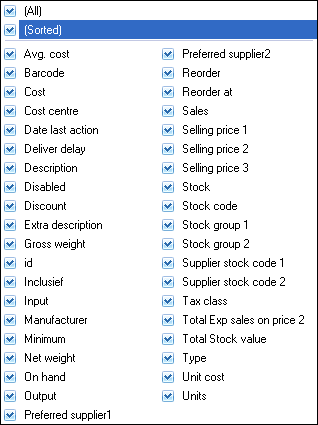
Sorted (selected) - Alphabetical list |
|
|
|
- Right - This band is by default blank. You may drag any column or columns from the Left band or the Data band to the Right band.
|
|
You may drag and drop any of the columns on the left band to the right band and the columns from the right band to the left band, to customise the grid for your requirements. |
Hide / Show bands
Left band - Remove the tick in the first tick box. This will hide the id (stock record id), Stock code, Description, Date last action, Total stock value, Total Expected sales on price 2, and delivery delay columns.
Data band - Remove the tick in the second tick box. This will hide all columns in the data band.
Right band - Remove the tick in the third tick box. This will hide all columns in the right band (if any columns were dragged to the right band).

|
|
The column headings are grouped into three (3) bands:
|
Hide / Show columns
Click on the second block - Column headings - A list of the fields will be listed.
Remove the ticks for the columns to hide or select the columns you need to display.
|
|
You may use the Up arrows and / or the Down arrows Right or Left arrows keys to navigate the fields. You may use the Space bar to deselect (remove the tick) or to reselect (tick a field again). |

|
|
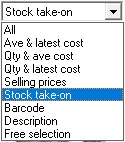
You may change sequence in which the data in the columns is displayed by selecting one of the following options on the Update type:
|
Drag columns
Click on a column heading and drag it to the right or to the left to change the sequence in which the columns need to be displayed.