
Open item link - Transactions tab
The Transactions tab will list the transactions for open item accounts.
Open item link - Transactions tab - All transactions
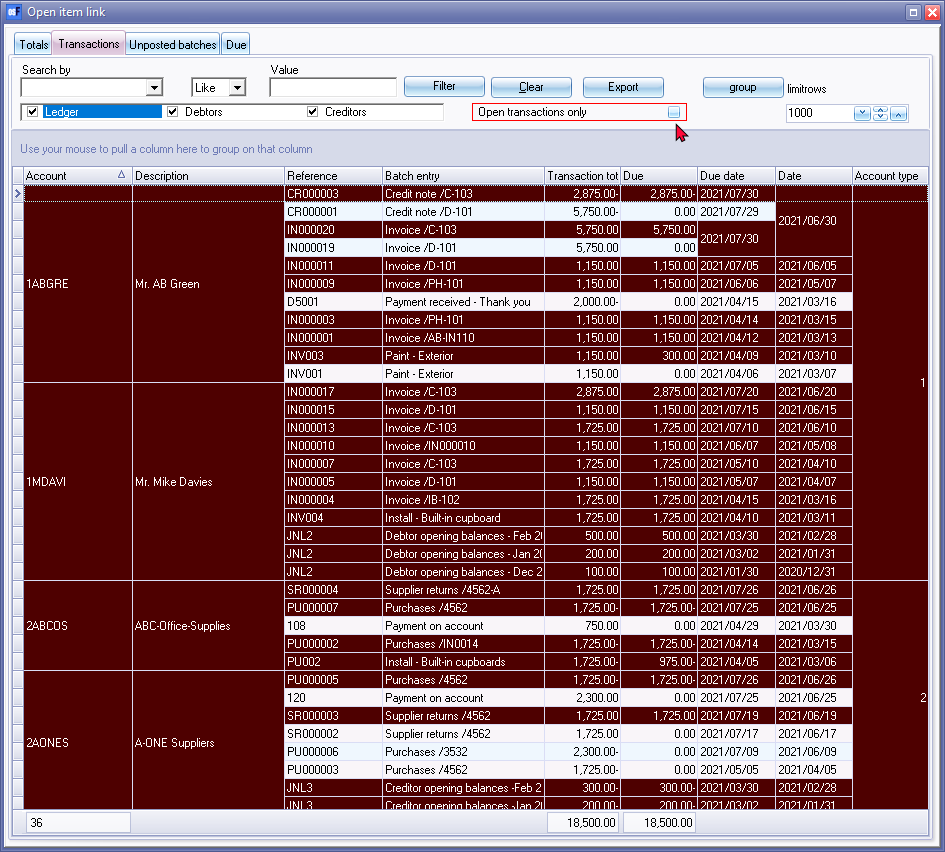
Open transactions only - By default, this option is not selected and will list all transactions, including those with a 0.00 balance.
Open item link - Transactions tab - Open transactions only
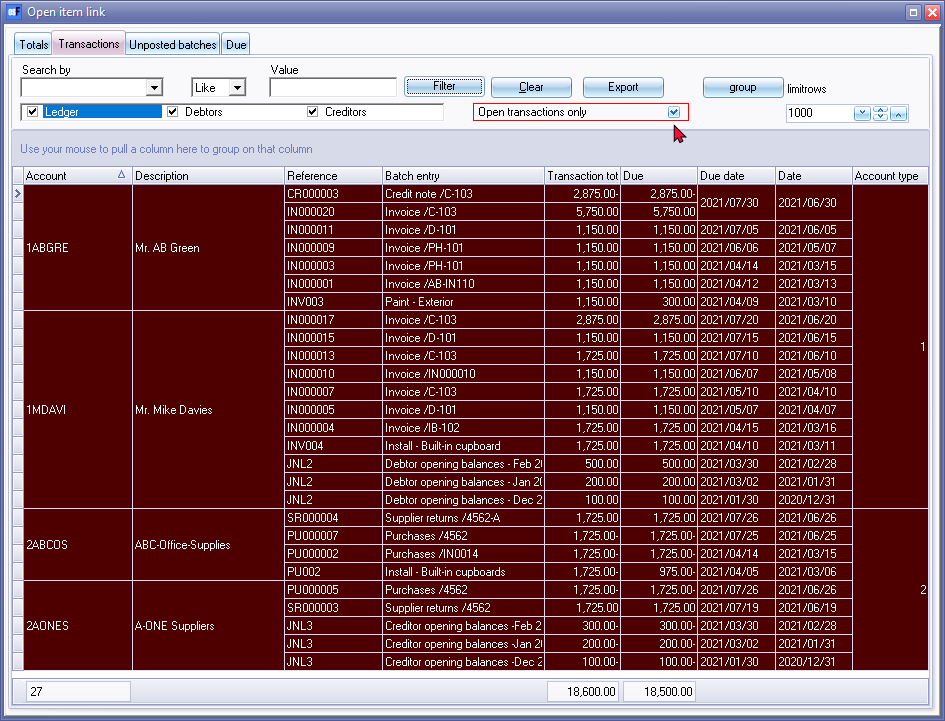
Open transactions only - If this field is ticked, it will list only those transactions with a value of more than 0.00 in the "Due" column.
Open item link - Transactions tab - Context menu
Select an account and a transaction. Right-click to select the following options from the context menu: 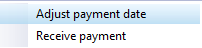
- Adjust payment date - This will change the due date to a selected date.
- Receive payment - This feature, will automatically generate the transactions to the receipts batch for a selected transaction and print a combined receipt / payment advise (if selected). The transaction will automatically be posted (updated) to the ledger.
Open item link - Transactions tab - Filter options
Filter options:
- Search by - Select any of the column headings and an operator (e.g. Like (default), =, <, >, <=, =>, or <> ) and enter a value. Click on the Filter button. Only those transactions matching your specified values will be listed. To clear the values, click on the Clear button.
- Account type - Select (tick) or deselect (remove the tick) to list the accounts for the selected account type(s) (Ledger, Debtors or Creditors).
- Open transactions only - By default, this option is not selected and will list all transactions, including those with a 0.00 balance. If this field is ticked, it will list only those transactions with a value of more than 0.00 in the "Due" column.
|
|
The Transactions tab of a selected debtor (customer / client) account, will by default, only list the transactions with outstanding amounts. You may select the "All" option to view all the transactions, including those linked (matched) transactions. The Transactions tab of a selected creditor (supplier / vendor) account, will by default, only list the transactions with outstanding amounts. You may select the "All" option to view all the transactions, including those linked (matched) transactions. |

- group - Click on the group button to group the transactions on the list by "Month, From today, By date" and "By year".
|
|
You may also drag columns to the "Use your mouse to pull a column here to group on that column" row. |

- limitrows - Limit rows - 200 rows is the default number of rows or transactions to be listed. The number of rows may be specified (decreased or increased).
- Export - This button will create an Export.txt (Text files), which you may change the name and folder and save it. A Comma separated (CSV) file format is also available. This will export the list, as selected and / or filtered and displayed in the Transactions tab, as a comma separated text file as a "Export.txt" file. The Exported file will automatically be opened in your in your system's app (program) associated with the CSV (Comma Separated Values) file types.
Open item link - Transactions tab - Columns
The columns is as follows:
- Account - Account code.
- Description - Account name or account description.
- Reference - The reference as entered in the "Reference" column for each transaction in "Batch entry" screens. In the case of Documents, the document number will be listed.
- Batch entry - The description as entered in the "Description" column for each transaction in "Batch entry" screens. In the case of Documents, the document type and reference as entered in the "Your reference" field of the document header section of the "Document entry" screen will be listed.
- Transaction total - The total of the actual transactions in posted batches and documents.
- Due - The due amount lists the total of outstanding for transactions, which is not matched linked. If the totals in the "Transaction total" and "Due" columns matches; or is displayed in the default system font, it means that all transactions are linked (matched).
- Due date - The Due date is the number of days added to the actual date of the transaction. The number of days is on the Accounting information tab of debtor (customer / client) accounts and on the Accounting information tab of creditor (supplier / vendor) accounts.
- Date - The actual date of the transaction in documents and batches.
- Account type - Ledger (General ledger accounts, Bank accounts and Tax accounts), Debtors or Creditors.
|
|
Account type:
|