
Reverse posted batches
This feature allows you to cancel transactions that were processed in batches (journals) which have already been updated (posted) to the ledger. By selecting this option, all the transactions that were previously updated (posted) to the ledger will be cancelled and removed from the transaction file.
The cancelled transactions will be automatically imported to the selected batch (journal). At this point, you have the option to either erase or delete the entire batch (journal). If you wish to keep the cancelled (reversed) batch, you can edit and correct the transactions, balance the batch, print the batch list, and post it to the ledger.
|
|
The Log-report in Setup → Access control (Setup ribbon) will list the date and time, as well as which user and on which device, the batch were cancelled as REVBATC - Reverse batch! and the Batch ID. |

|
|
If any transactions are already entered or imported in a batch (journal), which is not yet posted (updated) to the ledger, and all or some of the transactions are incorrect, you may use the following options to edit the transactions in the batch (journal):
|

|
|
This option should only be used to correct critical errors. Errors encountered in the normal accounting process, (for example, errors of omission, errors of principle, posting to incorrect accounts, errors of principle, etc.) should be corrected in the general journal or specific batches (journals). |

|
|
It is recommended that you make a backup of the Set of Books, before you start to use this facility to cancel or reverse a posted batch. In the event of making a mistake or if some problems are experienced, you may then easily restore the Set of Books from the backup file. |

To reverse or cancel all the transactions in a posted batch (journal):
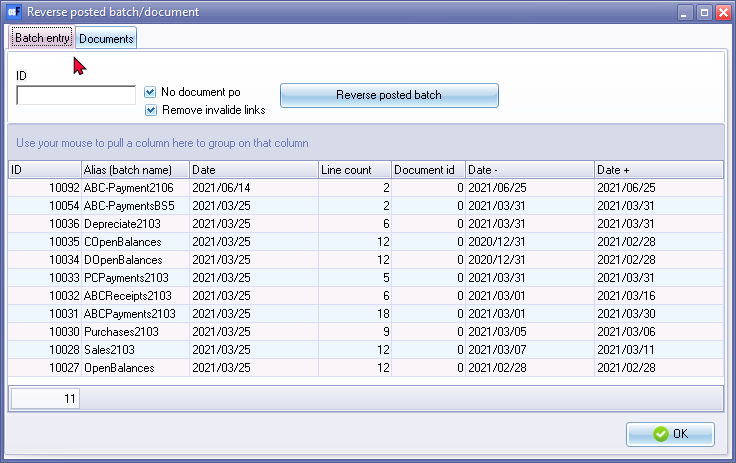
- On the Setup ribbon, select Global processes → Reverse posted batch/document.
|
|
No document posted
|
- Select the posted batch from the list to be reversed or cancelled.
|
|
You may identify the posted batch (journal) by Batch number as displayed on the Batch list lookup facility, alias or date and time. If you changed the alias of the batch, it will be easier to identify the batch (journal) to be reversed, or cancelled, by the alias (batch name). |
- View the details of the batch to make absolutely sure that it is the correct batch (journal).
|
|
To view the details of the transactions in the selected batch (journal), you may:-
|
- If you double-click, or select the Details option on the context menu, the following screen is displayed:
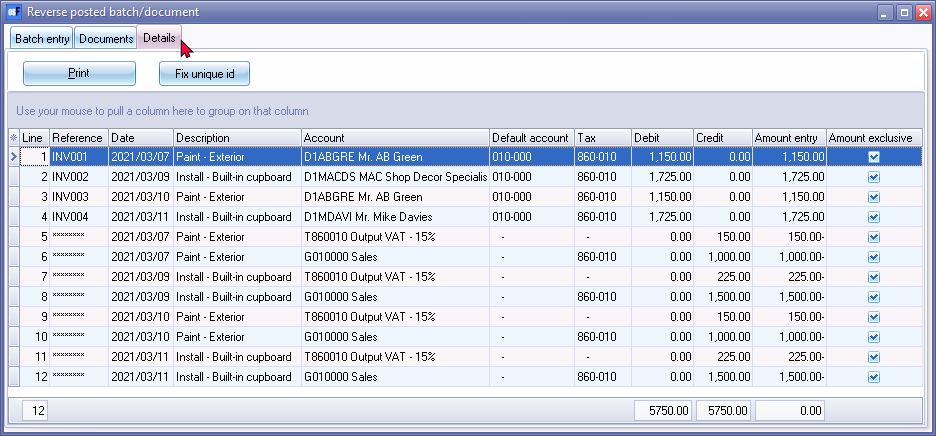
- All the details of the transactions entered or imported and posted (updated) to the ledger for the selected batch, will be displayed. Check that the selected batch (journal) contains the transactions which needs to be reversed or cancelled, and click on the Batch entry tab.
|
|
Fix unique id - If the batch cannot be reversed / cancelled and some error message is produced, you need to click on the Fix unique id button. It is recommended that you make a backup of the Set of Books, before you click on the Fix unique id button |
|
|
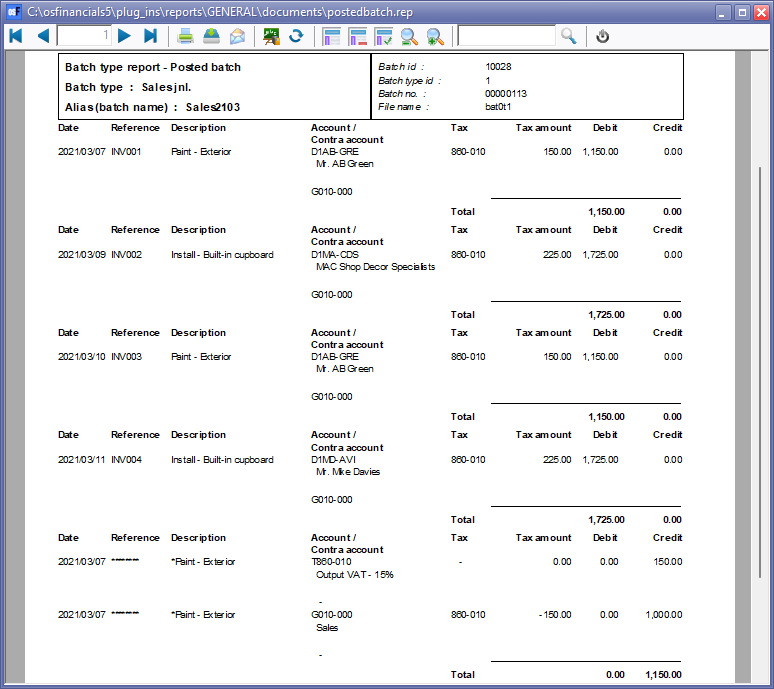
You may click on the Print button to print the transactions in the batch. The batch will be removed and the "Batch type - Posted batch" report cannot be printed for the selected batch.
|
- Click on the Reverse posted batch button to start the process. The following information message will be displayed:
This will radically alter your data! We recommend that you stop and make a backup!
Do you wish to continue?
- Click on the Yes button, only if you are absolutely sure that the selected batch is correct, and that you need to continue with this process.
|
|
If you have not made a backup of the Set of Books, before starting this process, it is recommended that you click on the No button, and first make a backup of the Set of Books. |
- Wait until the process is finalised.
|
|
It is advisable not to use your system for other tasks while this process is running. |
|
|
Once this process is finalised, the selected batch will not be listed on the Reverse posted batch screen. |
- Click on the Close button in the title bar of the Reverse posted batch/document screen to exit (close) this facility.
- Click on the Batch entry icon, and select the batch type, to see the transactions of the posted batch which was reversed. You may then edit these transactions, delete the transactions, etc. Once your transactions is corrected, you need to balance the batch (journal), and post (update) the transactions to the ledger.