
Batch transactions - Spreadsheet Import
You may import batch transactions from a valid spreadsheet saved as a "Excel Workbook (*.xlsx) file type into a batch.
You may then add new transactions, edit existing transactions, etc.
To import batch transactions from a Excel Workbook (xlsx) file:
- On the Default ribbon, select Batch entry (F2).
- Select a blank Batch, and click Open.
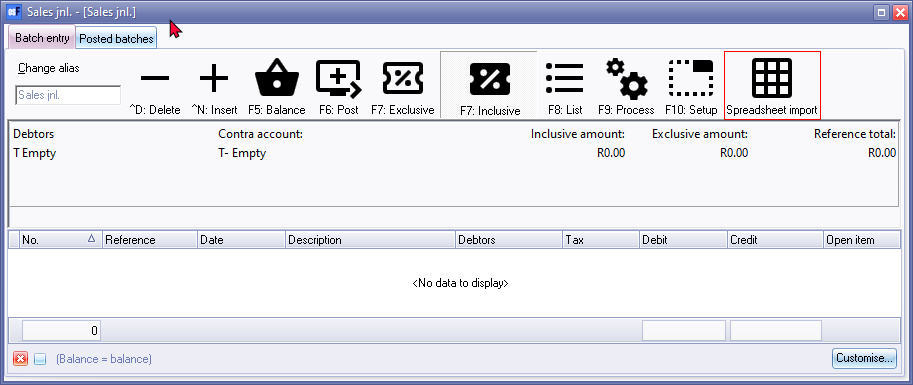
- Click on the Spreadsheet import icon.
- The "Data Import Export" be launched without any data.
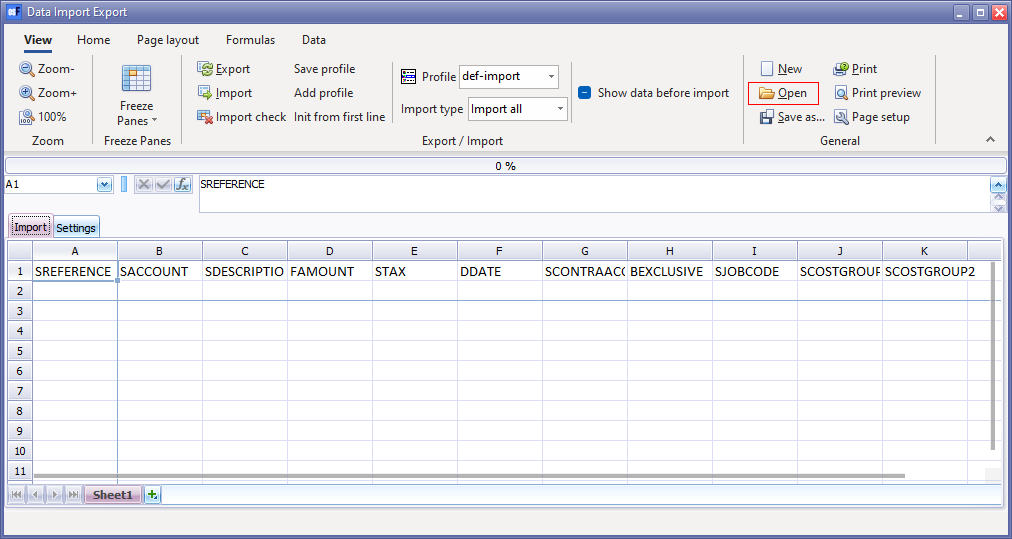
- On the "Data Import Export" screen, click Open to select a valid saved exported file.
|
|
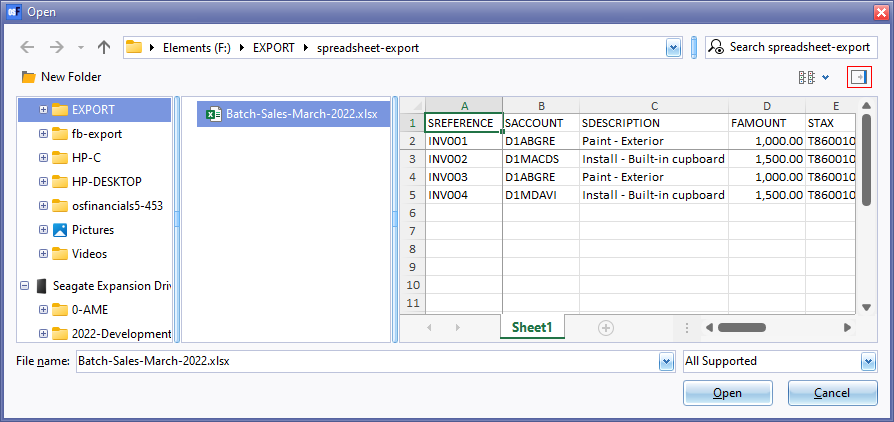
You may click on the "Show the preview pane" icon on the "Open" screen to display a preview of the selected file to open (import) in the "Data Import Export" screen.. |

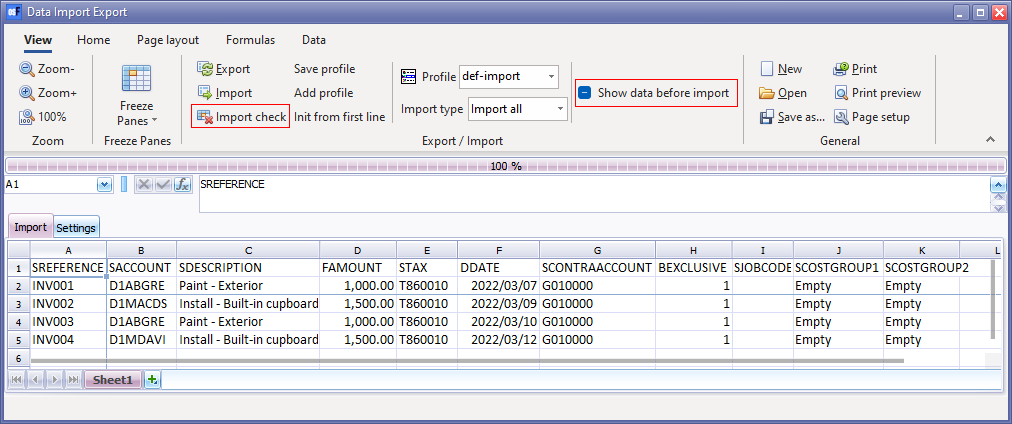
- Select the folder and file. Click on the Open button. The batch transactions included in the selected "Excel Workbook (*.xlsx) file opened will be imported and listed in the "Data Import / Export" screen.
|
|
Should you need to change an account (in column B - "SACCOUNT" or column E - "STAX" or column G - "SCONTRAACCOUNT"), you may click on the Data tab and click on the "Find account" option.
This will launch the "Select account" lookup screen.
|
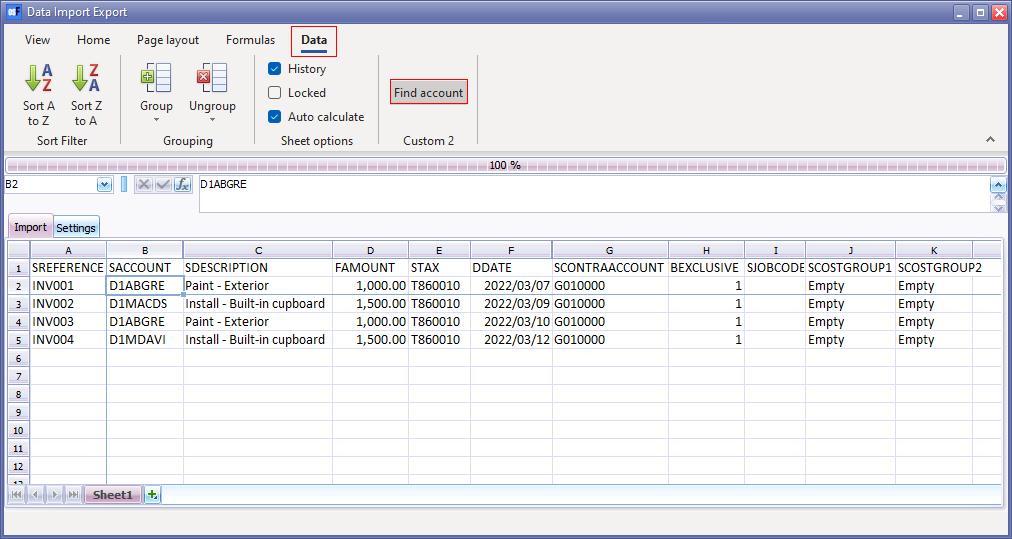
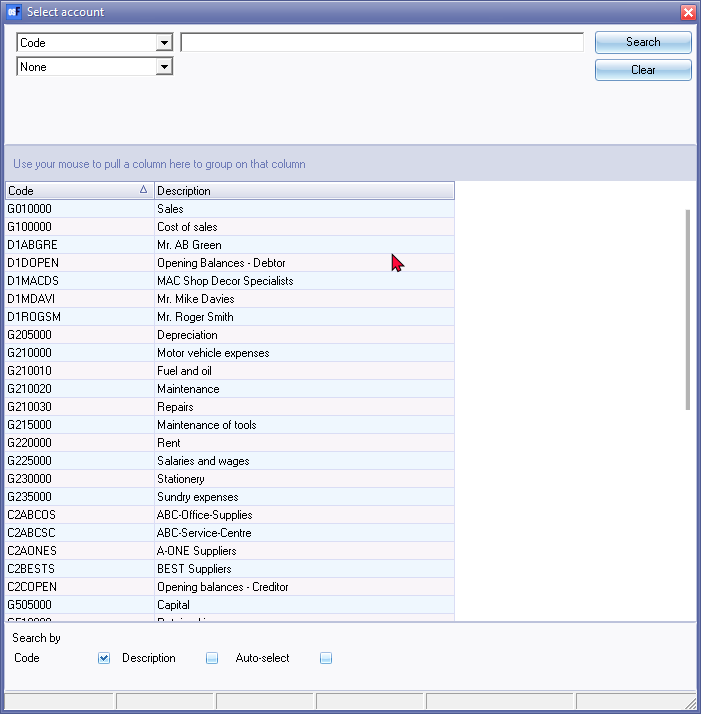
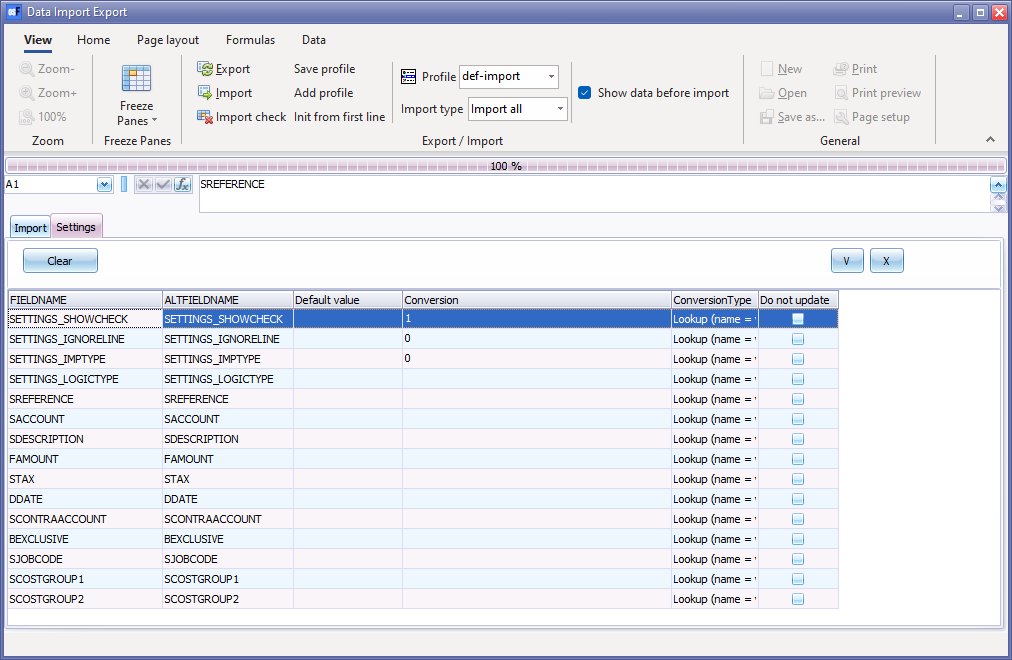
- You may select the following options:
- Show data before import - If this option is selected, the "ImportCheck" screen will be launched, before the import process is initialised.
- Import check - Click on this option to populate the values of the various columns on the Settings tab to be imported.
|
|
See - Spreadsheet export - The data of the imported accounts is imported (populated) in the following eleven (11) columns in the spreadsheet on the "Data Import Export" screen.. |
- Click on the Import tab and on the Import icon. If the "Show data before import" option is selected, the "ImportCheck" screen will be launched:
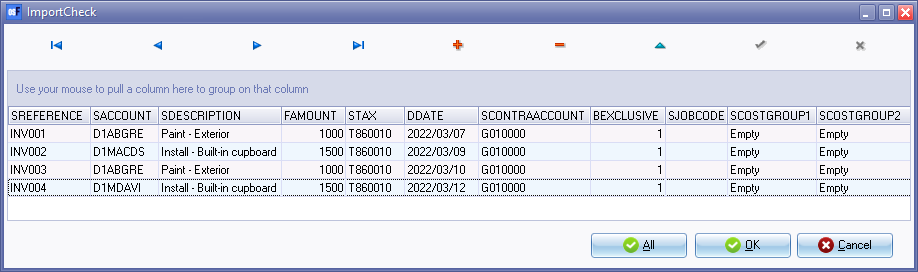
- The transactions that will be imported into the batch will be listed. You may edit these transactions, if necessary. Click on the All or OK button to start the import process.
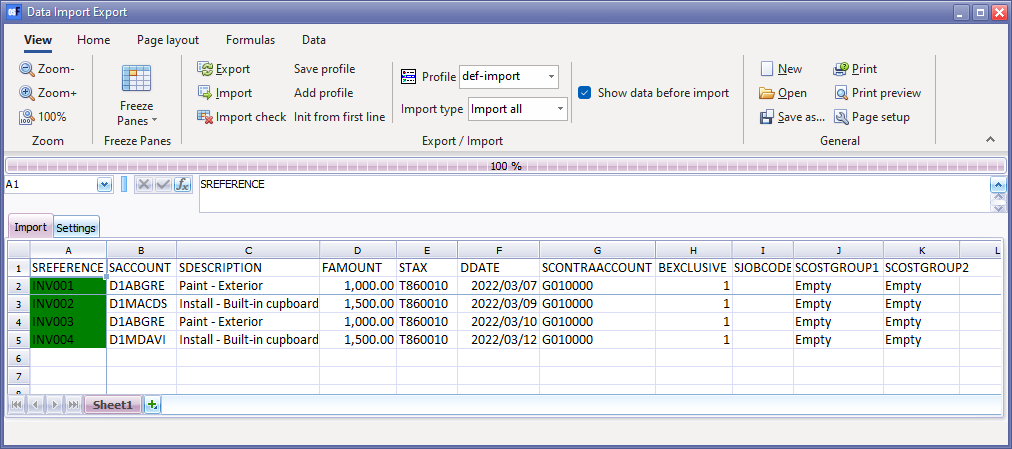
- Click on the Import icon. The colour of the cells in the rows for the transactions in the "SREFERENCE" column should be green. This means that the import process is finalised.
- Click on the Close icon in the titlebar of the "Data Import Export" screen. The imported transactions will be listed in the "Batch entry" screen.
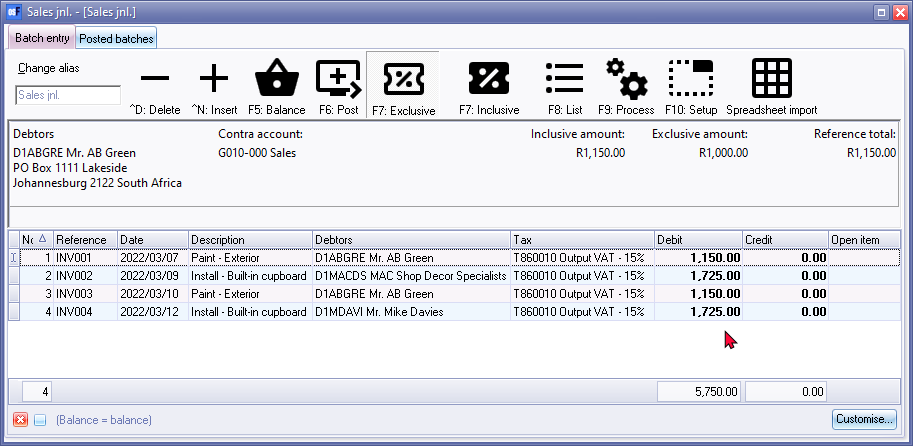
- You may edit the transactions if necessary.
|
|
Once you have finished importing and / or editing the transactions in the batch you need to: - |
