
Import a posted batch
This option allows you to import the transactions from a posted batch in the same Set of Books.
|
|
If you need to import posted batches from TurboCASH4 or a different Set of Books in osFinancials, osFinancials5, you need to:
|

To import a posted batch:
- On the Default ribbon, select Batch entry (F2).
- Select a Batch type and click on the Open button.
- Click on the F9:Process icon. The "Process the batch" options screen is displayed:
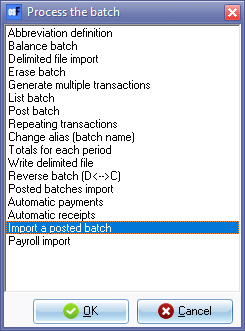
- Select the Import a posted batch option, and click on the OK button. The "Reverse posted batch/document" screen is displayed:
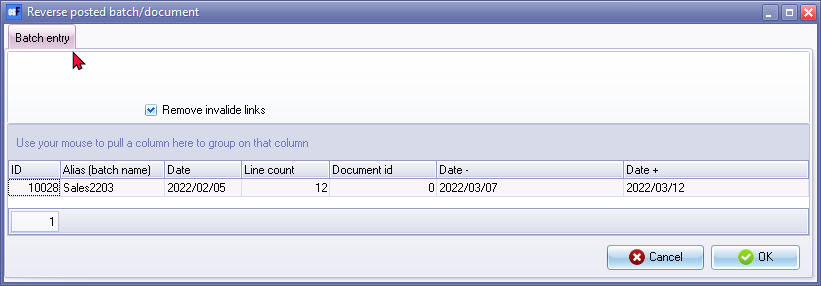
- All posted batches associated with the selected batch type, will be listed. Select a batch to import. The Alias (batch name) makes it easier to identify the correct batch to import. View the details of the batch to make absolutely sure that it is the correct batch (journal).
|
|
To view the details of the transactions in the selected batch (journal), you may:-
|
- If you double-click, or select the Details option on the context menu, the following screen is displayed:
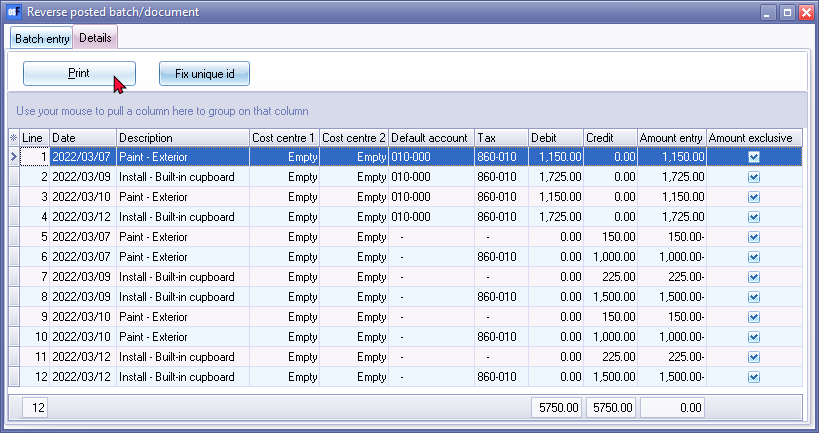
- All the details of the transactions entered or imported and posted (updated) to the ledger for the selected batch, will be displayed. Check that the selected batch (journal) contains the transactions which needs to be imported, and click on the Batch entry tab.
|
|
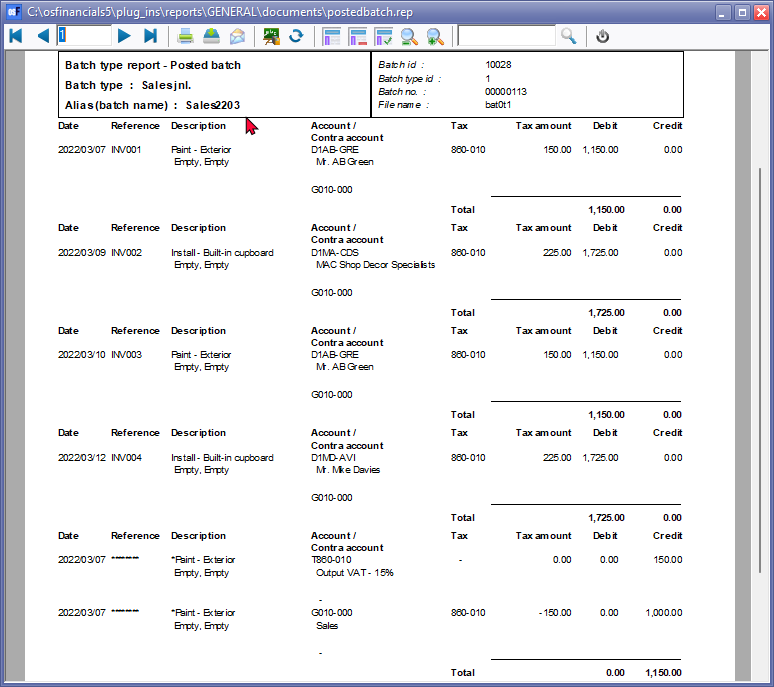
You may click on the Print button to print the transactions in the posted batch. An example of the "Batch type - Posted batch" report, is as follows:
|

|
|
Only those batches for the selected batch type will be listed. |
- Select a batch and click on the OK button. All the transactions in the selected, posted batch will be imported into the selected batch. An example, is as follows:
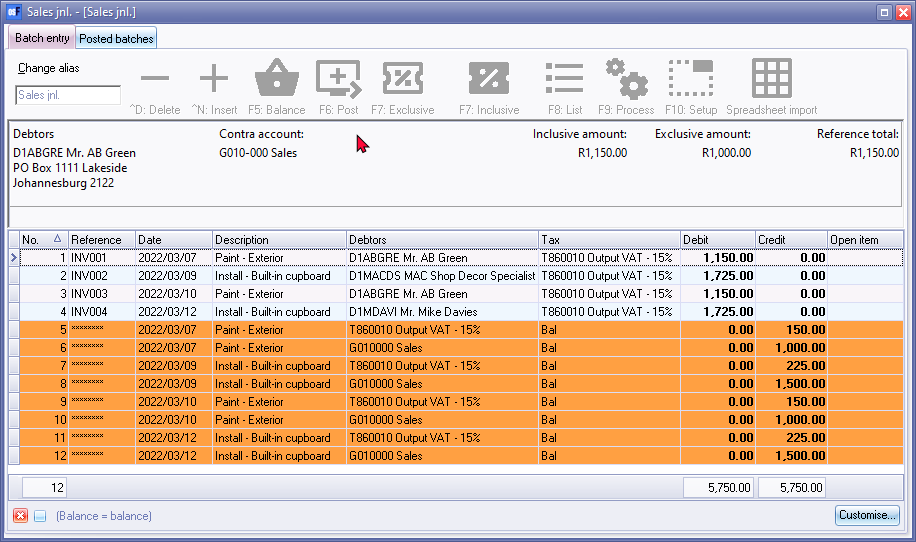
|
|
Should the processing icons on the "Batch entry" screen is inactive during this process, you may need to close and reopen the batch. |
|
|
Once you have finished entering / editing the transactions in the batch you need to: - |