Translate Multi-language types
The names or descriptions for Types, as entered / edited in the Tools → Customise language - Types tab (Setup ribbon), is by default displayed on screens, lookups, documents, reports, etc.
|
|
To use Multi-language Types, Language Groups need to be created / added in Setup → Groups - Languages tab. |

- Document types - Documents - Default ribbon).
- Invoice
- Credit note
- Quotes
- Purchase
- Supplier return
- Order
|
|
If you need to print the Universal Documentlayout files (One (1) Layout file for all document types), it is recommended that these Document type be edited and / or translated to the singular. For example if you print an Invoice, it should display Invoice and not Invoices on the printed layout file. |
- Account types
- General ledger
- Debtor
- Creditor
- Bank
- Tax
- Group types
- Account group 1
- Account group 2
- Debtor group 1
- Debtor group 2
- Creditor group 1
- Creditor group 2
- Stock group 1
- Stock group 2
- Document group 1
- Document group 2
- Payment types
- Salesperson group
- Status group (Used for Projects)
- Cost group 1 (Used for Cost centres)
- Cost Group 2 (Used for Cost Centres)
- Languages
- Paper types
- Preprinted
- Plain A4
- Service
- Plain Eyeline
- Forty
- Till Slip
- Other / Miscellaneous
- This Year
- Last Year
- Stock item
- Comment
- Serial number
- Financial entry
- User reports
|
|
Optional - The following items in the "Types" is not applicable to osFinancials5, and do not need to be translated:
|
- Colours / Theme Types
|
|
It is not necessary to translate the colours, (i.e. Classic, Pastel, Keywest, NewSA and Windows Default). These are not used in osFinancials5. |
To add translations to Types:
- On the Setup ribbon, select Tools → Customise Language.
- Click on the Types tab.
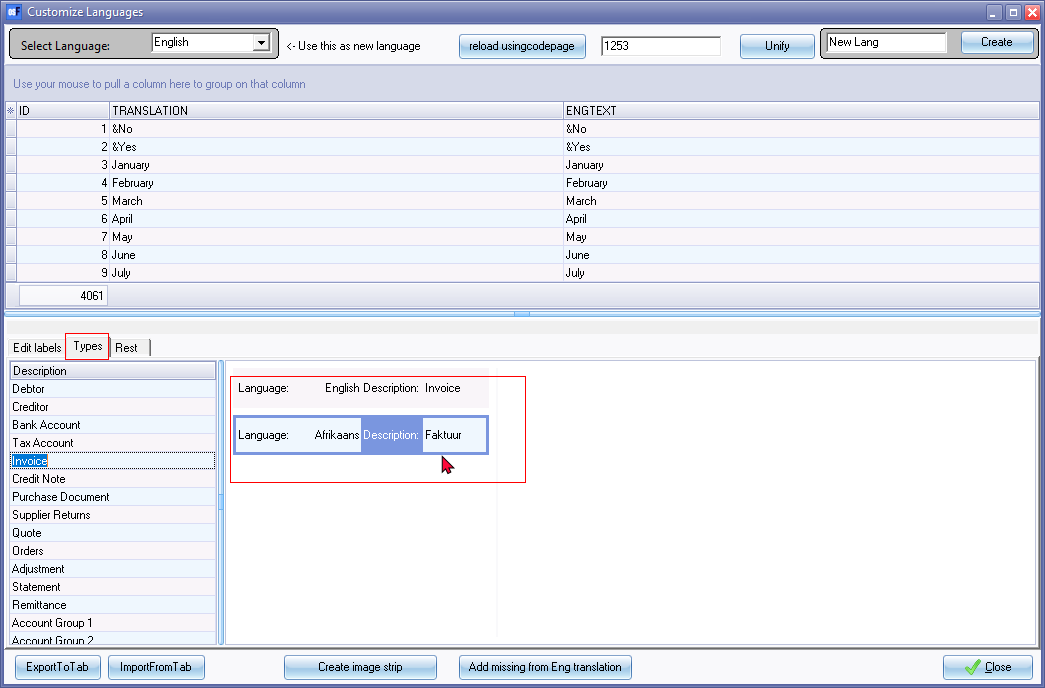
- Select the Language and enter the name and description for each language.
- Repeat the process for all Types.
- Click on the Rest tab.
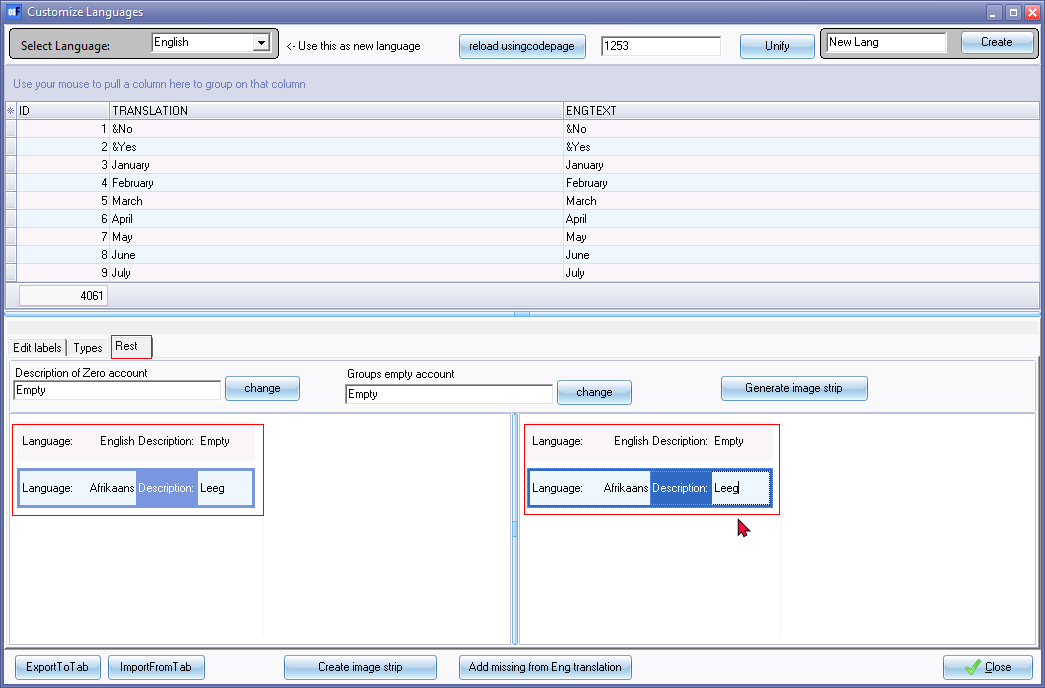
- For the "Description of Zero account", select the Language and enter the name (description) for each language.
- For the "Groups empty account", select the Language and enter the name (description) for each language.
- Repeat the process for all Types.
- Click on the Close button.
After translation
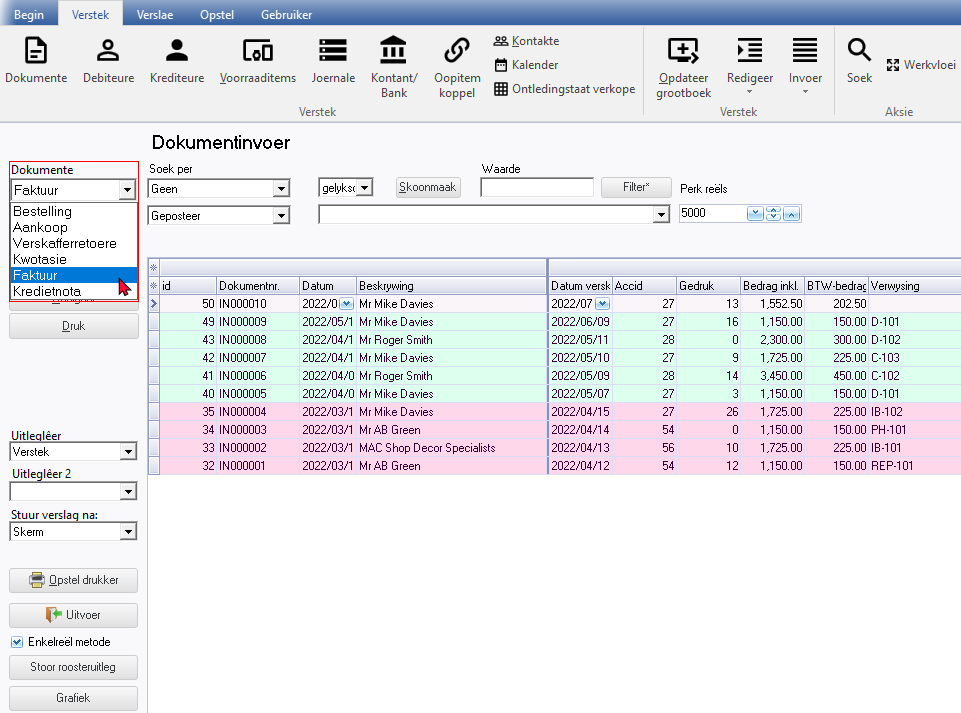
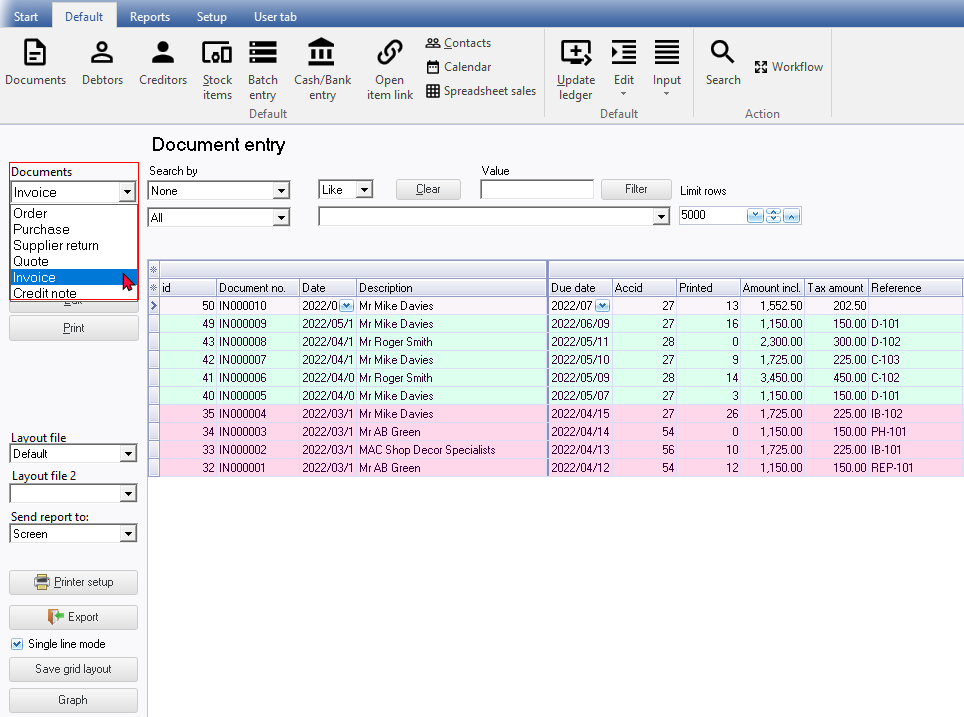
After translations added, the document types will be displayed in the Language set for the logged in user.
Logged in as English user
Logged in as Afrikaans user