




You can activate the plugin at Setup>-Extra ->Plugins ->RetailPOS you will see the set-up screen.
Setup
Activate the plugin
General
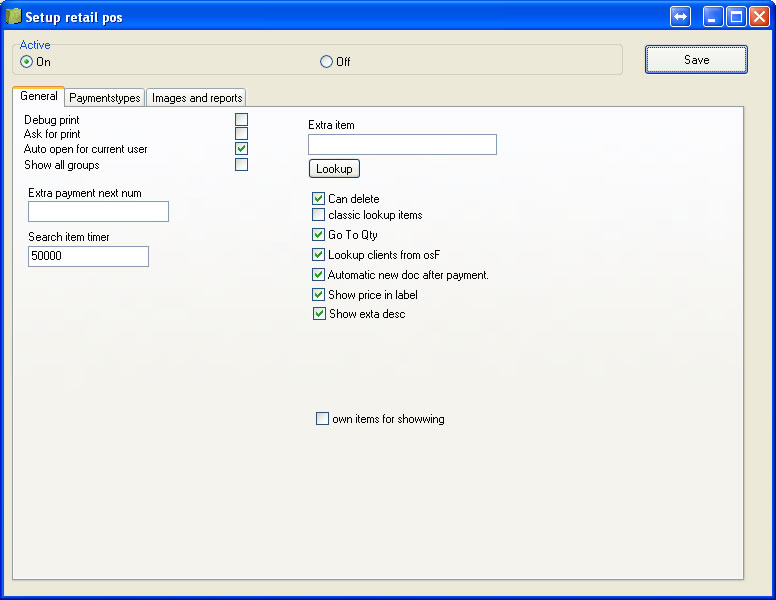
- Debug Print : Set active to debug you prints (show on screen and n o print directly to printer.
- Ask for print : Ask if there must be a ticket printed.
- Auto open for current user : Automaticly show pos for the current user(you can also use true plugin version later).
- Show all groups : When activated all products are available.
- Extra payment next num : Set the nextnumber for cash reciepts.
- Search Timer. Set the timer for a new search after typing text.
- Extra item. Set a item that can server as cash bail for a bottle you can set a amount per product in the products tab.
- Can delete : If turn on the user can delete items with the delete key.
- Classic lookup items: Use the classis stock lookup screen from the edit stock form.
- Go to QTY: After a scan go to the quantity field.
- Lookup clients from osF: Use the debotr screen from osF to add and select clients.
- Automatic new doc after payment: After payment the register is directly ready to add items to a new document.
- Show price in label: IF the button view is active it shows the price inc on the button.
- Show extra desc: Shows the extra description in the button.
- Own items for showing: If you use both horeca and retail register this way they both have there own or shared products.
Paymentstypes

Add payment types to the register like cash credit card vouchers etc. If you do not receive payment the sum will be a open amount.
Images and reports
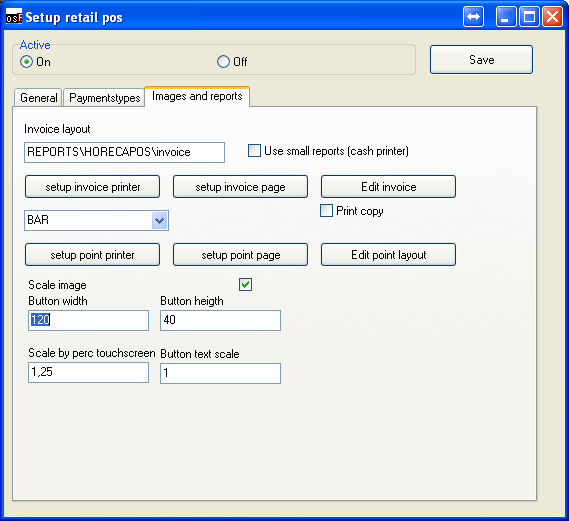
- Invoice layout: The laout used when printing a invoice the location is relative from osFinancials/plug_ins/.
- Use small report : Use small reportig so you can print on a ticketprinter.
- Buttons setup invoice etc to setup / edit yopur layoutfiles.
- Scale image : Makes the images scale this could mean that the image sis very small.
- Button width : Set button width for the group and stock buttons.
- Button heigth : Set button heigth for the group and stock buttons.
- Scale percentage Touchscreen : If yoiu ue touchscreen moduc this is the scale text and button percentage the ratio should be something like 1.2
- Button text scale : Set the scale for text.
Setup stock
By activating the plugin and reopening the set of books a new icon will appear Also if you go to edit stock items there will be a extra tab if you ticked the "Show all groups" in settings you don't have to set-up anything on this tab.
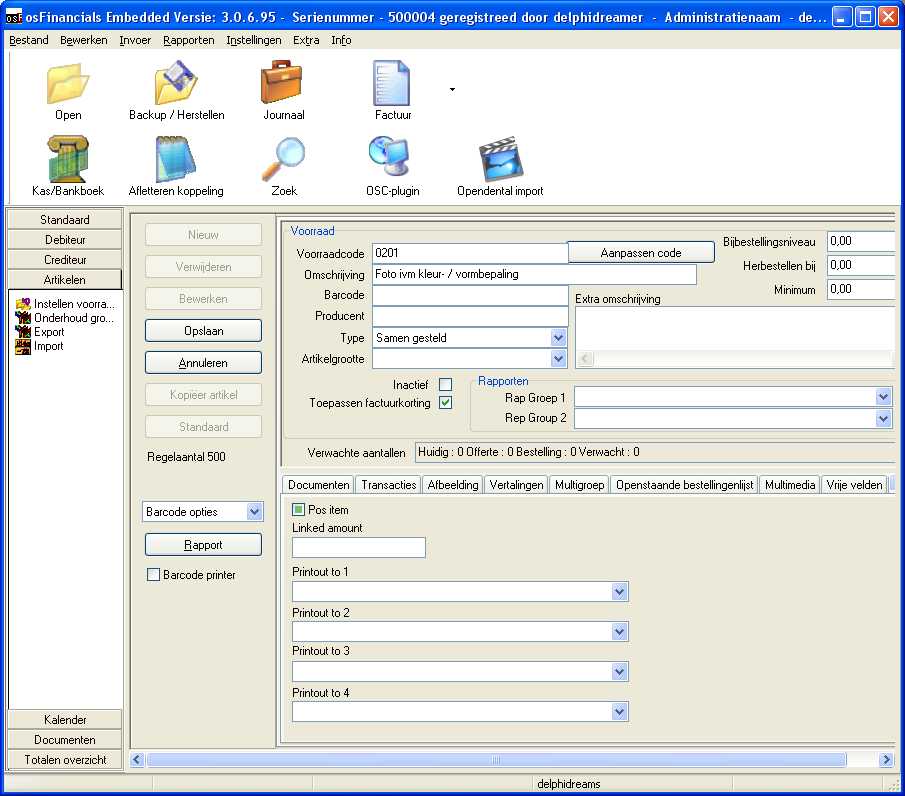
If you did not tick "Show all groups" then you can set per stock item if this can be solded true the POS system by ticking the "Pos item".
Also if you selected the extra stock item you can enter a extra untaxed amount that will be added pre product purchase.
Printout 1 t/m 4 gives you a option to print out data on a printer if the item is selected. Like printing a ticket to the storage room for a specific product. That can be used to verify the buyer so goods can be handed out.
The groups that can be edited at setup->Groups can be linked to stock. There i also a tab multi group to get a product in more than one group, like the group discounts are runner products.
If you select the colours and add a image to the groups this will be used when displaying the group button.
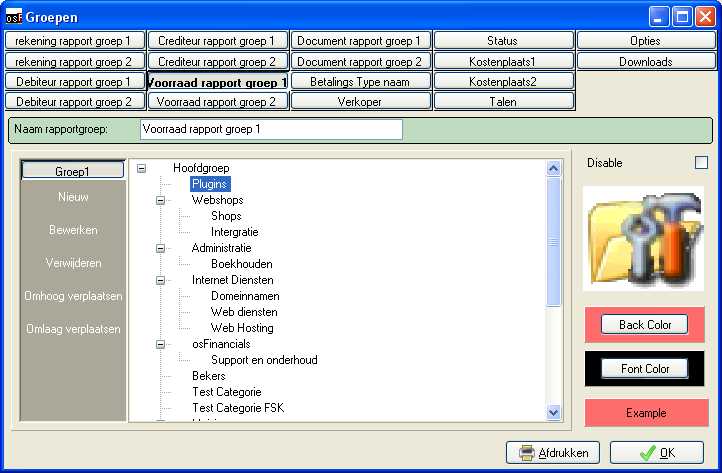
Add group at Setup->Groups.
Use of the default screens.
Setup icoon
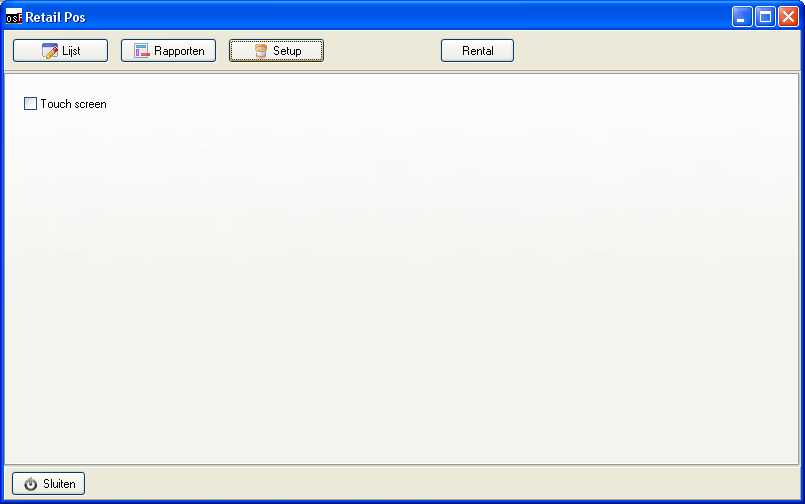
To setup the POS as touchsceen tick the Touchscreen tock this will enlarge with scaling percentage). This is oer computer per user and is stored in the registry (HKEY_CURRENT_USER)
List form
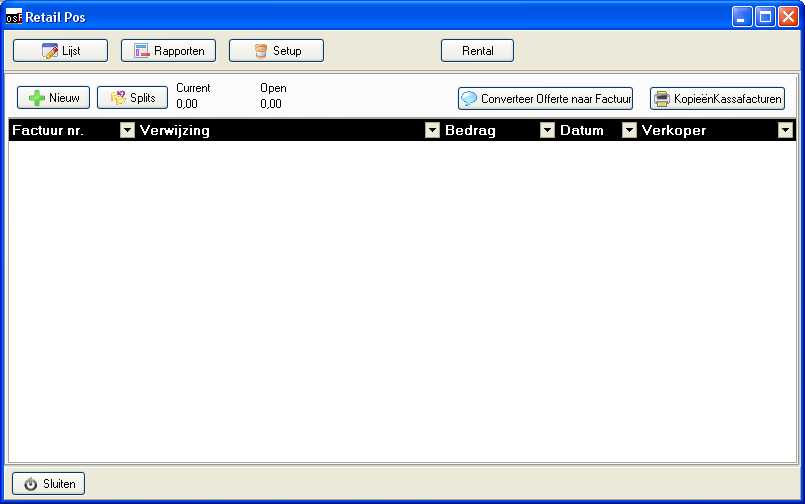
In the list modus you can see the list of invoices not yet payed they are still on hold but saved to make sure stock qtys are substracted while the customer goes off to find his wallet.
also the printed order lies that have print layout setup will be printed. If you have linked the osCommerce the imported documents will also show up in this list.
Als you can convert a exsiting quote to a pos document or you can print a copy of the ticket.
PRess the add button to start a new document.
You can open saved document by double clicking on the list.
POS Document
This is the detailed view of a POS invoice here you can enter products or change the customer.
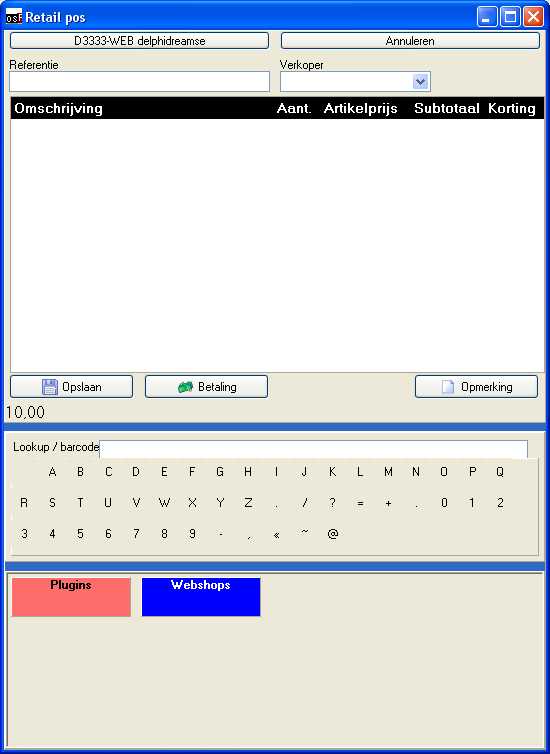
Every new sales the default setup account is used. There is a deafult account for cash sales by clickin on the name you can selecting a divergent debtor. This way yuo can have customers use a customer card or build hisory of a debtor so you know what he or she both before. For instance a hairdresser can see what treatments where given before. Also a garage can use it to find the licence plate to get the history of the car.
With the cancel button you will return to the list.
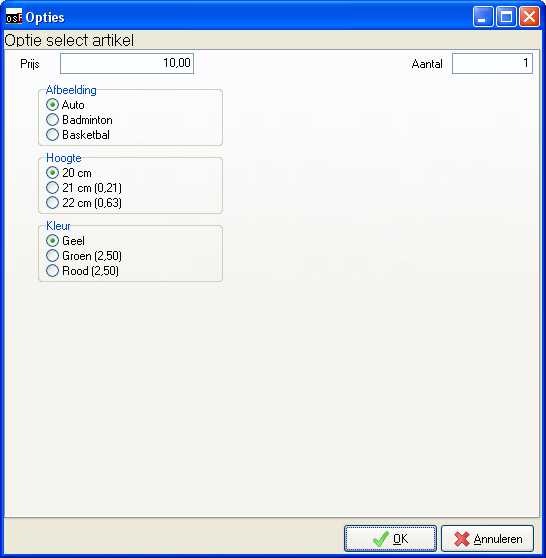
You can lookup products with bar-codes or serial numbers. If you use a scanner you will have to enter a barcode at the stock items. You can also navigate true the groups to find the right item. Some items will pop-up a extra screen like the screen shot below. This is a option item where you can select the right item in the matrix of options.
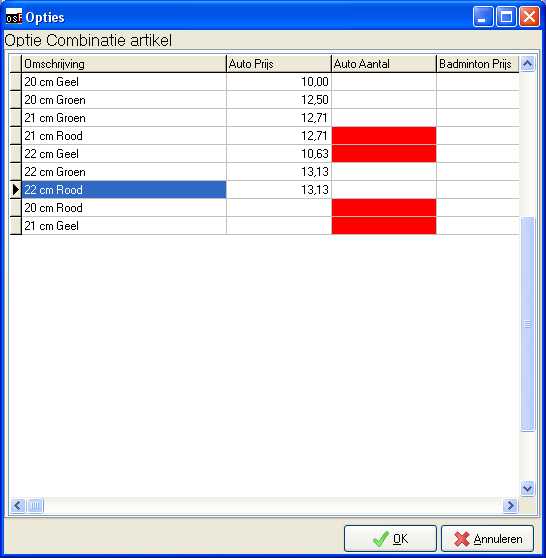
This is a example of simple options the options will then be selection boxes.
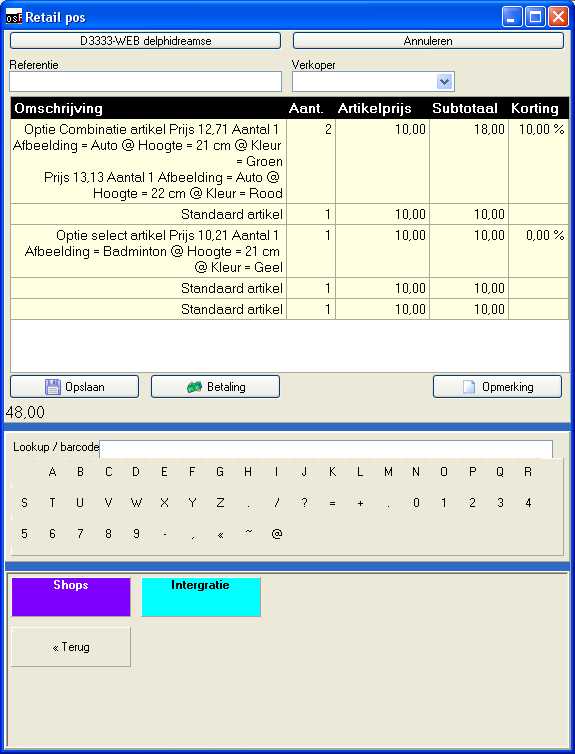
In the list you can see the items added and totals for this sales. Including the extra option prices.
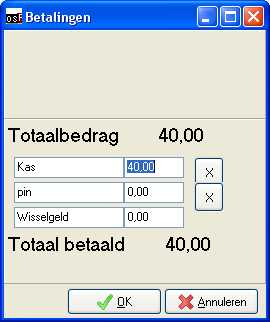
Selecting payment will popup the payment screen that is filled with every payment type that was added in setup->Payment types of the POS.
Corrections
If there is a pos document that has a error or was input incorrectly you can go to the default document entry and correct data/ You can restrict your employees from using this so a administrator will have to correct this.
There is a extra plugin activated in the document to also change the type and status of the document to a open pos document or to a osfinancials document type in case the document can not be posted in POS but closing of the shift is wanted.
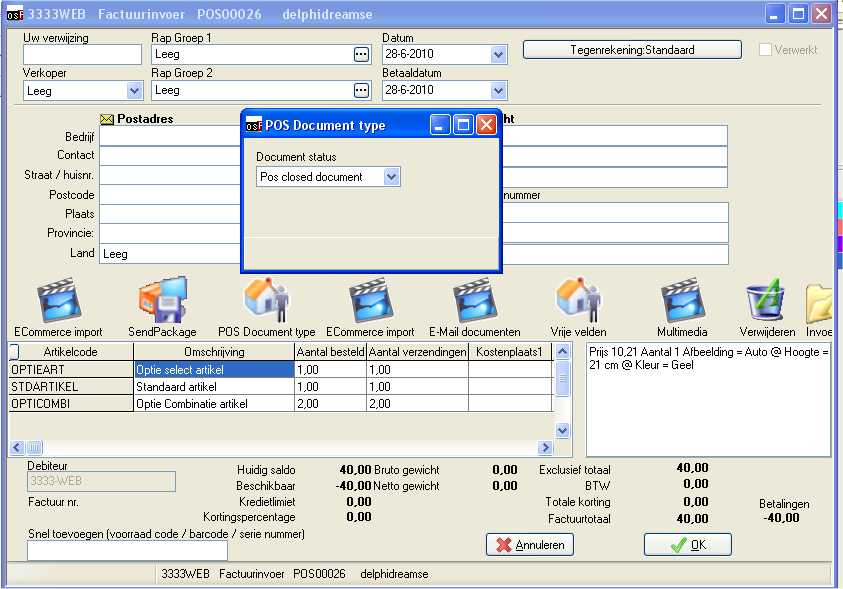
Klick on the icon to adjust the doctype. Double click on the payments (right bottom) to re-enter payment details for a document.
If course you can adjust quantities and or prices in this document entry screen.
Reports
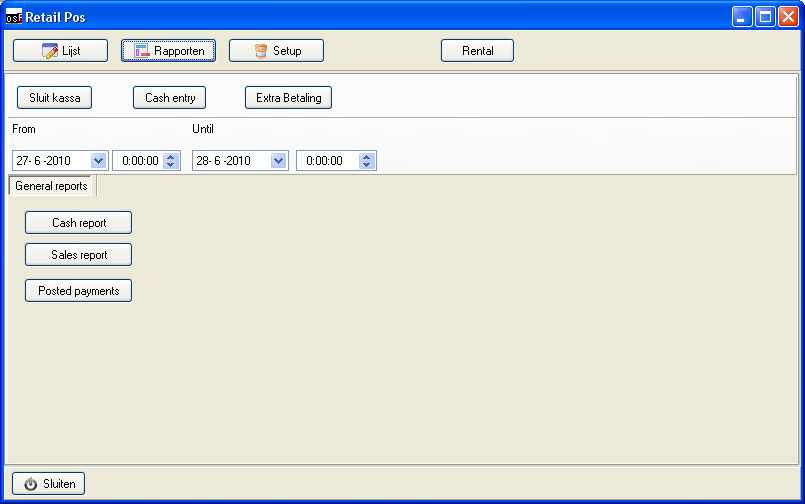
The reports will give you insides on the current cash status and sales of the day / week year.
The reports will pop-up automatic after closing a shift to use as a control for cash/credit card/vouchers positions.