
Update / Post documents
This option is used to update (post) your documents created or generated in Documents (Default ribbon) to the ledger. The debtor (customer / client) documents which can be updated (posted) to the ledger are Invoices and Credit notes. The creditor (supplier / vendor) documents are Purchase documents and Supplier return documents.
|
|
You may set the "Auto-post documents on print" option in Setup → Documents setup (Setup ribbon) to update (post) documents automatically, once a document is generated and printed. If you use this feature, and do not print a document once it is generated, you need to update (post) the unprinted documents in Update ledger (Default ribbon) . |

|
|
Quotes for debtors (customers / clients) and Orders for creditors (suppliers) cannot be updated (posted) to the ledger.
|

When these documents are updated to the ledger they will automatically write up your journals and post the transactions to the applicable accounts in the ledger (the General ledger as well as the Debtor's ledger, Creditors ledger and Stock ledger).
|
|
If you have purchased stock items from a creditor (supplier / vendor), you need to update the Purchase documents before you update (post) your Invoices for sales of stock items to your debtors (customers / clients). This will ensure that your Stock item file will be updated with the purchases before you actually sell the stock items and that you will have sufficient stock items on hand when you update (post) the Invoices. |

Update ledger - Documents
To update the documents to the ledger:
- On the Default ribbon, select Update ledger (F3). The "Update Invoices" screen is ("Invoices" - default document type) will be displayed.
|
|
If the Document Posting option is selected on the Documents tab - Setup → Access control, the Posting button will be added to the sidebar of the Document list screen. Clicking on this button will launch the Update ledger - Documents screen. |
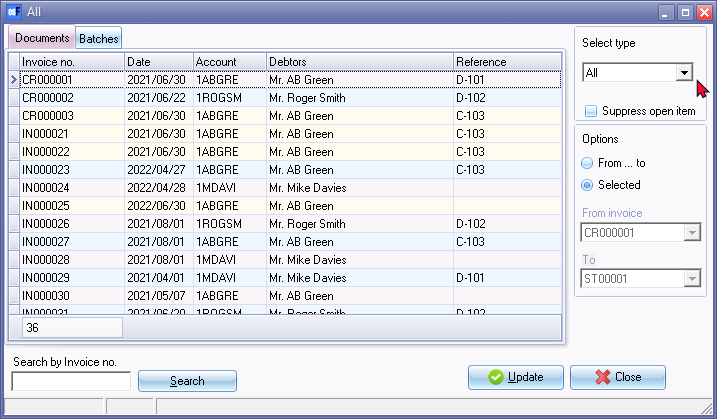
- Select type - Select "Invoices, Credit notes, Purchases" or "Supplier returns". If you select the "All" option, all these document types will be listed.
|
|
The document numbers for Invoices, Credit notes, Purchases and Supplier returns, as prefixed in the Documents setup (Setup ribbon), makes it easy to identify the document type. If the "All" option is selected, the following documents may be included:
These documents will not be listed. if Invoices, Credit notes, Purchases and Supplier returns in the "Select type" list. |
|
|
If the row in which a document is listed is shaded (light cream colour) (in this example CR000003, IN000021, IN000022 and IN000025), it indicates that the document is printed. The other colour shades in the rows, indicates that a document is not yet printed. You may wish to print these documents before updating them. |
- Select the following options:
- Suppress open item - By default, the following Open item selection screens will be displayed on which you need to link the debit and credit transactions when updating (posting) documents:
- Open item selection screen for Debtor (customer / client) accounts if the "Use Open item" field on the Accounting information tab is selected.
- Open item selection screen for Creditor (supplier / vendor) accounts if the "Use Open item" field on the Accounting information tab is selected.
- Select the Suppress Open item field, if you do not wish to use the Open item link selection feature to be launched when updating or posting documents. You may then later use the Open item link feature to link the transactions.
- From / To - This will display "From ... to" and the name of the Document type. This option allows you to select a starting document number on a drop-down list and a last document number which you need to update (post) to the ledger. All documents within the selected range of document numbers will be updated (posted) to the ledger.
|
|
If you need to update (post) only one document to the ledger, the document number in the "From ... to" fields must be the same. |
- Selected - If you select this option, the "From ... to" fields and the drop-down lists of document numbers will be de-activated. An arrow will indicate the selected document.
|
|
You may also use the Down arrow or Up arrow keys on your keyboard to select a document from the list. |
- Click on the Update button. osFinancials5 will automatically write up the transactions in the respective batches (journals), as selected in Setup → Documents setup (Setup ribbon).
Finding or locating specific documents
You may also use the following options to find or locate a specific document (documents):
- Search by Invoice no. - (or document number for the selected document type) will reflect the Search by the selected Document type no.
- Enter the Document number - The document number will automatically be selected. If not, click on the Search button.
Sort sequences
Double-click on the column headings to sort the list of documents ascending or descending:
- Invoice no. - (or document number for the selected document type) - By default, all document numbers are displayed ascending (smallest document number to the latest document number). If you double-click on this heading, it will list the Invoice no. (or document number for the selected document type) descending (from the latest document number to the smallest or first document number).
- Date - By default, the document dates are listed by document numbers. The dates may not necessarily be in the ascending sequence. To display the dates in the descending sequence (from the latest date to the newest date), double-click on this heading. To display the dates in the ascending sequence (oldest date to the latest date), double-click on this heading again.
- Account - By default, the Debtor accounts (Invoices and Credit notes) and Creditor accounts (Purchases and Supplier return documents) are listed by document numbers. The Debtor / Creditor account codes may not be displayed in the ascending sequence. To display the Debtor / Creditor account codes in the descending sequence (9-0 / Z-A), double-click on this heading. To display the Debtor / Creditor account codes in the ascending sequence (0-9 / A-Z), double-click on this heading again.
- Description - By default, the Debtor accounts (Invoices and Credit notes) and Creditor accounts (Purchases and Supplier return documents) are listed by document numbers. The Debtor / Creditor account descriptions or names may not be displayed in the ascending sequence. To display the Debtor / Creditor account descriptions or names in the descending sequence (9-0 / Z-A), double-click on this heading. To display the Debtor / Creditor account descriptions or names in the ascending sequence (0-9 / A-Z), double-click on this heading again.
Context menu options
If you select a document on the list, you may right-click to launch the following context menu: 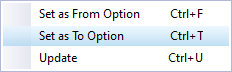
The options are as follows:
- Set as From Option - This will set and display the selected document number as the starting document number in the range options From ... field.
- Set as To Option - This will set and display the selected document number as the end document number in the range options To... field.
- Update - This will update (post) the document to the ledger.