
Themes
By default, osFinancials5 is installed in the "Classic" theme (default theme). Select the Material or Blue, Glass, Silver, Soft-blue or VS2010 theme to be displayed in the program. These themes will display the icons from the similar to the Material icons, but in blue or navy-blue.
|
|
The Material theme (black icons) is implemented in osFinancials5. (in build 518 ). The Blue theme includes a similar set of icons as in the Material theme (navy-blue icons). |

|
|
See video on Themes. The values for the themes are set in the colors.ini file in the themes folder. |

Experiment by selecting different themes until you find the one you like.
For most of these themes, the icons on the ribbons and screens will also change to blend with the selected theme.
|
|
The “Material” theme is used for screen captures in this documentation. |
|
|
You may change the default Background1.jpg with your own image (photo, logo, products), etc. |
Select a theme
To select a theme:
- On the Setup ribbon, select Theme and select the theme of your choice.
osFinancials is by default installed in the "Classic" theme.

The "Material" theme is selected and used for most screenshots in this documentation.
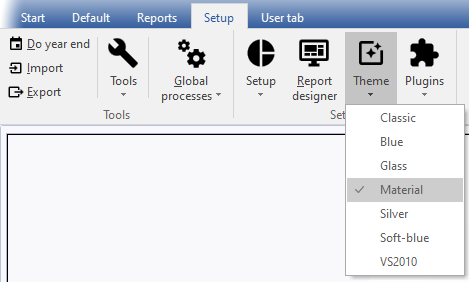
- Select the theme you like the best. The program will display the selected matching icon set.