
Spreadsheet - Import - Stock items
This option will allow you to import your stock code file from a valid an Excel spreadsheet in the Excel Workbook (xlsx) file format. You may then add new stock items, edit existing stock items and import it back into your stock code file.
To import stock items from a Excel Workbook (xlsx) file:
- Open the Set of Books in which, you wish to import stock items from a valid a spreadsheet export file.
- On the Setup ribbon, select Import. The "Import Data into osFinanacials" screen is displayed:
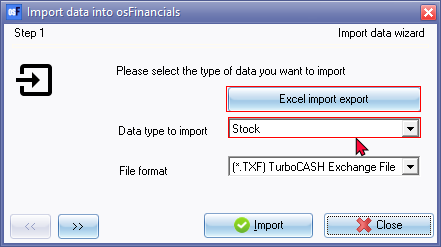
- Select "Stock" as the "Data type to import".
- Click on the Excel import export button. The "Data Import Export" screen will be displayed with the column headings for the Stock items (without any data).

- On the "Data Import Export" screen, click on the Open icon to select a valid Excel Workbook (*.xlsx) file.

|
|
You may click on the "Show preview pane" icon on the "Open" screen to display a preview of the selected file to open (import) in the "Data Import Export" screen.. |

- The data of the Stock items included in the valid Excel Workbook (xlsx) file, will be imported (populated) into the spreadsheet ("Data Import Export" screen).

- Click on the Import icon.

- You may add new stock items, edit the stock items, change the quantities, selling prices, whatever field, is necessary.
- Once you are done, check the following options:
- Import check
- Profile
- Import type -
- Click on the Import icon.
|
|
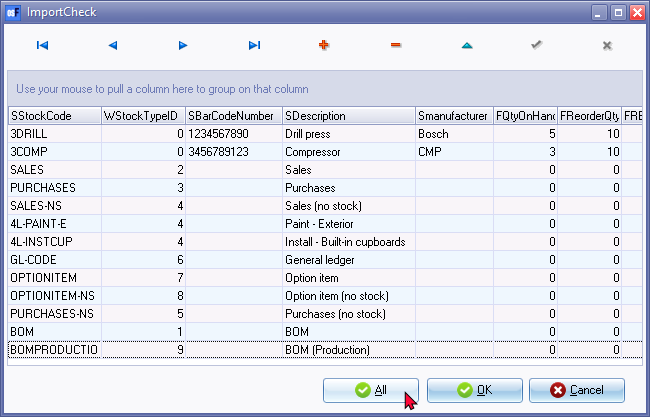
Optional - Show data before import setting The "ImportCheck" screen (if the Import the "Show data before import" option was selected (ticked) on the "Data Import Export" spreadsheet screen) is displayed:
Click on the All or OK buttons to start the import process. |


- Once the import process is finalised, Column A will be in a green background colour.
- Close the "Data Import Export" spreadsheet screen.
- You may to the Default ribbon and select Stock items to edit the stock items, if necessary.
- Go to the Reports ribbon and select Reports → Stock items → Stock item listing to check the stock items.
The data of the stock items is imported (populated) in thirty-four (34) columns in the spreadsheet, and is as follows:
|
|
|
Field name |
Values |
Comments |
|
|
A |
SSTOCKCODE |
Alpha-numeric (15-digits) |
Stock item code |
|
|
B |
WSTOCKTYPEID |
Numeric |
11 - Stock item types 0 = Default (trading stock) 1 = BOM 2 = Sales 3 = Purchases 4 = Sales (no stock) 5 = Purchases (no stock) 6 = Financial entry 7 = Option item 8 = Option item (no stock) 9 = BOM (Production) 10 = Linked item (linked sale) |
|
|
C |
SBARCODENUMBER |
Alpha-numeric |
Barcode number |
|
|
D |
SDESCRIPTION |
Alpha-numeric |
Name or description of stock item |
|
|
E |
SMANUFACTURER |
Alpha-numeric |
Name or description of manufacturer |
|
|
F |
FQTYONHAND |
Numeric |
Name or description of contact |
|
|
G |
FREORDERQTY |
Numeric |
Quantity re-order |
|
|
H |
FREORDERQTYTRIG |
Alpha-numeric |
Quantity re-order warning |
|
|
I |
FMINIMUMQTY |
Alpha-numeric |
Quantity re-order minimum |
|
|
J |
BAPPLYINVOICEDISCOUNT |
Alpha-numeric |
Apply invoice discount: 0 = No 1= Yes |
|
|
K |
FSELLINGPRICE1 |
Numeric (amount) |
Selling price 1 amount |
|
|
L |
FSELLINGPRICE2 |
Numeric (amount) |
Selling price 2 amount |
|
|
M |
FSELLINGPRICE3 |
Numeric (amount) |
Selling price 3 amount |
|
|
N |
FUNITAVECOST |
Numeric (amount) |
Average unit cost |
|
|
O |
FUNITCOST |
Numeric (amount) |
Unit cost |
|
|
P |
FNETTOWEIGHT |
Numeric (number) |
Nett weight |
|
|
Q |
FGROSSWEIGHT |
Alpha-numeric |
Gross weight |
|
|
R |
SEXTRADESC |
Alpha-numeric |
Extra description for stock item |
|
|
S |
SEXTERNALID |
Alpha-numeric |
External id |
|
|
T |
BDISABLED |
Alpha-numeric |
Stock item Disabled: 0 = No 1= Yes |
|
|
U |
SSTOCKCODESUP1 |
Numeric |
Supplier 1 Stock code |
|
|
V |
SSTOCKCODESUP2 |
Numeric |
Supplier 2 Stock code |
|
|
W |
SUNIT |
Numeric |
Unit description |
|
|
X |
SGROUP1 |
Alpha-numeric |
Stock item group 1 |
|
|
Y |
SGROUP2 |
Alpha-numeric |
Stock item group 2 |
|
|
Z |
SCOSTACCOUNT |
Alpha-numeric |
Cost of sales account code |
|
|
AA |
SSALESACCOUNT |
Alpha-numeric |
Sales account code |
|
|
AB |
SSTOCKACCOUNT |
Numeric |
Stock control account code |
|
|
AC |
SINPUTTAX |
Date |
Input tax code T- |
|
|
AD |
STAXCLASS |
Alpha-numeric |
Tax class description |
|
|
AE |
SOUTPUTTAX |
Alpha-numeric |
Output tax code T- |
|
|
AF |
SSUPPLIER1 |
Alpha-numeric |
|
|
|
AG |
SSUPPLIER2 |
Alpha-numeric |
|
|
|
AH |
OPTION |
Alpha-numeric |
|
|
|
The information for the Stock items, which will be exported, is:
|