
Stock - In / Out (Reports menu)
Stock In / Out - Displays a list of the stock items and the quantities in and out as well as the total prices. The details option will list and display the document dates and document numbers for each stock item.
|
|
This report only includes document transactions which are posted. Unposted documents will be NOT be included in this report. To view a list of unposted documents, which is not updated to the ledger, go to Input → Checking unposted items (Default ribbon). |

Stock In / Out report options
To print Stock In / Out reports:
- On the Reports ribbon, select Reports → Stock → Stock In / Out.
- Select "Stock In / Out" report, if not already selected.

- Select the following:
- Period - Select the period on the Per period tab. You may click on the Free selection tab to select a specific date or a range of dates.
- From... To... - Select the stock code(s) to include in the report.
- Reporting group 1 - This is optional and by default not selected (not ticked). You may select (tick) the reporting group(s) to include in the report.
- Show details - By default, this option is not selected. If this option is selected, it will display the details for each stock item.
- New Page per Item - If this option is selected (ticked), it will print the transactions for each stock item on a new page.
|
|
The Company details will not be printed as in the Page header. The company name is displayed in the Page footer. |

- Click on the OK button.
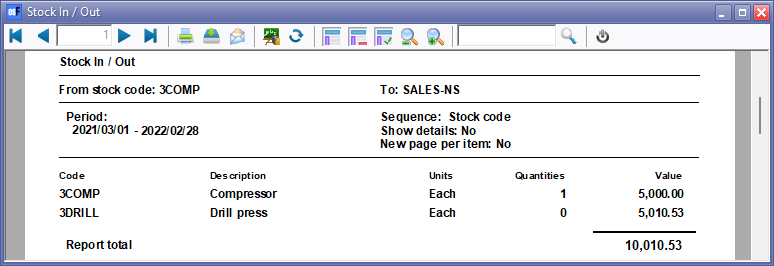
Printed : Stock In / Out report
An example of the "Stock In / Out" (no details) report, is as follows:
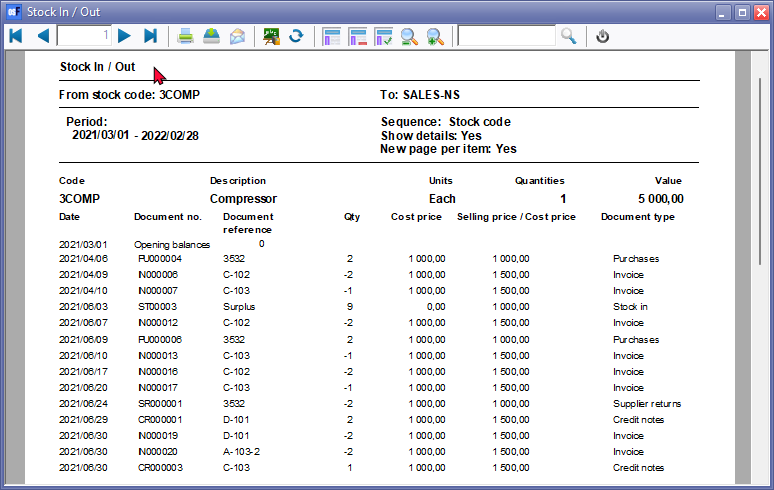
Printed : Stock In / Out (Show details) report
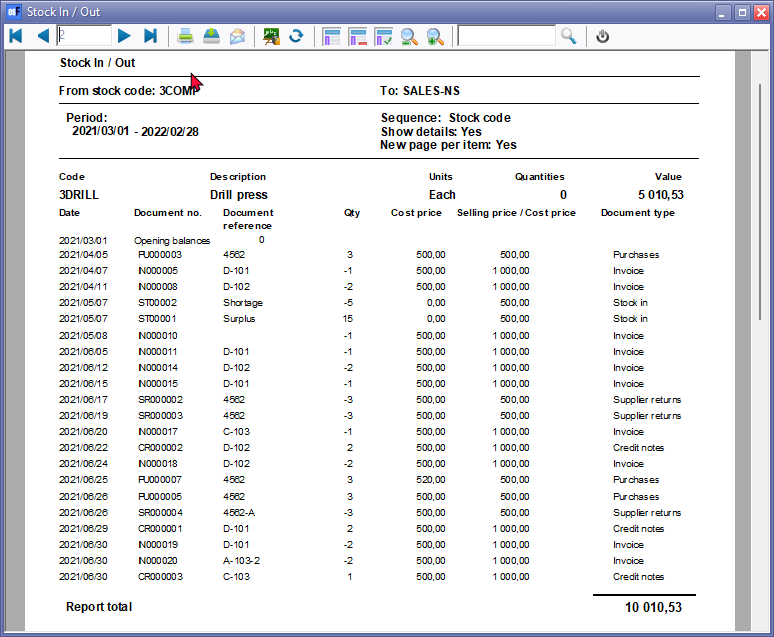
An example of the "Stock In / Out" report ("Show details" and "New page per item"), is as follows:
Page 1 - Compressor
Page 2 - Drill press
|
|
The document numbers for Invoices, Credit notes, Quotes, Purchases, Supplier returns and Orders, as prefixed in the Documents setup (Setup ribbon), makes it easy to identify the document type. In addition to these standard document numbers, the following documents may be included:
|