Unprinted document listing - Purchase documents (Reports menu)
This option allows you to print a list of all posted and unposted purchase documents (i.e. Purchase documents, Supplier returns and Orders) for selected creditor (supplier / vendor) account(s), which is not printed.
Unprinted document listing - Purchase documents report options
To print Unprinted document listing per account reports:
- On the Reports ribbon, select Reports → Documents → Unprinted document listing → Purchase documents.
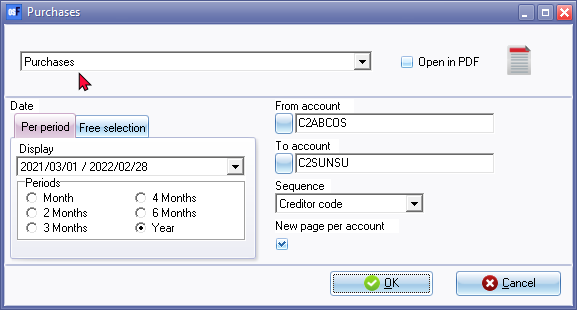
- Select the following:
- Report - By default, Purchases is selected. Select purchase documents (i.e. Supplier returns or Orders).
- Period - Select the period on the Per period tab. You may click on the Free selection tab to select a specific date or a range of dates.
- From... To... - Select a creditor (supplier / vendor) account or a range of creditor (supplier / vendor) accounts, to include in this report.
- Sequence - Select "Creditor code" to print the report by account code or "Description" to print the report by account description (name).
- New page per account - If this option is selected (ticked), it will print the transactions for each account on a new page.
|
|
The Company details will not be printed as in the Page header. The company name is displayed in the Page footer. |

- Click on the OK button.
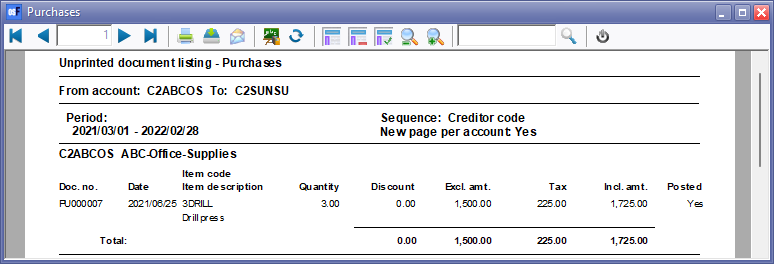
Printed : Unprinted document listing - Purchase documents report - Purchases
An example of the "Unprinted document listing - Purchases" report, is as follows: