
Import documents
This option will allow you to import data for sales documents (invoices, credit notes and quotes) as well as purchase documents (purchases, supplier returns and orders) from a valid file format into an existing Set of Books.
To be able to import the data for sales documents (invoices, credit notes and quotes) as well as purchase documents (purchases, supplier returns and orders), you need to have created a valid XML Database File format on your system in Export (Setup ribbon).
To import documents:
- On the Setup ribbon, select Import. The "Import Data into osFinancials" screen is displayed:
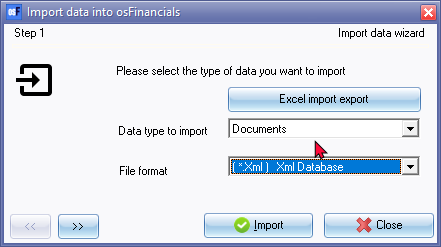
- Select Documents as the Data type to import, if not already displayed.
- Select a valid exported in which the data to import, is saved on your system.
- Click on the
 button to locate the data file. The following screen is displayed: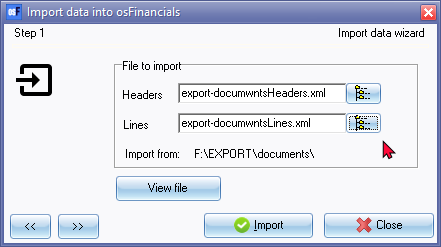
- Click on the
 button to locate the data file.
 - Click on the button. The following screen is displayed:

- Click on the Import button. The "ImportCheck" screen is displayed:
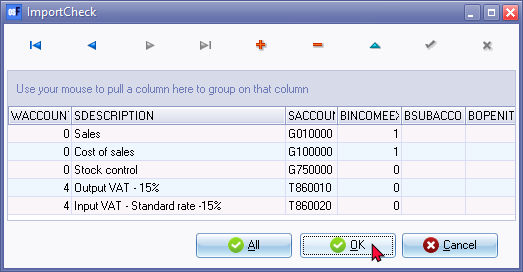
- You may use the record buttons to add, delete or change the stock records on the "ImportCheck" screen. You may then click on the All or OK buttons to import the stock file.
- Once the import process is finished an information message is displayed:
"Data file import completed!"
- Click on the OK button.
- Go to the Default ribbon and select Documents to edit the stock items, if necessary.