Context menu - Print labels
This option allows you to print the postal address labels of the selected debtor (customer / client) account(s) for which sales documents (i.e. Invoices, Credit notes or Quotes) were processed.
If purchase documents (i.e. Purchases, Supplier returns or Orders) were selected, it will print the postal address labels for creditor (supplier / vendor) account(s).
|
|
You may also print the Postal address labels or Delivery address labels for debtor (customer / client) accounts from the Reports → Debtors → Print labels menu on the Reports ribbon. You may also print the Postal address labels or Delivery address labels for creditor (supplier / vendor) accounts from the Reports → Creditors → Print labels menu on the Reports ribbon. |

To print labels for selected stock items:
- On Documents (Documents list screen) (Default ribbon), select the Document type, if the correct document type is not selected.
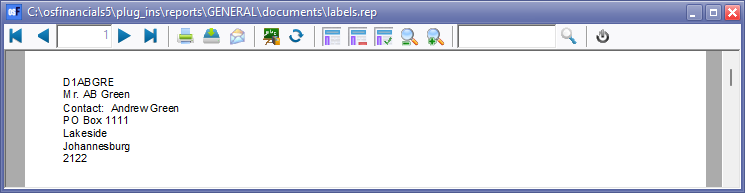
- Select the Document(s), right-click and select Print → Labels on the context menu. This will print the postal address labels of the selected debtor (customer / client) or creditor (supplier / vendor) account(s).
An example of a printed postal address labels, is as follows: