Debtor accounts - Documents tab
All sales documents (i.e. Invoices, Credit notes, Quotes and / or POS Invoices) which have been processed for the selected debtor (customer / client) account will be listed here.
|
|
To maximise the Documents tab and / or Debit / Credit transactions section of the screen, click on the |

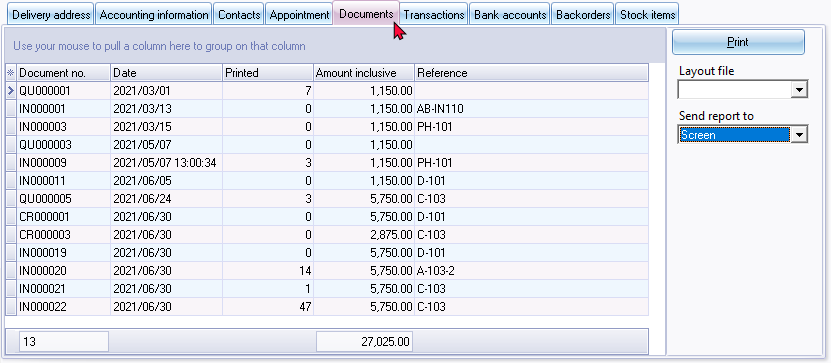
The options are as follows:
- Print button - This will print the selected document to the default or selected output method.
|
|
You may also double-click on a selected document to print it. |
- Layout file - This is by default blank. The selected document will be printed using the layout file as selected for each document type (i.e. Invoices, Credit notes and Quotes) in Documents setup (Setup → Documents setup).
|
|
If specific layout files is selected on the Delivery address tab of a debtor (customer / client) account, te layout files will be used to print the selected documents. |

|
|
You may change the layout file by selecting a layout file from the list. These layout files are stored in the ...\plug_ins\reports\DOCUMENTS\DOCUMENTS directory of your system. |
- Send report to - The default option as set in the "Output Method" field on Setup → Company info (Options) or Setup → Access control (Reports access tab). You any change this to any other option (i.e. "Screen, Printer, File, E-mail" or "Fax"), if required.
|
|
You may click on the column headings (i.e. Document number, Date, Description or Reference) to change the sort sequence from the ascending to the descending sequence. You may also click and drag any of the column headings to the left or right to change the sequence in which the columns are to be displayed. |
View Transactions - Show transact context menu
|
|
The Documents tab lists all posted and unposted documents (i.e. Invoices, Credit notes and Quotes. The Show transactions context menu option will not do anything, if an order or an unposted document is selected. |

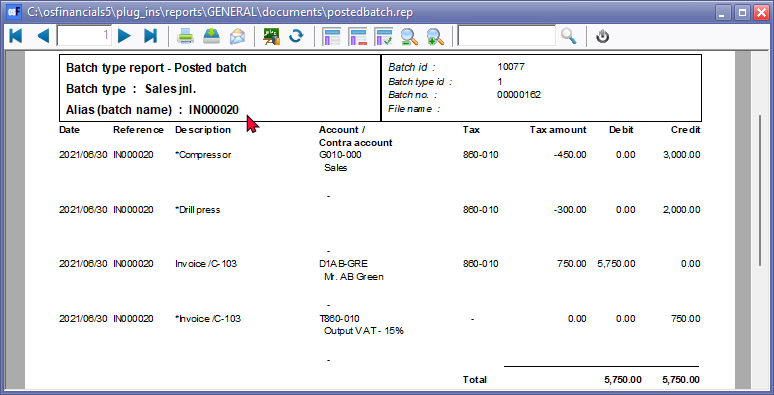
- Select a document (Invoices or Credit notes) and right-click, select Show transactions. The posted batch transactions will be displayed in the "Transactions" screen.
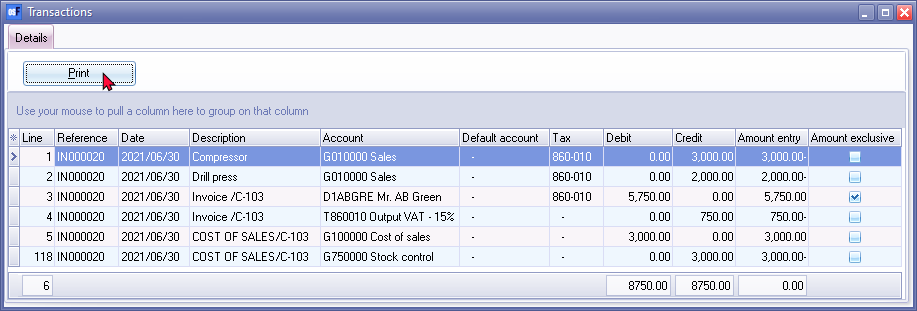
- Click on the Print button to print the posted batch transactions, if required.