
Creditors - Transactions - Standard / Extra details (Reports menu)
The "Creditor transactions - Standard" and "Creditor transactions - Extra details" report lists all the transactions in documents and batches which are posted (updated) to the ledger.
The "Creditor transactions - Extra details" report is similar to the "Creditor transactions - Standard" report, but displays extra details of the Contra accounts (i.e. Account code, Account description, Contra account code and Description as well as the Tax account code and Description). For example, "G750000 Stock control,T860020, Input VAT - Standard rate - 15%", etc.
|
|
This report only includes batch and document transactions which are posted. Unposted batches and documents will be NOT be included in this report. To view a list of unposted batches and documents, which is not updated to the ledger, go to Input → Checking unposted items (Default ribbon). |

Creditor transactions - Standard / Extra details report options
To print Creditor transactions - Standard / Creditor transactions - Extra details reports:
- On the Reports ribbon, select Reports → Creditors → Transactions.
- Select "Creditor transactions - Standard" or "Creditor transactions - Extra details".
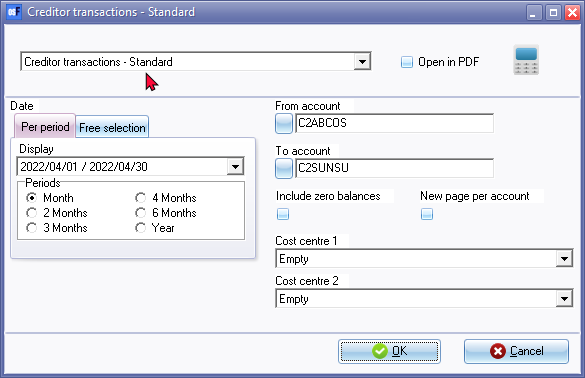
- Select the following options:
- Period - Select a period on the Per period tab. You may click on the Free selection tab to select a specific date or a range of dates to include transactions in the report.
- From ... To - Select a creditor (supplier / vendor) account or a range of creditor (supplier / vendor) accounts, to include in the report.
- Include zero balances - If this option is not selected (not ticked), it will list only the transactions for accounts which has transactions and / or balances. Tick this option to include opening balances (closing balances before the selected periods / dates).
- New page per account - If this option is selected (ticked), it will print the transactions for each account on a new page.
|
|
The Company details will not be printed as in the Page header. The company name is displayed in the Page footer. |

- Cost centre 1 / 2 - If you have activated Cost centres, you may select the Cost centres.
- Click on the OK button.
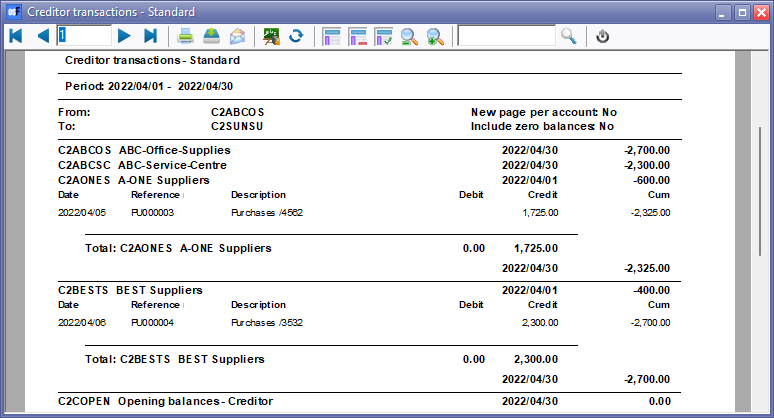
Printed : Creditor transactions - Standard report
Printed : Creditor transactions - Extra details report
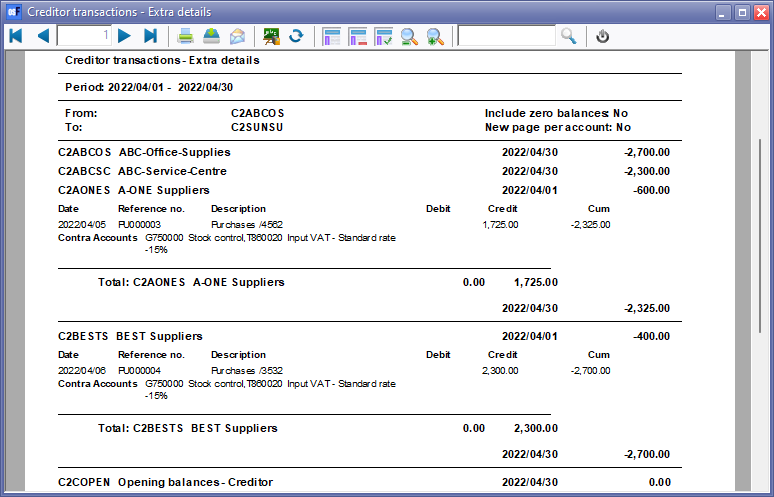
The details on the report, is as follows:
- Page header 1 - Company details - This will only print on the fist page.
|
|
If the "New page per account" option on the report parameters is selected (ticked), the Company details will not be printed in the Page header of the first page. The company name is displayed in the Page footer of all pages. |
- Page header 2 - Report name and Parameters as selected on the Report options will display below the Company details on the first page and at the top of each subsequent page.
- Header group - The Account code and Name (description). It also displays the date and opening balances of the previous year.
- Detail - List the transaction details for each account.
- Reference - The reference number of the document (i.e. Purchases and Supplier returns) or the reference number entered in the reference column on the Batch entry screen.
- Date - The date of the transaction or document.
- Description - The stock item code or the account description (if the Financial entry stock item type was selected on a document) of the document (i.e. Purchases and Supplier returns) or the description entered in the description column on the Batch entry screen.
- Debit - The debit transaction amount.
- Credit - The credit transaction amount.
- Cum - The accumulative total of the transactions included in the account.
- Footer - Groups - Total / Balance - Displays the total of the transactions and the closing balance for each account.
- Page Footer - List the following:
- Data - Name of the Set of Books and the full path of the Set of Books (e.g. ...\books\BOOKSNAME\Books.fdb)
- System user and osFinancials user (Setup → Access control).
- Printed: The date and time of the system (computer) on which the report is printed.
- Page: Page number and the last page number of the report.