
Enter budget figures (Setup - Accounts)
To enter / change your Budget figures:
- On the Setup ribbon, select Setup → Accounts.
- Select the account to enter the budget figures.
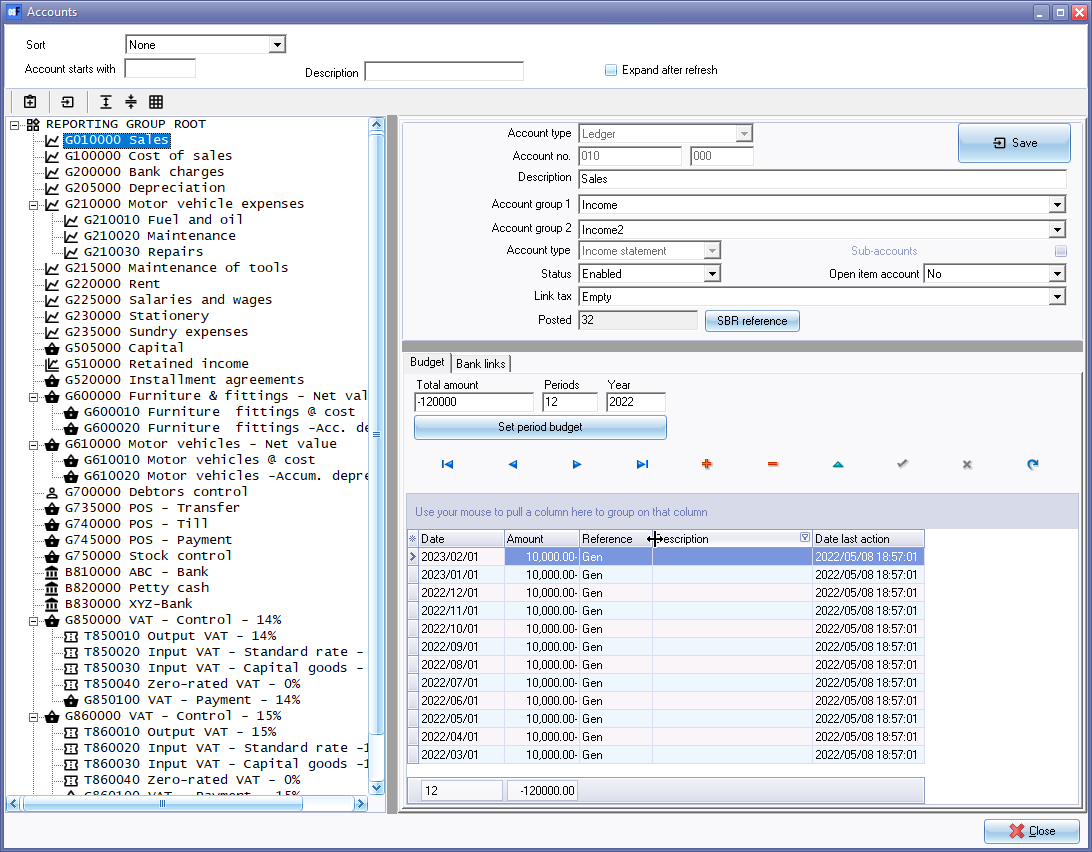
- Select the first account, i.e. “Sales” and enter the budget figure. Enter the annual amount of –120 000 in the “Total Amount" field and click on the Set period budget button.
|
|
For a credit amount, insert minus sign “–“. The credit amount will be indicated with a minus sign after the amount (e.g. 10,000.00– in the "Amount" column. For a debit amount just insert the annual amount without the minus sign “–“. The amount will automatically be divided this amount into 12 months in the "Amount" field. |

|
|
Each month can be overwritten so that the budget can be flexed month by month to accommodate seasonal trends and spending patterns of your business. The system will keep a running total for you, so that as you are flexing the monthly budget, you can see the effect on the annual amount. Budget figures can also be entered for for Balance sheet accounts (Capital, Liabilities and Assets), which may be used as a guideline to control the balances on these accounts. |
- Click on the Save button (next to the account description field).
|
|
If budget figures already exist for the account, and you click on the Save button, a similar confirmation message will be displayed: "Delete old budget for year 2022?" Click Yes to replace the existing budget figures. |

|
|
If you do not click on the Save button, any budget figures entered, or changed, will not be saved. |
- Select the next account and enter the budget figure.
- Continue to enter your budget figures for all accounts.
- When you are finished entering all your budget figures, click on the Close button (on the titlebar).