Spreadsheet - Import - General ledger accounts
Select the Set of Books which contains the Accounts (Chart of accounts) you need to export.
This option will allows you to import data for Account records from a valid Excel Workbook (*.xlsx) file format into an existing Set of Books.
To be able to import the data for Account records, you need to create a valid spreadsheet export file in the Excel Workbook (*.xlsx) file format from a Set of Books, you wish to import your system in the Export or Setup → Accounts menu (Setup ribbon).
To import accounts to a spreadsheet:
- In the Set of Books in which which you wish to import the Accounts to a spreadsheet file, go to Setup → Accounts (Setup ribbon).

- Click on the Spreadsheet icon. A blank "Data Import Export" spreadsheet will be displayed with the column headings of the "Accounts" table.
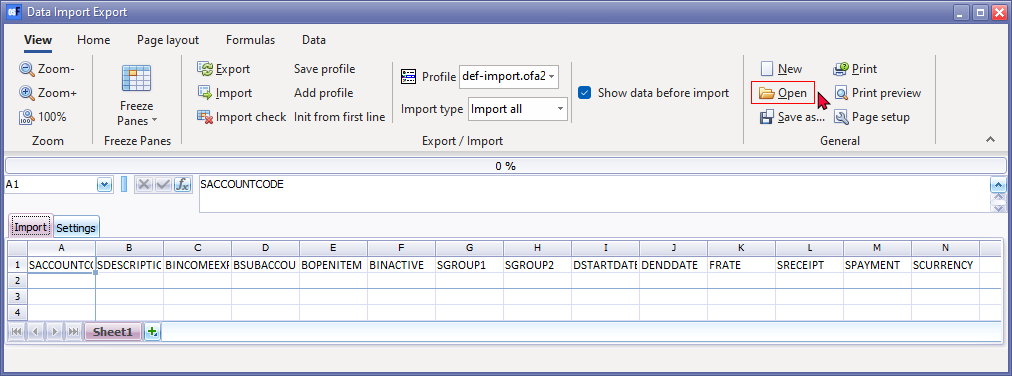
- Click on the Open icon on the "Data Import Export" screen.

- Locate a valid Excel Workbook (*.xlsx) saved file and click on the Open button. All the "accounts" (chart of accounts) included in the exported file is populated in the spreadsheet.

- To do a import check of the imported file, select (tick) the "Show data before import" option and click on the Import check icon.

|
|
Column L - "SRECEIPT" and column N - "SPAYMENT" background is in a Yellow colour. This indicates that special attention is needed with the Receipt batches and Payments batches linked to Bank accounts. You may proceed with the Import, but need to pay special attention to add and link payments and receipt batches to bank accounts, after the import. |

- Click on the Settings tab.
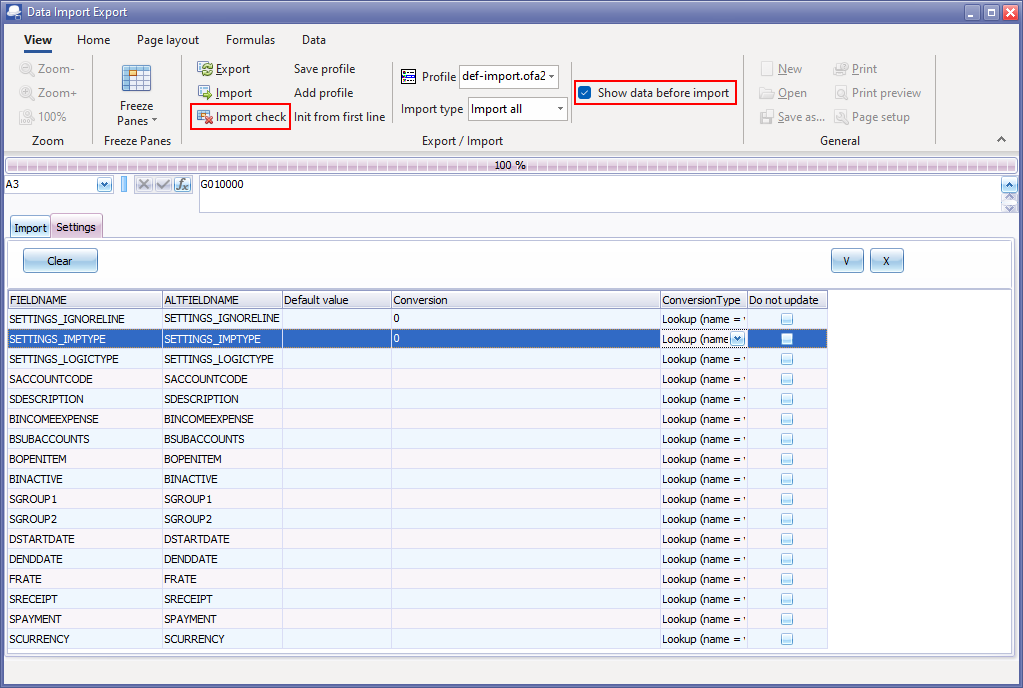
- Click on the Import icon.
|
|
Optional - Show data before import setting The "ImportCheck" screen (if the Import the "Show data before import" option was selected (ticked) on the "Data Import Export" spreadsheet screen) is displayed:
Click on the All or OK buttons to start the import process. |


- Once the import process is finalised, Column A will be displayed in a green background colour.
- Close the "Data Import Export" spreadsheet screen. The "Accounts" screen will list the imported chart of accounts.
After import
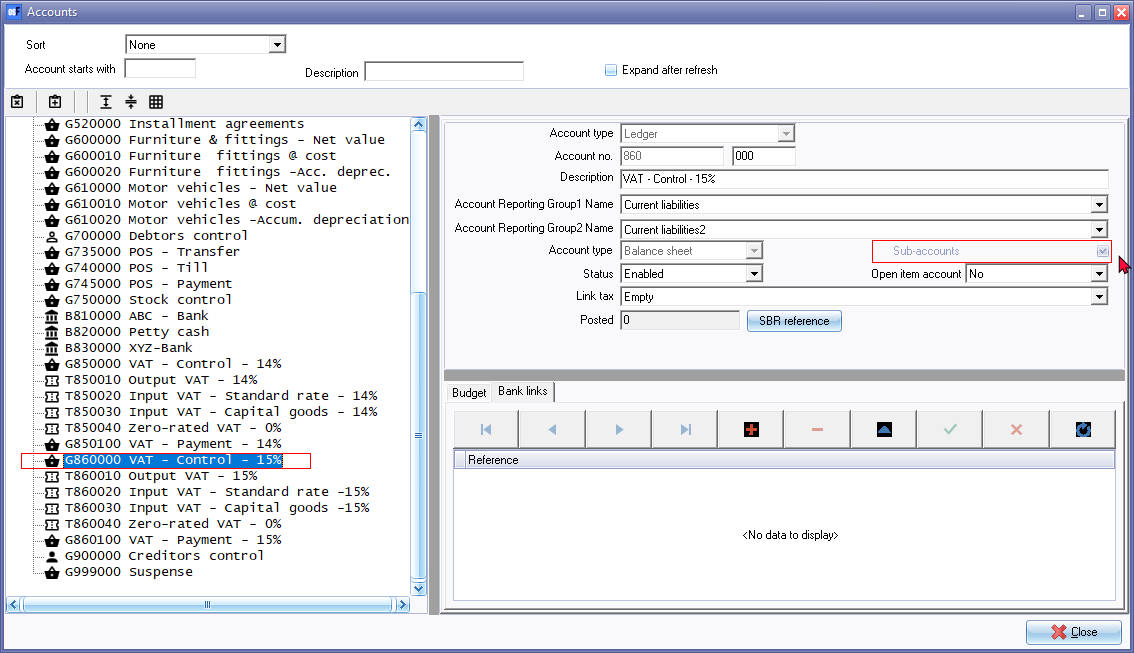
Imports accounts but no Sub accounts, etc. Sub-accounts greyed out but ticked for Main accounts
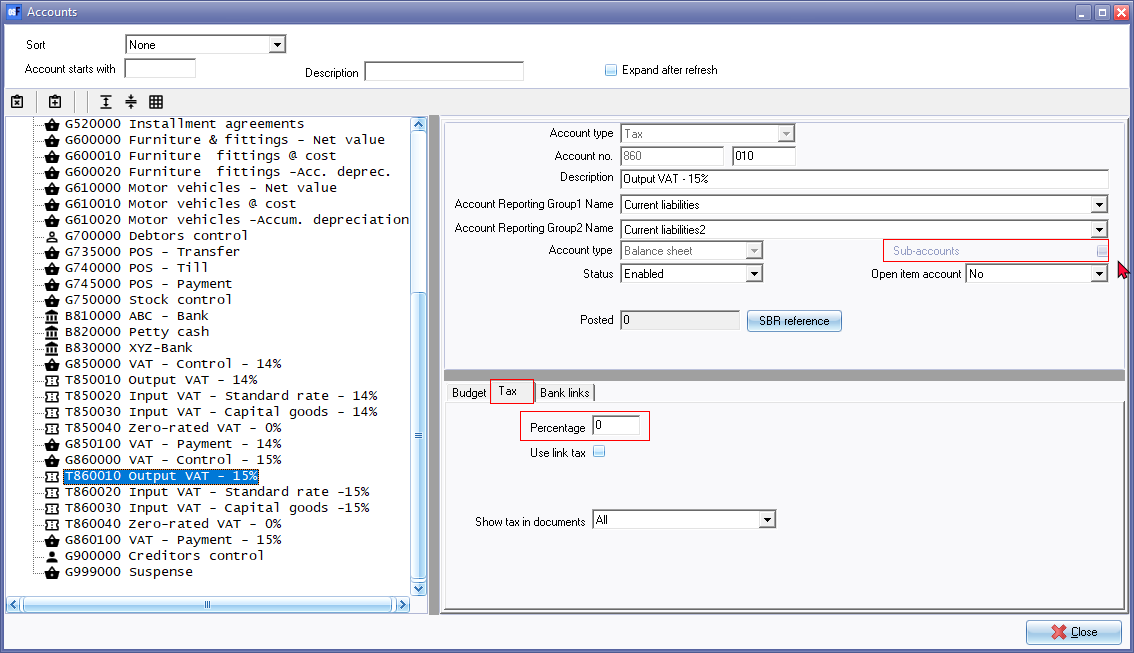
Imports tax accounts with Tax tabs but no tax percentages.